
Send SMS from a job
On this page · 5 sections
The RepairCMS app sends your customers SMS over the same seven.io connection as RepairCMS on your computer. You connect seven.io once on the web, and from then on the app and the web send through the same account and for the same events, and every SMS ends up in the same log. In the app, all that’s left is to choose whether the SMS comes with your business name or from your business number. When you book a job, change a status or close a job, one tap switches the SMS on. If you want to tell your customer something of your own, you write them a short SMS from the job chat, where your team can see it afterwards.
Connect once on the web
You store the API key of your seven.io account once in RepairCMS on your computer. That’s also where you confirm your customers’ consent and switch on the events that send an SMS: New job confirmation, Job status change and Repair complete. The article on setting up SMS with seven.io walks you through it step by step.
The app only shows an SMS switch for events that are switched on in the web app, and only if a mobile number is saved for the customer. As long as seven.io isn’t connected, the app shows “The seven.io SMS integration isn’t active”. Tapping it takes you to “Apps & add-ons”.
Choose the sender ID in the app
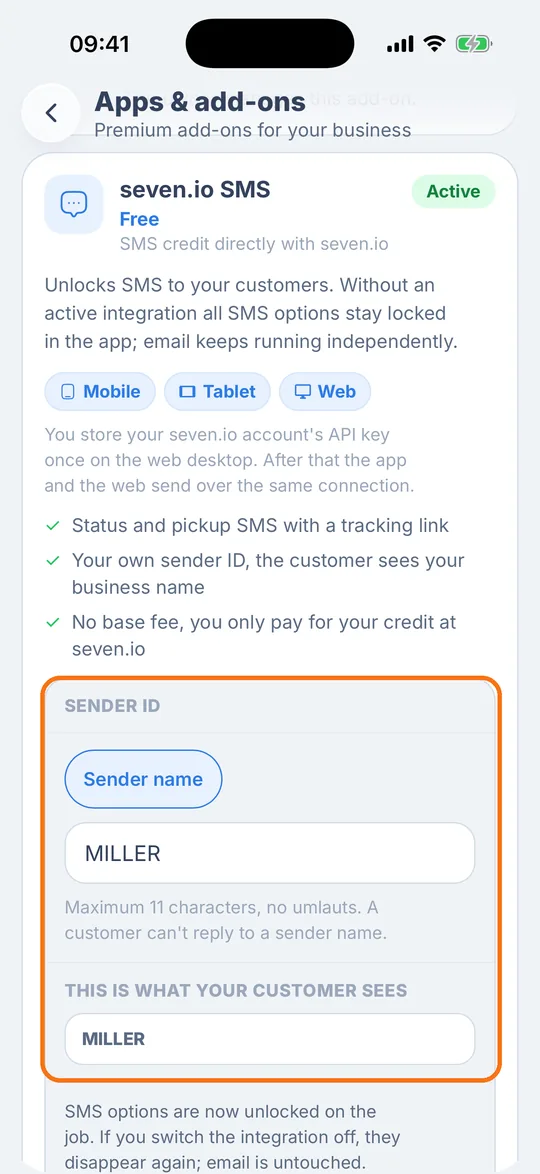
The sender ID is the sender your customer sees above the SMS. You pick it in the app, and it also applies to SMS from the web app, because both use the same connection.
- Tap “More” at the bottom, then “Apps & add-ons”.
- Open the “seven.io SMS” card.
- Under “Sender ID”, choose between “Sender name” and “Business number”.
- Sender name means the SMS comes with your business name. It has a maximum of 11 characters and no umlauts. A customer can’t reply to a sender name.
- Business number means the SMS comes from the number in your profile. If your customer replies, the reply goes straight to the phone with that number. This option appears as soon as your profile has a business number.
- Under “This is what your customer sees”, the app shows which sender appears at the top for your customer. The app saves your choice right away and shows “Changes saved”.
On Android, “Apps & add-ons” is included in every RepairCMS plan. On the iPhone, it’s included in the RepairCMS Business, Team and Enterprise plans. In every plan, you can also change the sender on the web, in the “Settings” tab of the SMS app under “Sender”.
Where the app sends SMS
When you book a new job
If New job confirmation is switched on in the web app and your customer has a mobile number, the summary in the last booking step shows the “Tracking link by SMS” switch. It’s already on. Your customer then gets an SMS right after the booking with the link that shows them where their repair stands. In the overview above it, the tracking link row says “By SMS” or “By email and SMS”.
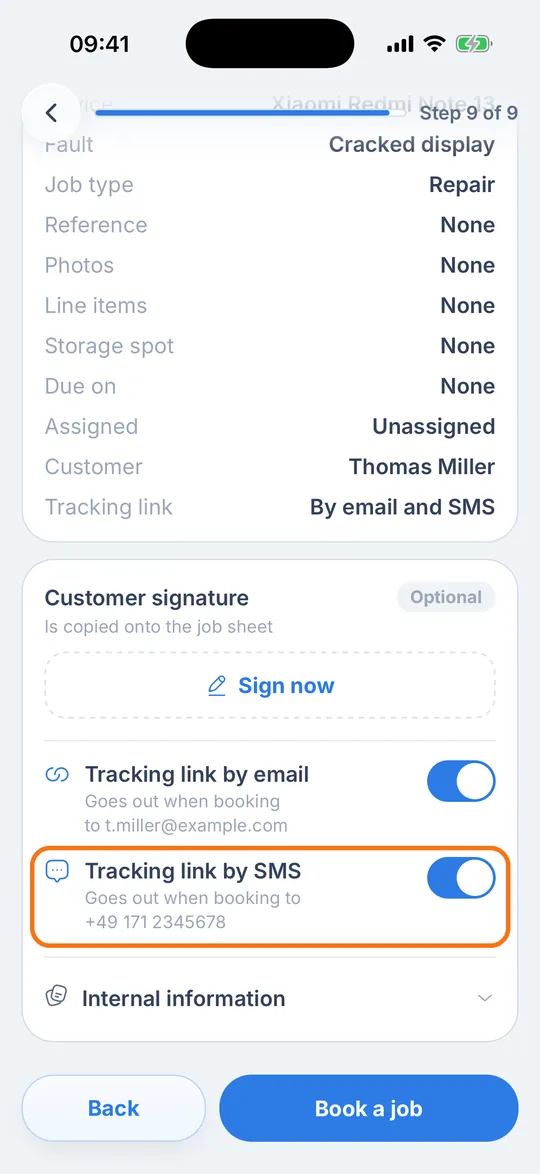
The switch can be changed by whoever is allowed to confirm the booking. Everyone else sees “Only the owner may change this” when they tap it.
When you change the status
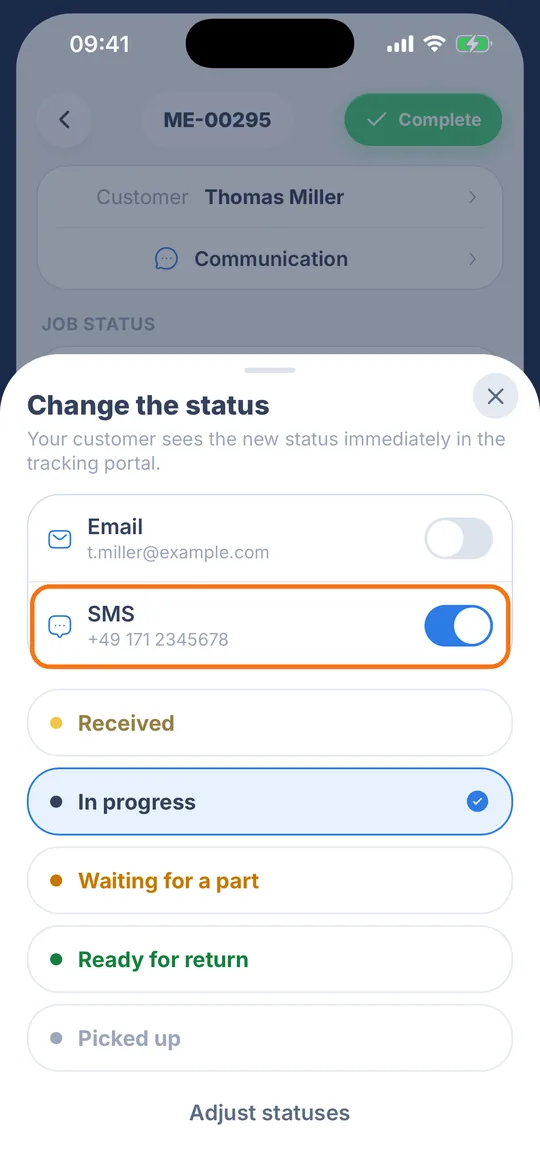
If Job status change or Repair complete is switched on in the web app, “Change the status” shows an “SMS” switch with your customer’s mobile number. It starts off, and you decide again with every change, just like with the email. If you turned it on, the app then confirms that your customer has been notified by SMS.
When you close a job
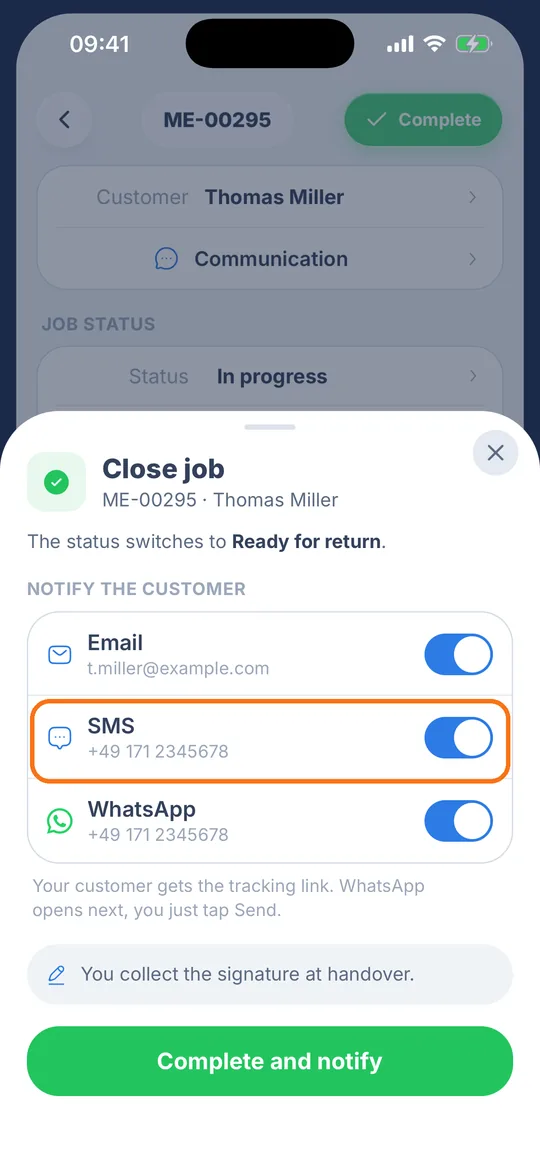
When you tap “Complete” on the job, the “Close job” sheet opens. Under “Notify the customer”, the “SMS” row sits next to “Email” and “WhatsApp”, each with its own switch. It appears under the same condition as for a status change. “Complete and notify” sends the SMS together with the other messages you switched on. The app remembers your choice on this phone, so the switches are already set for the next job.
A single SMS from the chat
Sometimes none of the automatic SMS fits, for example when you want to ask your customer to call you back. Then you write them a short SMS straight from the job. You do this from the “Communication” row on the job. It’s included in the RepairCMS Business, Team and Enterprise plans and in the 14-day trial.
- Open the job and tap the “Communication” row below “Customer”.
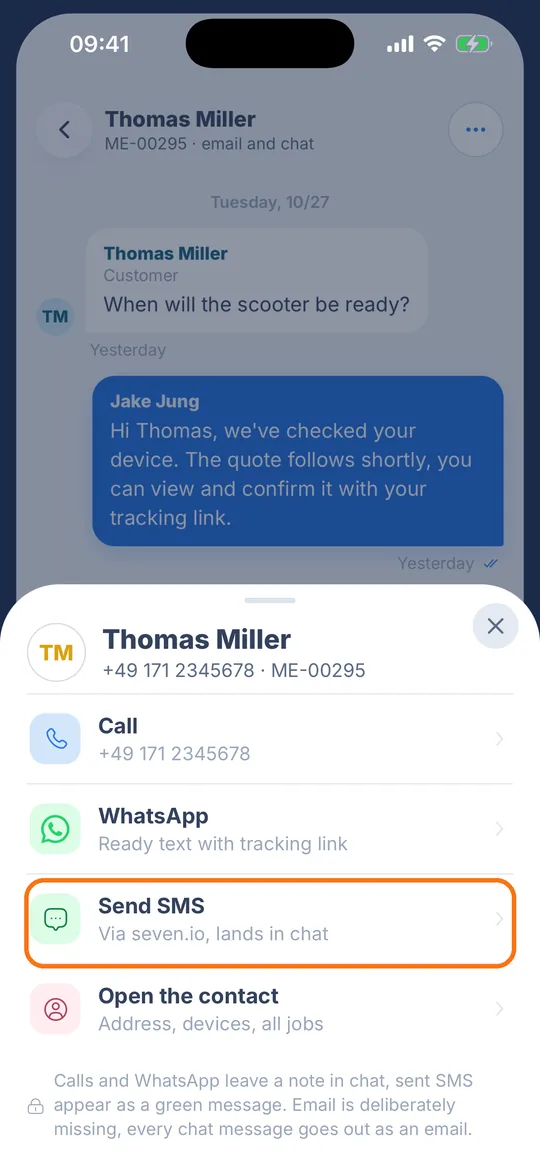
- In the chat, tap the round button with three dots at the top right. “Contact options” slides up from the bottom.
- Tap “Send SMS · Via seven.io, lands in chat”.
- The “Send SMS” sheet shows your customer’s mobile number at the top with “· via seven.io”. Tap one of the three templates, such as “Ready for collection” or “Please call back”, or type your own text into the “Short message to the customer” field. The counter shows how many of the 160 characters of one SMS you’ve used.
- Tap “Send SMS”. The app shows “SMS sent”.
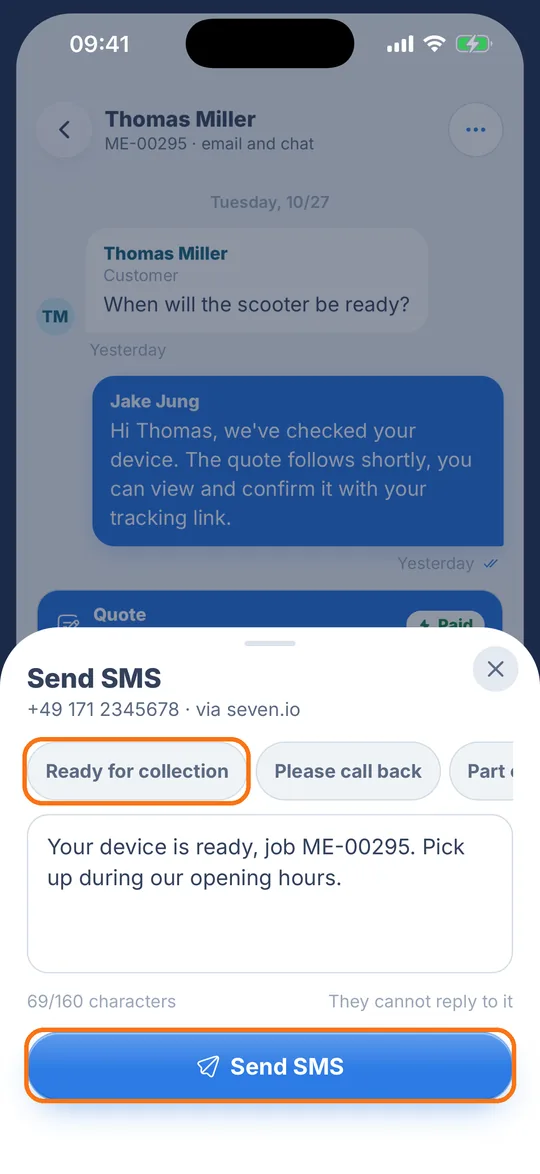
The note “They cannot reply to it” in the sheet means that no reply comes back into the chat. If you picked your business number as the sender ID, your customer can still reply, and the reply goes to the phone with that number.
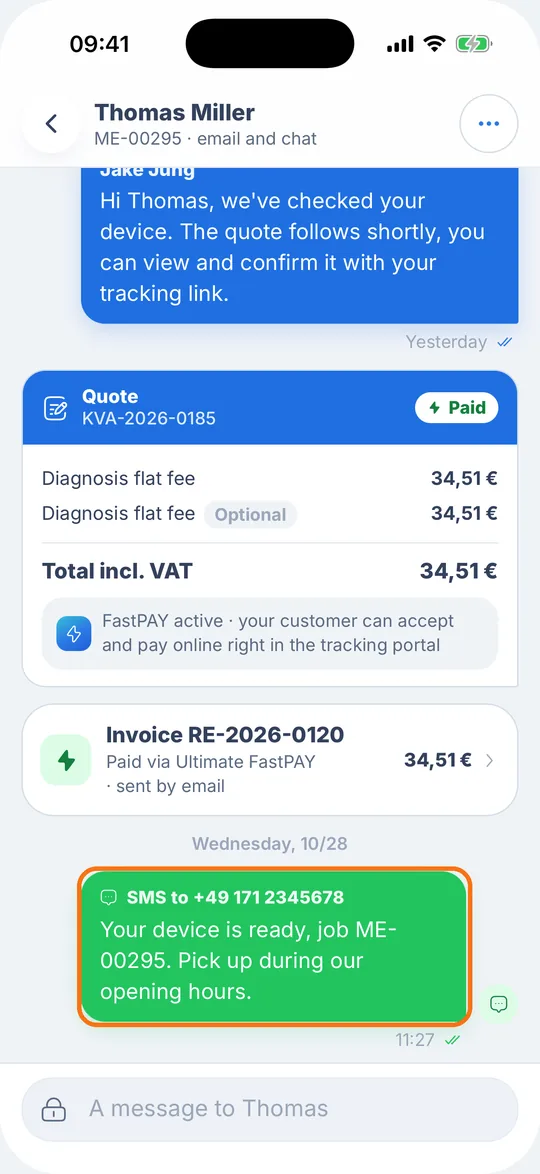
In the job chat, the SMS then shows up as a green bubble “SMS to …”. That way everyone on your team can see what your customer received without having to ask.
One account, one log for the app and the web
Whether you send the SMS from your phone or your computer, it goes through your seven.io account, and seven.io bills it directly to you. On the web, every SMS is listed in the “Logs” tab of the SMS app, with its result and, if it didn’t go out, the reason. If you switch an event off on the web, the matching switch disappears from the app as well. That way your whole workshop has one place that decides when your customers get an SMS.
Frequently Asked Questions
Can I set up SMS without the web app?
You store the API key of your seven.io account once in RepairCMS on your computer, together with your customers' consent and the events. After that the app sends over the same connection, and you pick the sender ID right in the app under “Apps & add-ons”.
Can my customer reply to the SMS?
You get replies when you choose “Business number” as the sender ID. The SMS then comes from the number in your profile, and the reply goes straight to the phone with that number. Replies never come back into RepairCMS, including the job chat. A customer can't reply to a sender name.
Does the sender ID from the app apply to the web app too?
Yes, the app and the web app use the same connection. If you choose a sender name or the business number in the app, SMS from the web app use that sender as well. On the web you see and change it in the “Settings” tab of the SMS app under “Sender”.
Why don't I see an SMS switch?
The app shows the SMS switch when seven.io is connected on the web, the matching event is switched on there and the customer has a mobile number. For a booking that's New job confirmation, for a status change and for closing a job it's Job status change or Repair complete. Without a connection, the app shows “The seven.io SMS integration isn't active”.
What does an SMS from the app cost?
seven.io bills every SMS from the app directly to the credit in your seven.io account, just like SMS from the web app. The SMS app itself is included in every RepairCMS plan. You see your balance on the web in the “Settings” tab of the SMS app.
Where can I see which SMS went out?
A single SMS shows up in the job chat as a green bubble “SMS to …”. All SMS, including those sent when booking, changing a status or closing a job, are listed on the web in the “Logs” tab of the SMS app, with result and reason.
What happens if I deactivate the SMS integration in the app?
“Deactivate” disconnects seven.io for your whole business. After that no more SMS go out to your customers, neither from the app nor from the web app, and the SMS switches on the job disappear. Emails keep going out as before. To send SMS again, you connect seven.io again on the web.
Did this guide help you?