
Connect a printer and print a test page
On this page · 11 sections
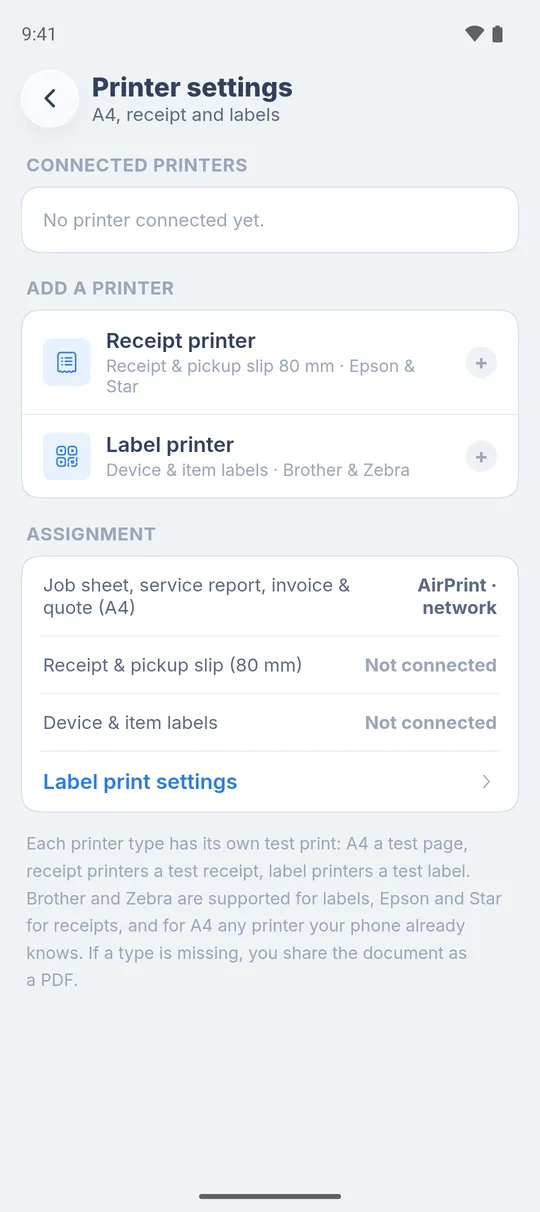
The RepairCMS app prints to three printer types. A4 goes through your phone’s print dialog, so there’s nothing to set up. Receipt printers (80 mm, Epson and Star) and label printers (Brother and Zebra) you connect under “More”, “Settings”, “Printer settings” over Wi-Fi or Bluetooth. Then you check each printer with a test print.
Which printer prints what
| Type | Prints | Brands | Connection |
|---|---|---|---|
| A4 | job sheet, service report, invoice and quote | any printer your phone already knows (Mopria on Android, AirPrint on iOS) | your phone’s print dialog |
| Receipt 80 mm | receipt and pickup slip | Epson and Star | Wi-Fi or Bluetooth |
| Labels | device and item labels | Brother and Zebra | Wi-Fi or Bluetooth |
Tested for mobile label printing: the Brother TD series in 2 and 4 inch with network support.
No printer: You can share any document as a PDF instead, for example by email or messenger.
What you need
- Phone and printer on the same Wi-Fi, or the printer reachable over Bluetooth.
- The printer switched on and awake.
- The app allowed to use “Local network” and “Bluetooth”. The app asks for both during setup. Later you find them under “More”, “Settings”, “App permissions”.
Printing A4
There’s nothing to connect for A4 in the app. When you tap the printer icon on an A4 document, your phone’s print dialog opens and you pick the printer there. On Android this runs through Mopria, on iOS through AirPrint.
Step by step: connect a receipt or label printer
- Tap “More” at the bottom, then “Settings” and “Printer settings”.
- Under “Add a printer”, tap “Receipt printer” or “Label printer”. The app starts searching over network and Bluetooth right away.
- Printers it finds appear in the list. Tap “Connect” next to the right one.
- The printer now shows under “Connected printers”. For a label printer the app takes care of the roll straight away, see below.
Printer doesn’t show up: Some printers don’t announce themselves on the network. Type the printer’s IP address into the field below the search, for example 192.168.1.25, and tap “Connect”. For a label printer, pick the brand and series under “Printer language” first.
Label printer: the roll
Labels only print right when the app knows the loaded roll. So right after connecting, the app asks the printer itself.
- The printer answers: The app takes the size and shows “Roll … · confirmed”. There’s nothing for you to do.
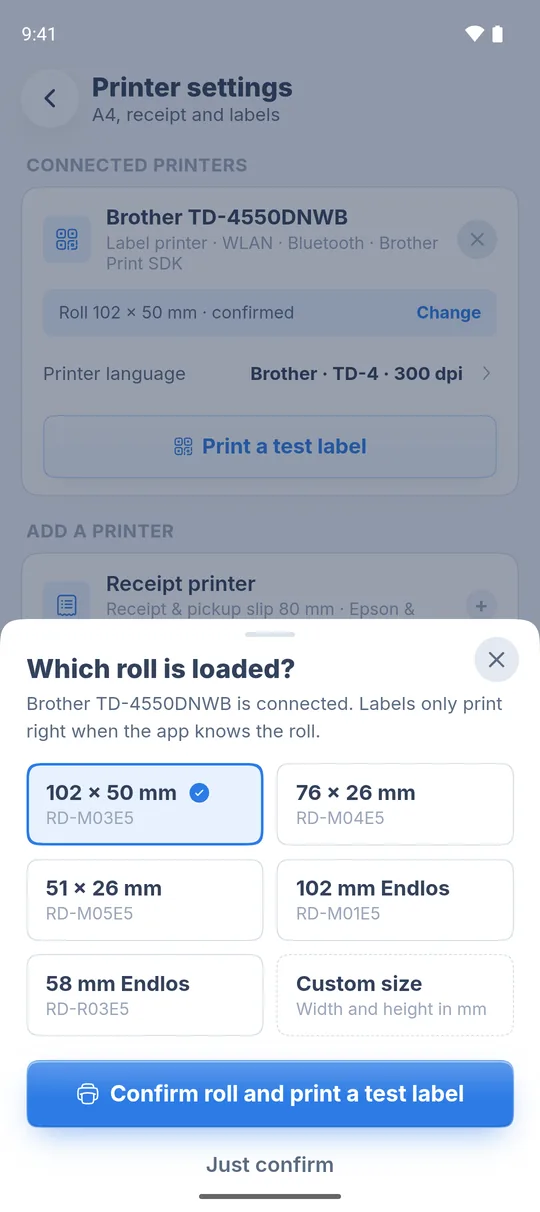
- The printer doesn’t answer, for example over Bluetooth: the app asks you “Which roll is loaded?”.
To answer the question:
- Tap the size that’s in the printer.
- Tap “Confirm roll and print a test label”. Without a test print, tap “Just confirm”.
- If no size fits, tap “Custom size”. The label print settings open, and you enter “Width (mm)” and “Height (mm)” there.
The printer card then shows “Roll … · confirmed”. “Change” lets you pick another roll. If the card says “Roll not confirmed”, labels may not print correctly.
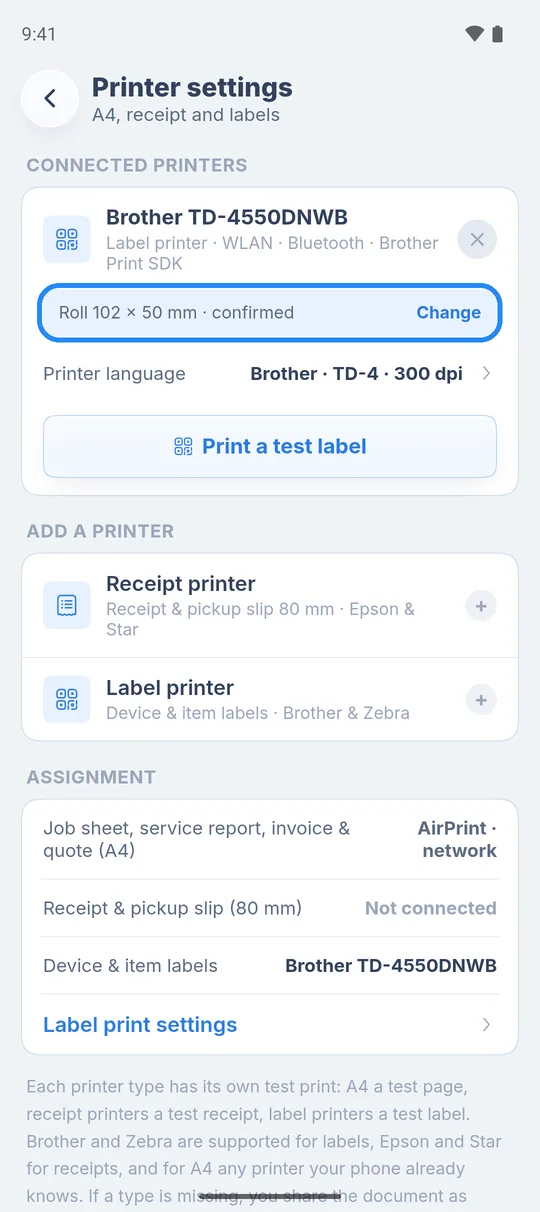
Changed the roll: When you open “Label print settings”, the app asks the printer again. If you loaded a different roll, it then shows under “Loaded roll:”. If the chosen label size no longer fits the roll, the app shows a warning.
Receipt printer: printer language and paper
A receipt printer’s card shows “Printer language” and “Paper”. The app suggests both from the printer’s name. If characters are missing or the receipt cuts off, tap “Printer language” and try another setting.
Test print
- Open “More”, “Settings”, “Printer settings”.
- On the printer’s card, tap “Print test receipt” or “Print a test label”.
- The button shows “Sent ✓” once the printer has taken the job.
The test receipt already carries your company name and address, as far as you have entered them. If nothing comes out, see the help below.
Assignment: which document goes to which printer
Under “Assignment” you see which printer prints which document. If you have several printers of the same type, tap the row and pick the default. Content and size of the device label are set under “Label print settings”.
Help with “No printer found”
After ten seconds without a hit the app says “No printer found. Check that phone and printer share the same Wi-Fi and that the printer is awake.”
- Check that phone and printer are on the same Wi-Fi. A guest network often keeps devices apart.
- Wake the printer, for example by pressing the feed button.
- Under “More”, “Settings”, “App permissions”, check that network and Bluetooth are allowed.
- Tap “Search again”.
- If the app still can’t find the printer, type its IP address by hand.
What’s next
- Print documents: Print documents: job sheet, device label, receipt, service report
- Create your first job: Book your first repair order
- Setup overview: Set up your business and start the trial
Frequently Asked Questions
Which label printers work with the RepairCMS app?
Label printers from Brother and Zebra. Tested for mobile label printing is the Brother TD series in 2 and 4 inch with network support.
Do I need to set up my A4 printer in the app?
No. A4 goes through your phone's print dialog, on Android through Mopria, on iOS through AirPrint. You pick the printer when you print.
Why does the app ask about the roll?
The app only prints correctly when it knows the size of the roll. Usually it reads the roll straight from the printer. Only when the printer doesn't answer, for example over Bluetooth, does it ask you once after connecting.
Can I work without a printer?
Yes. You can share any document as a PDF. Connect a printer whenever it suits you.
Did this guide help you?