
Complete a job and hand over the device
On this page · 6 sections
When the repair is done, tap “Complete” at the top right of the job. The status switches to “Ready for return”, visible at once in the tracking portal and by email if you like. At pickup, tap “Hand over device” and let the customer sign on the screen. The status then becomes “Picked up”.
How a job moves through the app
| Status | What it means |
|---|---|
| In progress | you’re repairing |
| Ready for return | repair done, the customer can collect |
| Picked up | the device is back with the customer, with or without a signature |
Step by step: complete a job
- Tap “Jobs” at the bottom and open the job.
- Tap “Complete” at the top right. The “Close job” sheet opens.
- Under “Notify the customer” there’s the “By email” switch. When it’s on, your customer gets the tracking link by email. If the customer has no email address, it says “No email on file”.
- Tap “Complete and notify” or, with the switch off, “Complete without notifying”.
The app confirms with “Completed · customer informed by Email” or “Completed · without notification”.
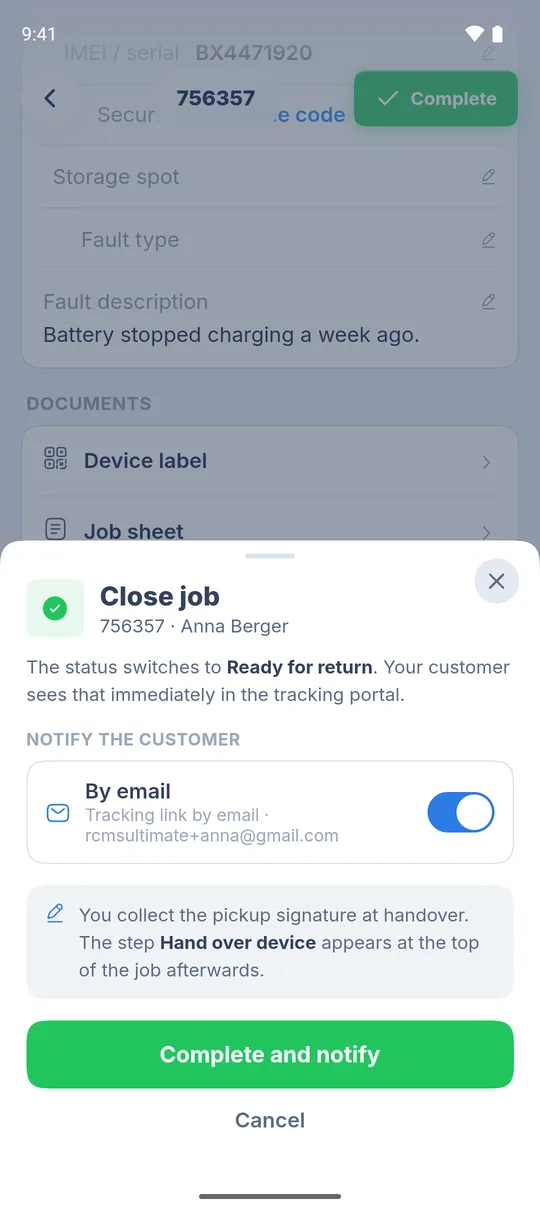
Tracking portal: Your customer sees the new status straight away in the tracking portal, even without an email. They got the link when you booked the job, or as a QR code on the job sheet.
Step by step: hand over the device
After completing, the top of the job says “Ready for pickup”.
- When the customer arrives, tap “Hand over device”.
- Tap “Collect a signature” and hand the customer your phone. They sign on the screen.
- Tap “Confirm handover”. Without a signature, tap “Hand over without a signature”.
- The status switches to “Picked up”. The app confirms “Device handed over · signature saved”.
- In the same sheet you can print the “Service report” right away. Tap “Print”, otherwise “Done”.
The top of the job then shows “Handed over” with date and time.
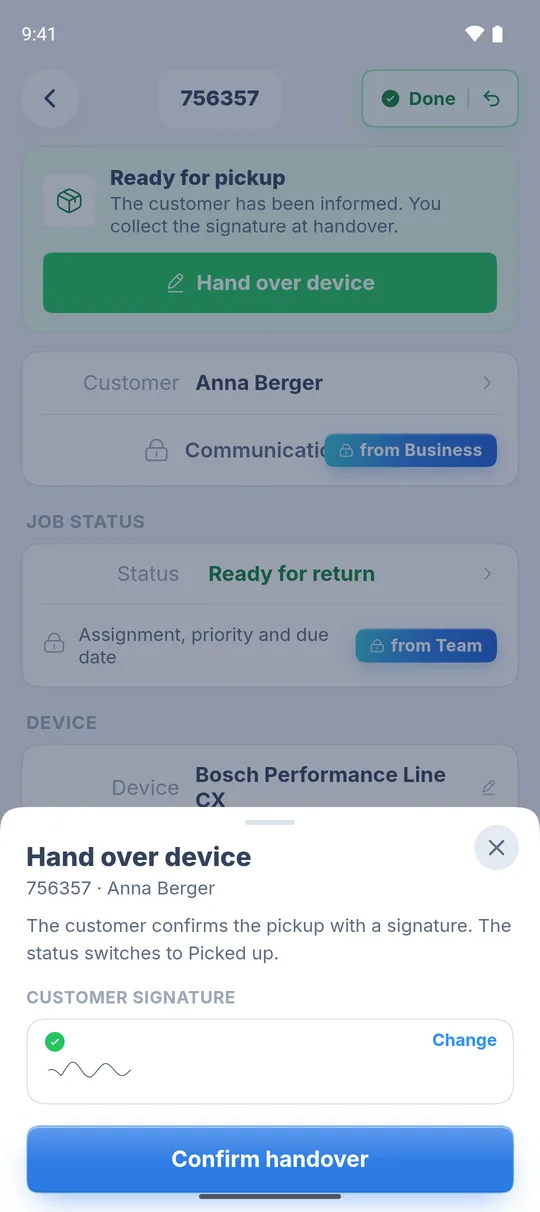
The signature belongs to the job: The pickup signature is saved on the job. That way you can show later that the customer received their device.
Undo a completion
If you completed a job too early, for example because a test is still missing:
- Open the job.
- Tap the green “Done” button with the arrow at the top right.
- The status goes back to “In progress”. The app confirms “Completion undone”.
This works as long as the device hasn’t been handed over. After “Picked up”, the top only shows “Picked up”.
What’s next
- Print documents: Print documents: job sheet, device label, receipt, service report
- Take in the next job: Book your first repair order
- What Go includes: RepairCMS Go: what’s included and what isn’t
Frequently Asked Questions
How does my customer find out the device is ready?
They see the status "Ready for return" straight away in the tracking portal. If the "By email" switch is on and an email address is on file, they also get an email with the tracking link.
Does the customer have to sign at pickup?
With their signature on the screen, the customer confirms they got their device back. At handover you tap “Collect a signature”, and the signature is saved on the job so you can prove the handover later. It's optional, and “Hand over without a signature” lets you skip it.
I completed a job by mistake. What now?
Tap "Done" with the arrow at the top right of the job. The status goes back to "In progress". This works as long as the device hasn't been handed over.
Did this guide help you?