
Try it free for 14 days, then choose a plan
On this page · 8 sections
You can try RepairCMS free for 14 days, with everything in the Team plan and no payment details. The trial ends by itself, with no subscription. After that your business needs a plan: Starter, Business, Team or Enterprise. On Android the app shows you the way. Jobs, customers and documents stay saved.
What the trial includes
During the trial everything in the Team plan is unlocked, in the RepairCMS app and in the web app on your computer. You write invoices and quotes, add photos to jobs, message your customer right on the job, assign jobs within your team and manage items and stock. You can invite colleagues with their own login.
Anything that only comes with Enterprise, such as several locations and the included B2B partner portal, isn’t part of the trial. Jobs are unlimited during the trial and on every plan.
How the trial starts: On Android, sign up right in the app. After the confirmation code, tap “Start the trial”. On iPhone, create your account on the web and sign in to the app. Creating the account on the web starts the trial. The steps are in Install the app and create your account and Set up your business and start the trial.
Where you see how long the trial has left
As the owner you see in two places in the Android app how many days you have left:
- On home, the “Team trial active” card shows “… of 14 days left” and the “Upgrade” button.
- Under “More”, the row reads “Team trial active · … of 14 days left · then with a plan”. You’ll also find “Manage the plan” there.
“Upgrade” and “Manage the plan” both open “Plans compared”.
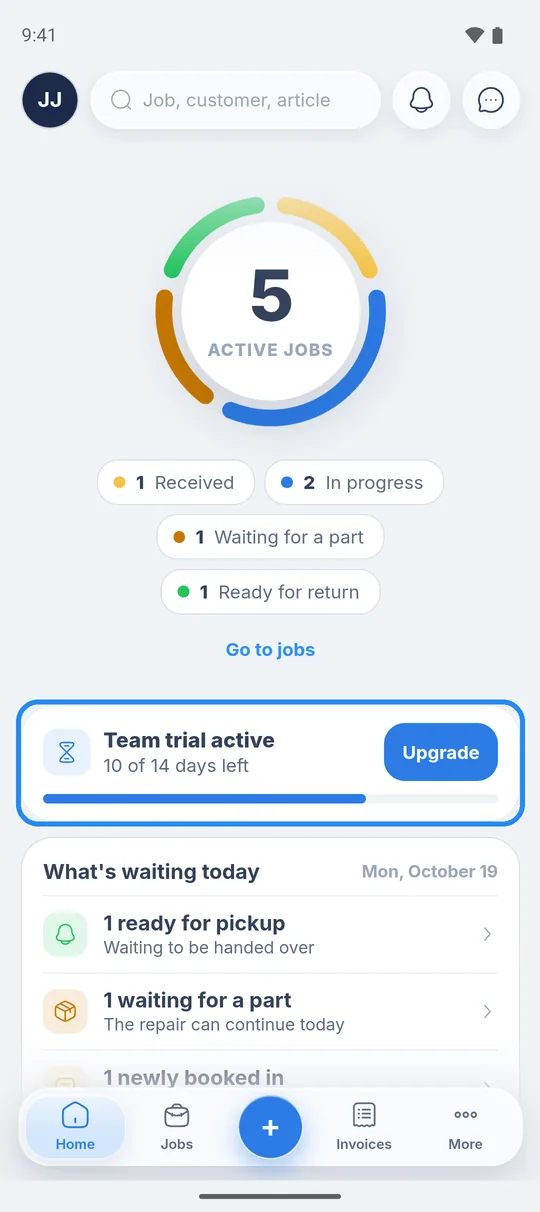
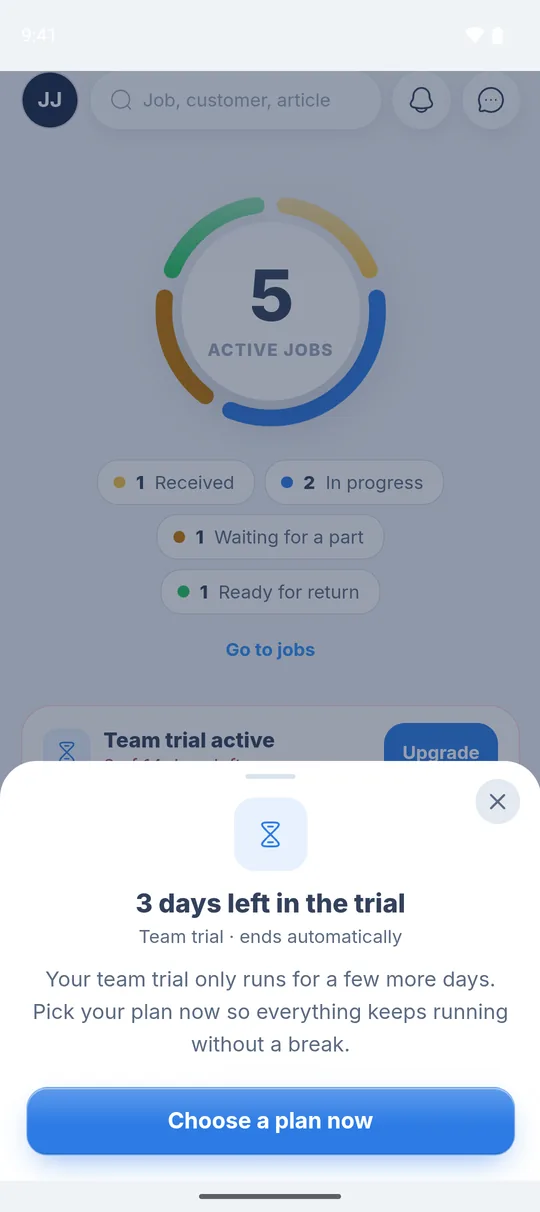
Shortly before the end the app reminds you with “… days left in the trial” and the line “Team trial · ends automatically”, and on the last day with “Your trial ends today”. It asks you to pick your plan now so everything keeps running without a break. In the last two days it also tells you that jobs, customers and documents stay saved. “Choose a plan now” opens “Plans compared”.
What happens after 14 days
If you don’t choose a plan by the end, you carry on working in the app once a plan is active. Jobs, customers, documents and photos stay saved. What you see depends on your role in the business and on your phone.
On Android as the owner
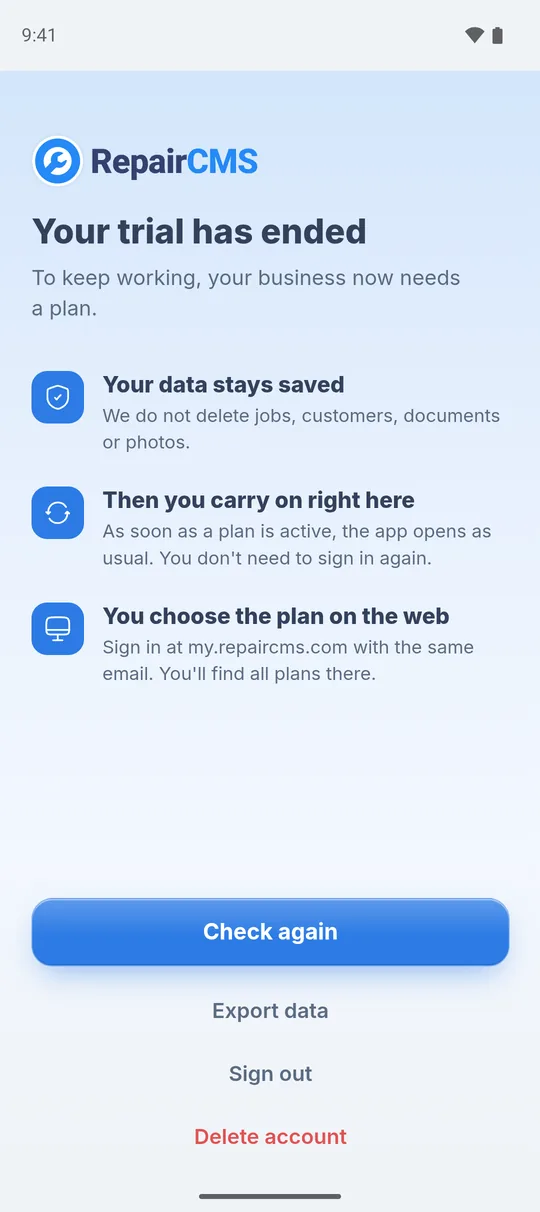
The app only shows the “Your trial has ended” page with the line “To keep working, your business now needs a plan.” Below it, three rows explain what happens next:
- “Your data stays saved”. RepairCMS doesn’t delete jobs, customers, documents or photos.
- “Then you carry on right here”. As soon as a plan is active, the app opens as usual and you don’t need to sign in again.
- “You choose the plan on the web”. You sign in at my.repaircms.com with the same email and find all plans there.
The page only has “Check again”, “Export data”, “Sign out” and “Delete account”. If you need a copy of your data, tap “Export data”. Once you’ve booked the plan on the web, tap “Check again”.
On Android as a team member
If you’re not the owner, the page is also called “Your trial has ended”. Below it says “There is no active plan for your business right now. The owner manages the plan.” You have “Check again” and “Sign out”, and “Delete my login” may show as well. Let your owner know. Once they’ve booked the plan, tap “Check again”.
On iPhone
On iPhone, jobs, customers, documents and photos stay saved as well.
Choose a plan and carry on
There are no purchases in the app. On Android it works like this:
- In the reminder, tap “Choose a plan now”. “Plans compared” opens and shows what each plan includes.
- Pick the plan that suits your business. You don’t book it in the app, below the plans it says “There are no purchases in the app.”
- As the owner, sign in at my.repaircms.com with the same email and book your plan there. It’s then active in the app straight away. How that works on the web is covered in Manage your plan and billing.
- Back in the app you carry on as usual. If it still shows “Your trial has ended”, tap “Check again”.
If the trial has already ended, start right at step 3.
What each plan includes
Each plan has everything from the one below it, plus more. Jobs are unlimited on every plan.
| Feature | Plan |
|---|---|
| Invoices with e-invoicing and a QR code for bank transfer | from Starter |
| Ultimate FastPAY, payment by link | from Starter |
| Data export as CSV and Excel | from Starter |
| Web app on your computer | from Starter |
| Quotes for online approval | from Business |
| Customer chat and email on the job | from Business |
| Photos and files on the job | from Business |
| Second user, inviting colleagues | from Business |
| Assigning jobs and team messages | from Team |
| Items and stock | from Team |
| Tracking portal without the RepairCMS logo | from Team |
| Several locations, B2B partner portal included | Enterprise |
During the trial you have everything in the Starter, Business and Team rows.
From the customer chat you can also open WhatsApp with your customer’s number.
When you tap a feature from a bigger plan
After the trial you work with what your plan includes. Features from bigger plans stay visible in the app, with the plan that includes them shown next to them, for example “from Business”.
- On Android, a tap opens “Unlock all features”. At the top you see the feature you tapped, marked “Just opened”. Below are “Upgrade now” and “See plans”, both open “Plans compared”. The cross at the top closes the page. The owner books a bigger plan on the web, as described above.
- On iPhone the page is called “Not included in your plan”. “Close” takes you back.
What’s next
- Plan and billing: Manage your plan and billing
- Create your account: Install the app and create your account
- Start the trial and set up your business: Set up your business and start the trial
Frequently Asked Questions
Is my data deleted after the trial?
No. Jobs, customers, documents and photos stay saved, even if your trial ends without a plan. As soon as a plan is active, the app opens as usual and you don't need to sign in again.
Can I work on a computer during the trial?
Yes. If you created your account in the Android app, you sign in at my.repaircms.com with the same details during the trial. After the trial, the web app comes with every plan, starting with Starter.
Where do I book my plan after the trial?
On Android the app shows you the way: on the web, in your RepairCMS account at my.repaircms.com. As the owner, sign in there with the same email you use in the app. The plan is then active in the app straight away. There are no purchases in the app itself.
What do my colleagues see when no plan is active?
On Android they see the “Your trial has ended” page with “There is no active plan for your business right now. The owner manages the plan.” Once you've booked the plan, they tap “Check again” and carry on.
Did this guide help you?