
Install the app and create your account
On this page · 8 sections
You get the RepairCMS app for Android free from Google Play. Open it, tap “Start for free” and, after a short tour, create your account with your name, email and password. A 6-digit code sent by email confirms your address. Then you choose your plan and set up your business. If you already have an account, tap “Sign in”.
What you need
- An Android phone or tablet with an internet connection
- An email address you actually read. RepairCMS sends the confirmation code there.
iPhone: The app is in the App Store as “RepairCMS Repair Shop Manager” (https://apps.apple.com/app/id6755876413). Create your account in your browser at https://my.repaircms.com/sign-up, which starts your 14-day trial. Then sign in to the iPhone app with those details. You can’t create an account in the iPhone app itself. The steps below are for Android.
Install the app (Android)
- Open Google Play on your phone.
- Search for “RepairCMS” or open the listing directly: https://play.google.com/store/apps/details?id=com.repaircms.ultimate&hl=en
- Tap “Install”.
- Open the app.

Create a new account
You create the account right at the start. Then you set up your business, already signed in.
- On the start screen, tap “Start for free”.
- A short tour follows. Tap “Next” or “Skip” at the top. One page asks a quick guessing question. Pick an answer and you can go on. On the last page, tap “Set up your business”.
- “Create account” opens (step 1 of 8). Under “Your name”, enter your first and last name.
- Under “Your email”, enter your email address.
- Choose a “Password” with at least 8 characters and tap “Next”.
- On “Confirm your email”, enter the 6-digit code from the email and tap “Confirm and continue”.
- Your account is ready. Now you choose how you start and set up your business. That’s covered in Set up your business and choose a plan.
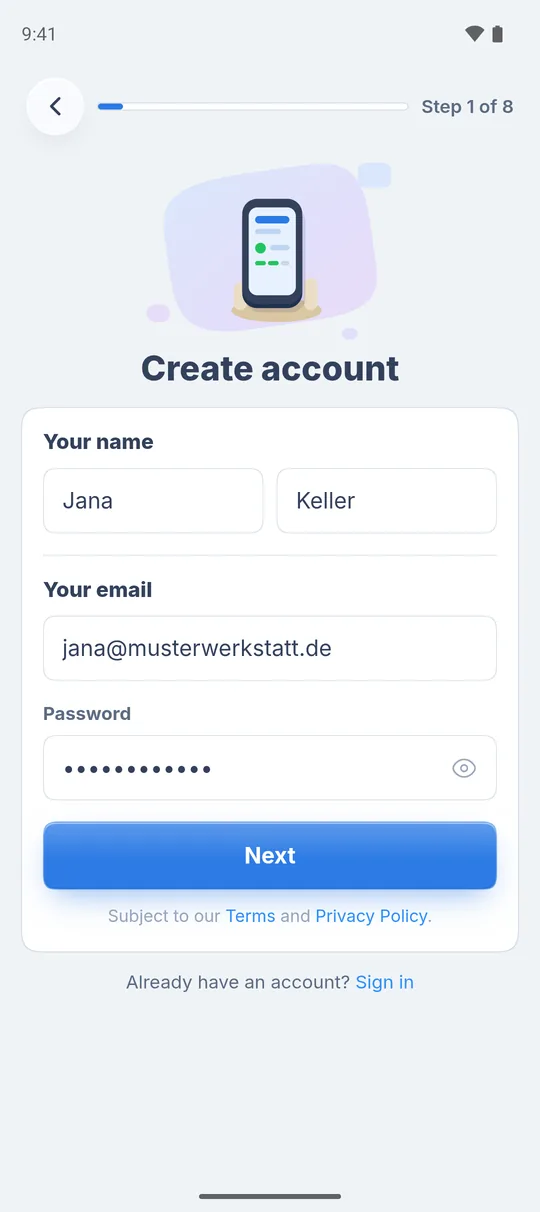
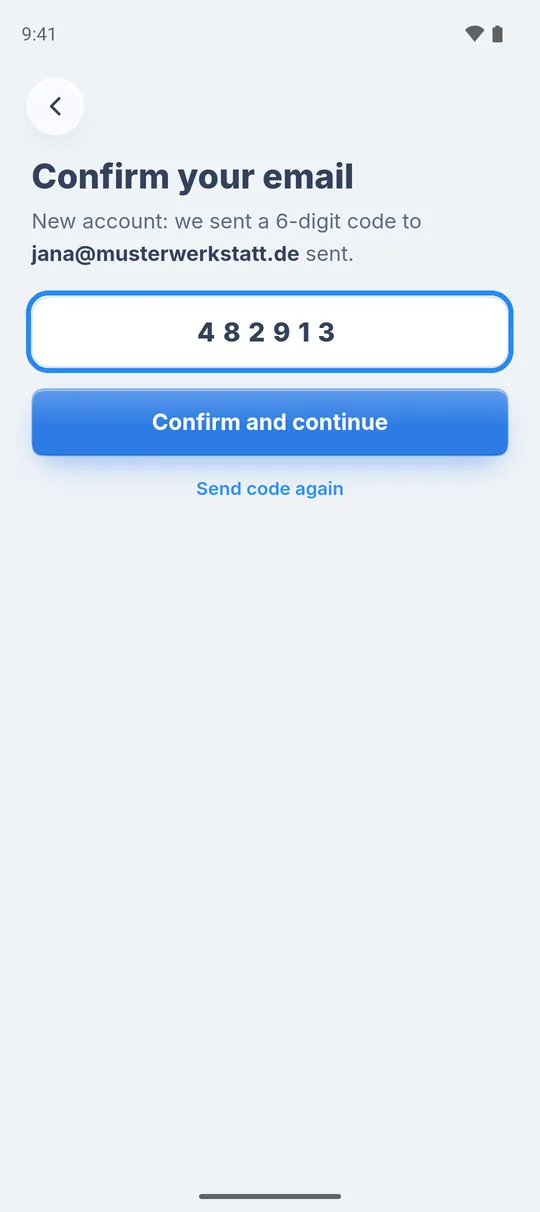
Required fields: First and last name need at least 2 characters each, the password at least 8. If something is missing, the app tells you below the button. The RepairCMS terms and privacy policy apply to the account, both are linked below the button.
Why an account: Your jobs live in your account, not just on the phone. If you lose the phone, you sign in on a new device and everything is back.
Sign in with an existing account
- On the start screen, next to “Already have an account?”, tap “Sign in”.
- Tap “Sign in with email”.
- Enter your email and tap “Next”.
- On “Welcome back”, enter your “Password” and tap “Sign in”.
If two-factor sign-in is on, the app then asks for a 6-digit code, from your authenticator app or by email.
If the app finds no account for your address, it shows “No account for this email”. “Set up your business” then creates a new account, “Use a different email” lets you try another address.
Forgot your password: Tap “Forgot your password?”. The app sends you a 6-digit code. Enter it, choose a new password with at least 8 characters and tap “Save password”.
Invited by a workshop
If a colleague invited you, you don’t create an account for a new business. On the start screen, next to “Invited by a workshop?”, tap “Open invitation”. Inviting colleagues is available from Business.
If the code doesn’t arrive
- Check your spam folder.
- Check that your email address is spelled correctly. The arrow at the top left takes you back to “Create account”.
- Tap “Send code again”.
What’s next
- Business and plan: Set up your business and choose a plan
- What the free plan includes: RepairCMS Go: what’s included and what isn’t
- Set up a printer right away: Connect a printer and print a test page
Frequently Asked Questions
Is the RepairCMS app available for iPhone?
Yes. On iPhone you get the app from the App Store, where it's called "RepairCMS Repair Shop Manager" (https://apps.apple.com/app/id6755876413). In the iPhone app you sign in with your web account. If you don't have one yet, create it in your browser at https://my.repaircms.com/sign-up. That starts your 14-day trial. You can only start the free RepairCMS Go plan in the Android app from Google Play.
Does the app cost anything?
The download is free. With RepairCMS Go you use the app free of charge with 15 jobs a month. Paid plans are booked on the web, there are no purchases in the app.
I already use RepairCMS on a computer. Do I need a new account?
No. Sign in to the app with the same email and password. It's the same RepairCMS account.
The confirmation code doesn't arrive. What now?
Check your spam folder, check the spelling of your email address and tap "Send code again".
Did this guide help you?