
Print documents: job sheet, device label, receipt, service report
On this page · 10 sections
In the RepairCMS app you print documents after booking or later from the job under “Documents”. Job sheets and service reports go to A4 through your phone’s print dialog, receipts and device labels to the connected receipt or label printer. Without a printer you share any A4 document as a PDF. Invoices are available from Starter, quotes from Business.
Which documents there are
| Document | Paper | What for |
|---|---|---|
| Job sheet | A4 | intake, with the customer’s signature and a QR code for repair tracking |
| Device label | label | on the device, with job number and storage spot |
| Thermal receipt | 80 mm | a short slip for the customer |
| Service report | A4 | what you did, with line items |
| Quote | A4 | from Business |
| Invoice | A4 | from Starter |
On Go: Every printout from Go carries a RepairCMS line and a QR code at the bottom.
Print right after booking
After “Book a job” the app shows the print buttons straight away:
- Tap “Print A4 job sheet”, “Print receipt” or “Print device label”.
- If receipt or label says “No printer · set one up now”, a tap takes you to the printer settings. More in Connect a printer and print a test page.
The test job from the setup shows none of these buttons. There it’s all about the tracking portal.
Print later from the job
- Tap “Jobs” at the bottom and open the job.
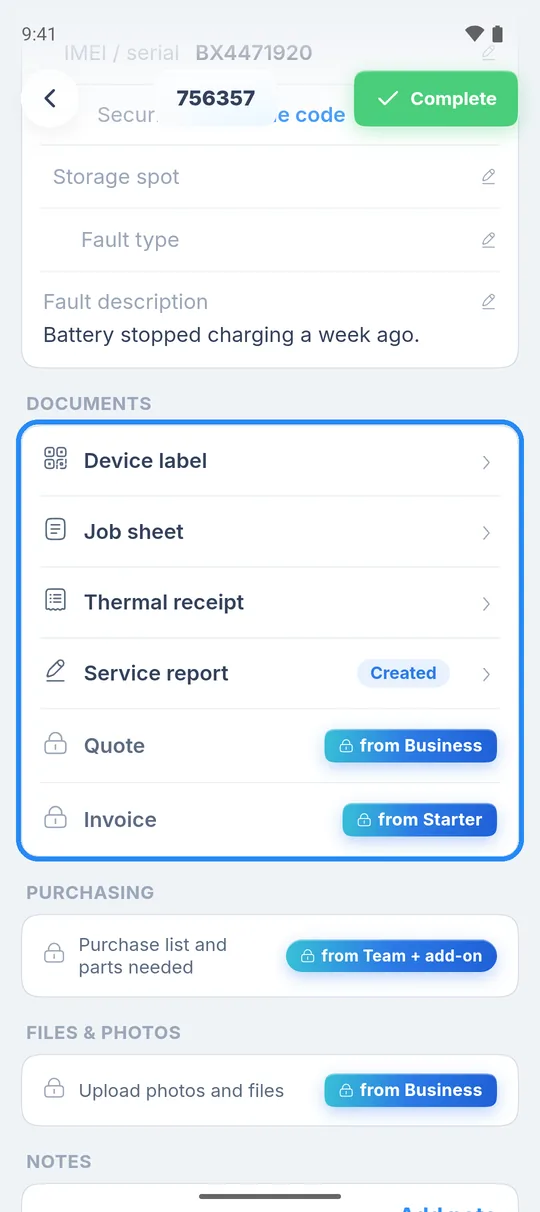
- Scroll to the “Documents” section.
- Tap “Device label”, “Job sheet”, “Thermal receipt” or “Service report”.
For the job sheet there’s also a “Print” button at the bottom of the job.
Job sheet and other A4 documents
- Open the document. You see a preview.
- Tap the printer icon at the top right. Your phone’s print dialog opens.
- Pick the printer and print. The app confirms “Print job sent”.
Without a printer, tap the share icon at the top right (“Share PDF”) and send the document by email, for example.
Device label
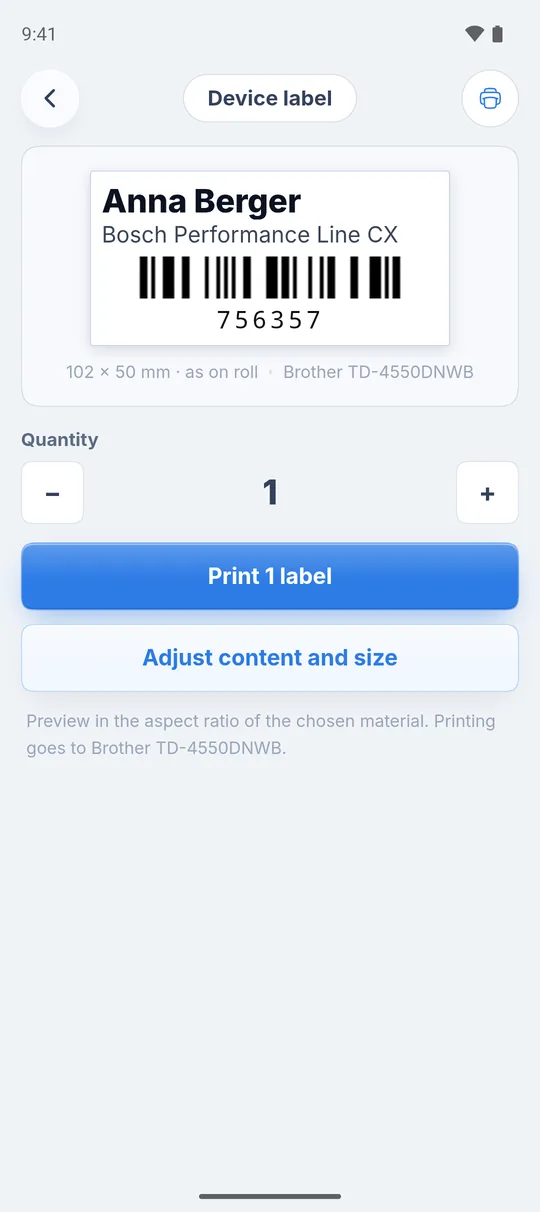
- Open “Device label”. The preview shows the label in the proportions of your roll.
- Under “Quantity”, use minus and plus to set how many labels you need, for example one for the device and one for the charging dock.
- Tap “Print 1 label” or “Print … labels”.
“Adjust content and size” lets you choose which fields appear on the label and how large they are. The app usually reads the size of the loaded roll straight from the printer, see Connect a printer and print a test page.
Content doesn’t fit the label: If the app says “The content needs about … mm of height, the label has … mm”, tap “Adjust content and size” and reduce font size or barcode height, or remove fields.
Thermal receipt
The receipt needs a connected receipt printer (80 mm, Epson or Star). Open “Thermal receipt” and tap the printer icon.
Create and print a service report
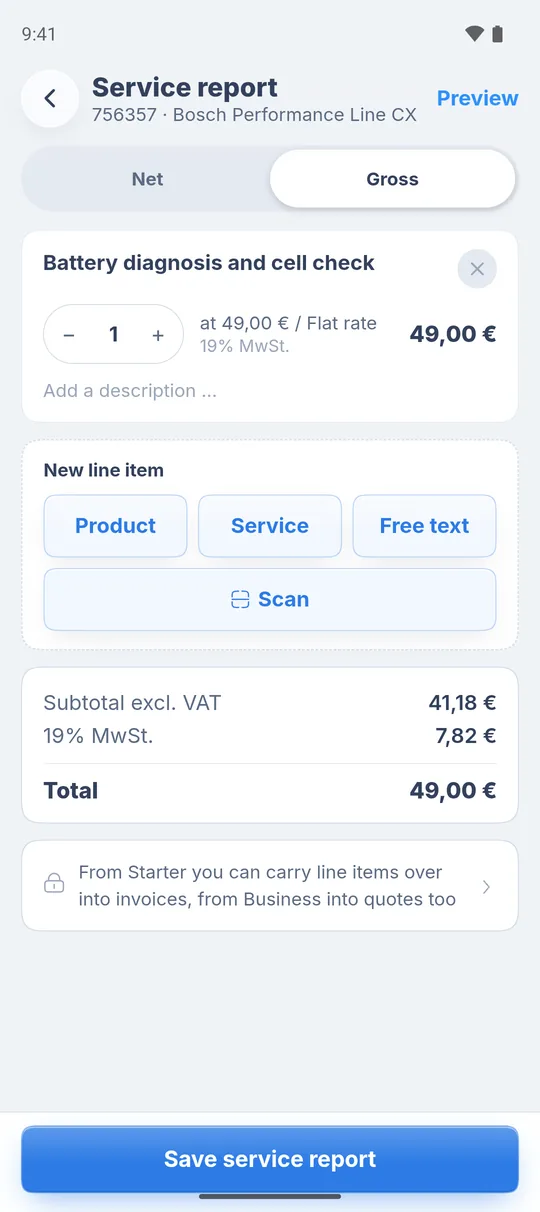
- In the job, open “Service report” under “Documents”. Right after booking you can also use “Start service report”.
- Add line items: products, services or free text. The switch at the top toggles “Net” and “Gross”.
- Tap “Save service report”. The app opens the preview.
- Tap the printer icon or share the report as a PDF.
If you leave the report with unsaved changes, the app asks “Leave the service report?”. “Save changes” keeps everything.
Invoices and quotes
- Invoices are available from Starter. The service report then becomes the invoice directly, with e-invoicing and a QR code for bank transfer. Your line items stay saved.
- Quotes are available from Business.
On Go both rows sit in the “Documents” section, each with the plan that includes it. A tap shows what comes with it and offers the 14-day trial.
What’s next
- Set up a printer: Connect a printer and print a test page
- Return the device: Complete a job and hand over the device
- Go limits: RepairCMS Go: what’s included and what isn’t
Frequently Asked Questions
Can I give the customer documents without a printer?
Yes. Tap the share icon at the top right of the document and send the PDF by email or messenger.
Why is there a RepairCMS line on my printout?
Every printout from the free Go plan carries a short RepairCMS line and a QR code.
Can I print several labels for one device?
Yes. Set the number under "Quantity" on the device label and tap "Print … labels".
Can I write invoices on Go?
No. Invoices are available from Starter. On Go you print job sheets, service reports, receipts and device labels.
Did this guide help you?