
Send a quote link via WhatsApp
On this page · 10 sections
Copying prices out of a quote and pasting them into WhatsApp is quick, until something changes and you type it all again, or a transposed digit only turns up when the customer asks about it. In the RepairCMS app your customer gets one link for the whole job instead. It always shows the current status, and with a code sent to their email they open the quote and approve it themselves. This guide walks you and your team through the whole process, from drop-off to status updates, using a TV repair shop as the example.
WhatsApp isn’t part of RepairCMS. The RepairCMS app opens WhatsApp with a message to your customer already written, and you send it yourself. RepairCMS doesn’t send, receive or store WhatsApp messages.
What you need
- Your services with prices in RepairCMS. The app shows them in the price list.
- The Business plan or the 14-day trial for everything from the diagnosis onwards. Quotes, communication on the job, text snippets and your own email templates come with Business and are included in the trial. Without Business the “Quote” row shows “from Business”. The tracking link is in every plan.
- Your customer’s email address, so they can open and approve the quote in the customer portal. That’s where the code they need is sent. They can see the status through the link without a code.
- WhatsApp on your phone, if you want to send the link that way. The customer’s phone number then needs to be saved with the country code, like +49 171 2345678. WhatsApp won’t find a number written as 0171 2345678.
- Ultimate FastPAY for online payment. It’s optional and off by default. You activate it and connect your own Stripe account.
If you’d like to know how the trial runs and when you pick a plan, read our article on the 14-day trial.
Book from the price list at drop-off
For standard repairs you skip the typing right at drop-off. Whatever services you tap here become the first line items in the service report.
- Tap the plus at the bottom, then “Book a job”.
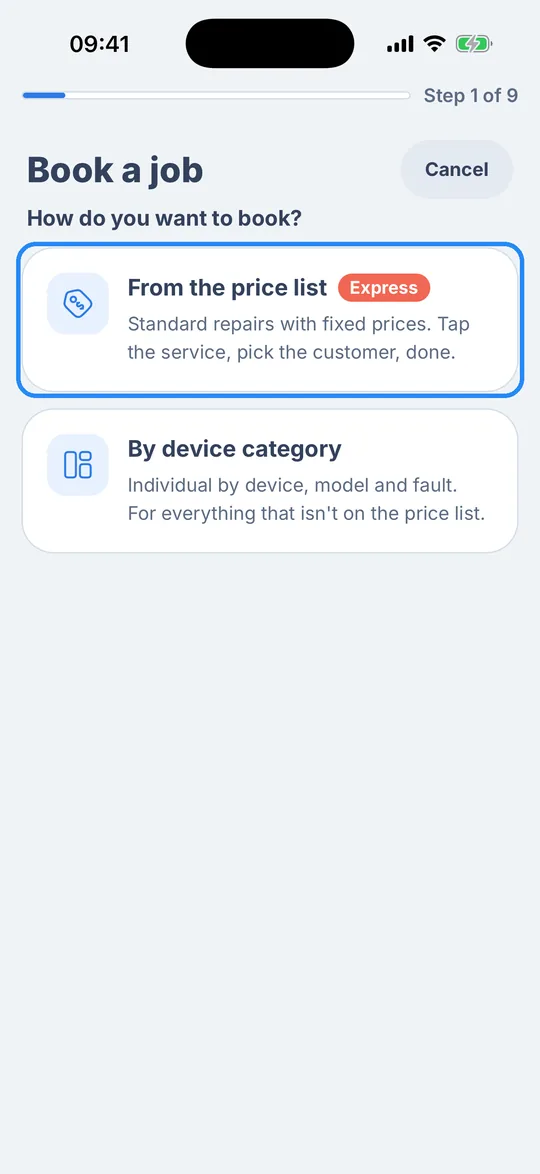
- The app asks “How do you want to book?”. Tap the “From the price list” card.
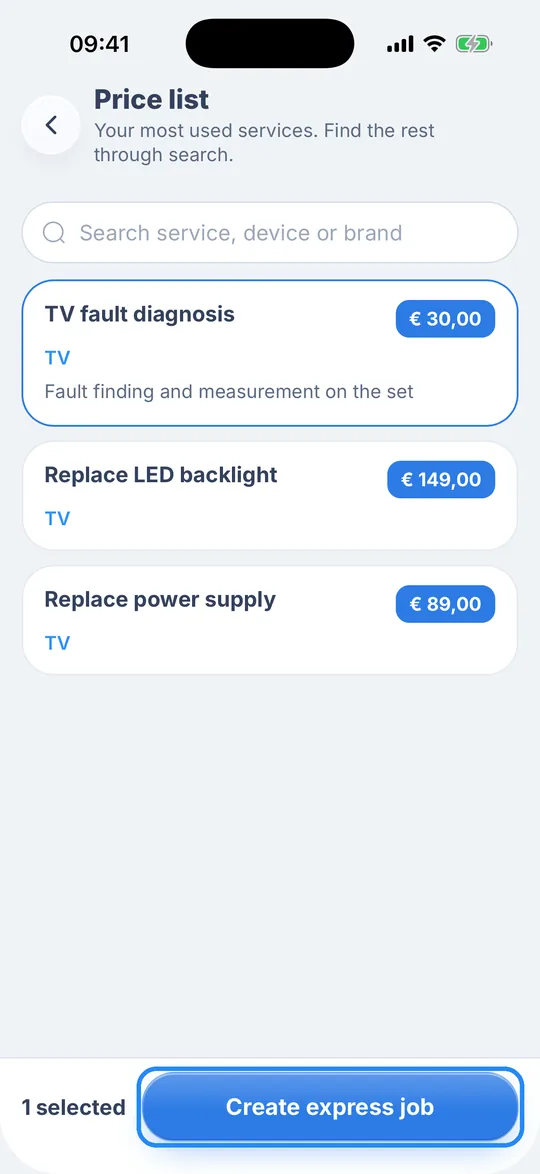
- The price list shows your most used services with price and device category, and the search field finds the rest. Tap a service, for example “TV fault diagnosis”. It gets a blue frame, and you can pick more than one.
- Tap “Create express job” at the bottom.
- From here it works like any other job, with the device and the customer. For the details, take a look at how to book your first repair order.
If your customer has an email address, the tracking link goes to them by email when you book. You’ll see the “Tracking link by email” switch before booking, already turned on. Afterwards the app confirms “Tracking link is on its way to …”. Without an email address, the link is printed as a QR code on the job sheet and the device label.
Send the quote after the diagnosis
Say the diagnosis turns up more, like a faulty LED backlight. The technician adds the line items needed to the service report, and one tap turns that into the quote.
- Open the job and tap the “Quote” row.
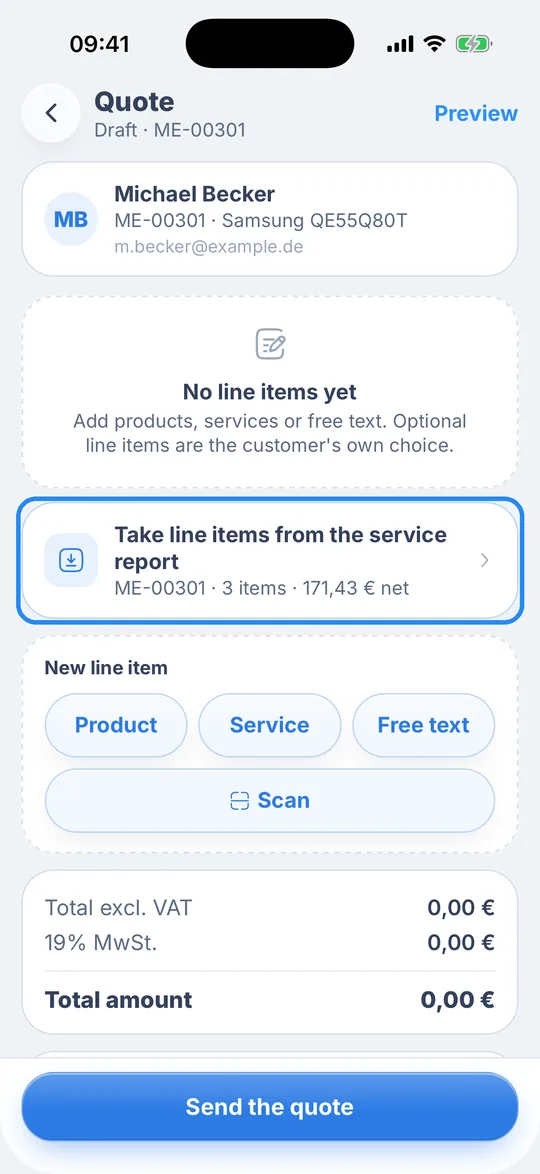
- While the quote is still empty, you’ll see the “Take line items from the service report” card, with the job number, the number of line items and the net amount below it. Tap the card and the app copies every line item over.
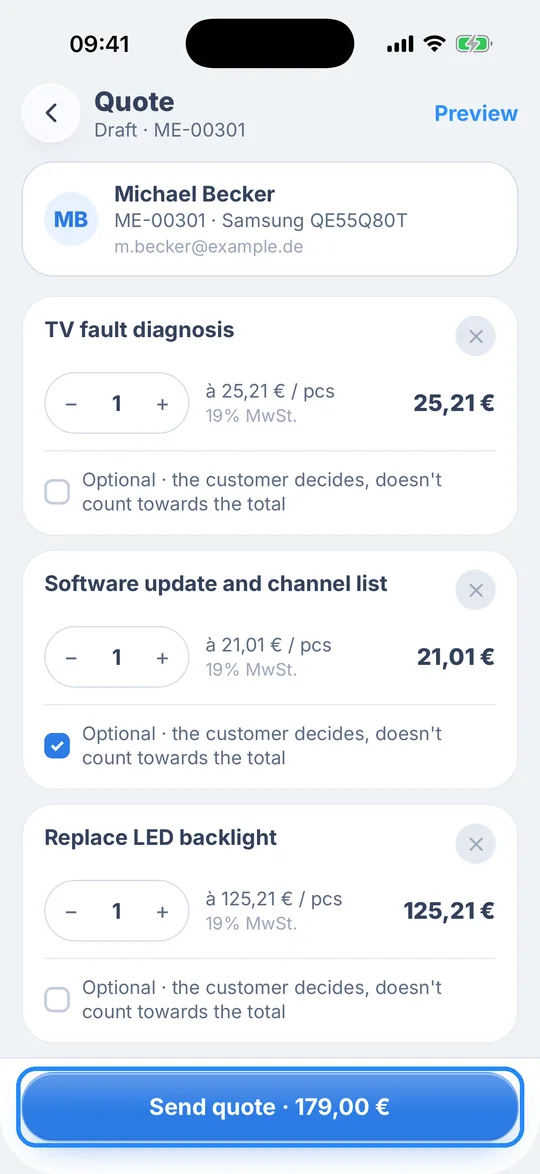
- Check the line items. Tap the name of a line item to change the quantity, price or discount, and add anything else under “New line item”.
- If your customer should decide on a line item themselves, tick “Optional · the customer decides, doesn’t count towards the total” on it. The totals then list it under “Optional line items”.
- Tap “Send quote” at the bottom. The button already shows the total.
- The “Send the quote” sheet already has a message to your customer, starting with their first name. Edit it, or drop in a ready-made text with “Text snippet”. If Ultimate FastPAY is active, turn on “Online payment” so your customer can pay online straight away.
- Tap “Send the quote now”. Your phone needs an internet connection for this.
The app saves the quote, posts it as a message in the communication on the job and sets the status to “Quotation sent”. If your customer has an email address, they also get an email. Finally the app shows the “Quote sent” screen with the total, which is where the next section picks up.
Let the customer know and send the link on WhatsApp
Customers with an email address already have it. Their email contains a button that takes them to the quote in the customer portal. If you usually talk to a customer on WhatsApp, you can drop the link right into their chat from the “Quote sent” screen. The button for that only appears after “Send the quote now”, and that’s on purpose. Sending the quote is what puts it in the customer portal, so only then is there a quote behind the link.
- On the “Quote sent” screen, tap “Send via WhatsApp”. You’ll see the button when there’s a phone number saved for the customer and the job has a tracking link. With FastPAY active, “Share payment link” and “Copy link” sit above it.
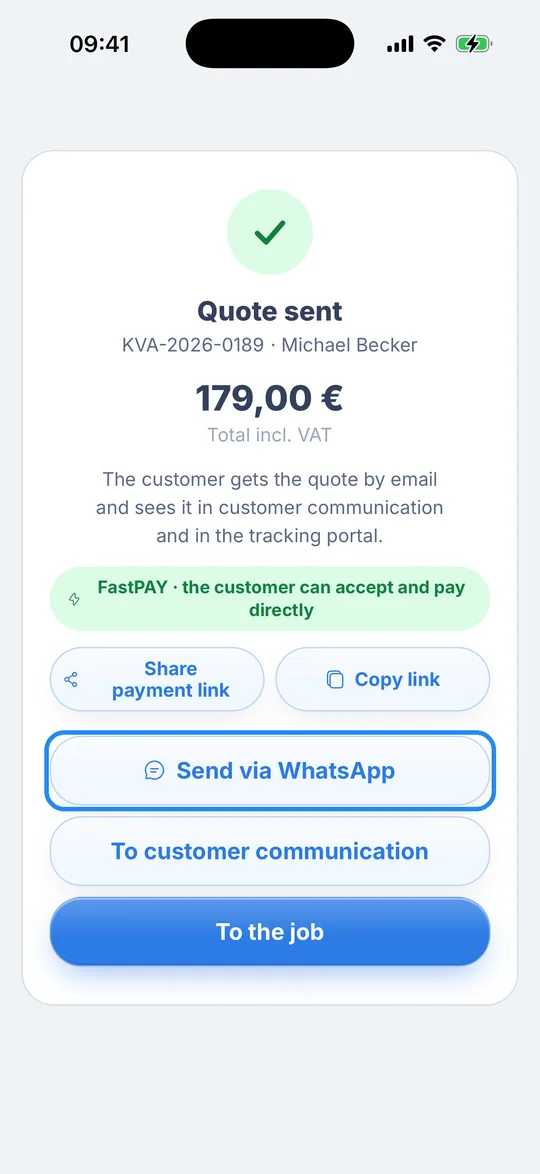
- WhatsApp opens straight in the chat with your customer, with the message already filled in. It greets them by first name and includes the quote number and the link to the job, for example “Hi Michael, your quote KVA-2026-0189 is ready. You can view and approve it via this link.” If no first name is saved, say for a business customer, it starts with “Hi,”.
- Read it over, change whatever you like and send it from WhatsApp yourself.
The number needs its country code, so +49 171 2345678 rather than 0171 2345678. Without it, WhatsApp can’t find the chat. If WhatsApp can’t be opened, for example because it isn’t installed on your phone, the app shows “WhatsApp could not be opened”.
“Share tracking” is the other way to send the link, handy when there’s no phone number saved, when you want to send the link again later or when you talk to the customer on another messenger. Open the job, tap “Share tracking” at the bottom, then tap “Share link” in the sheet with the QR code and the link.
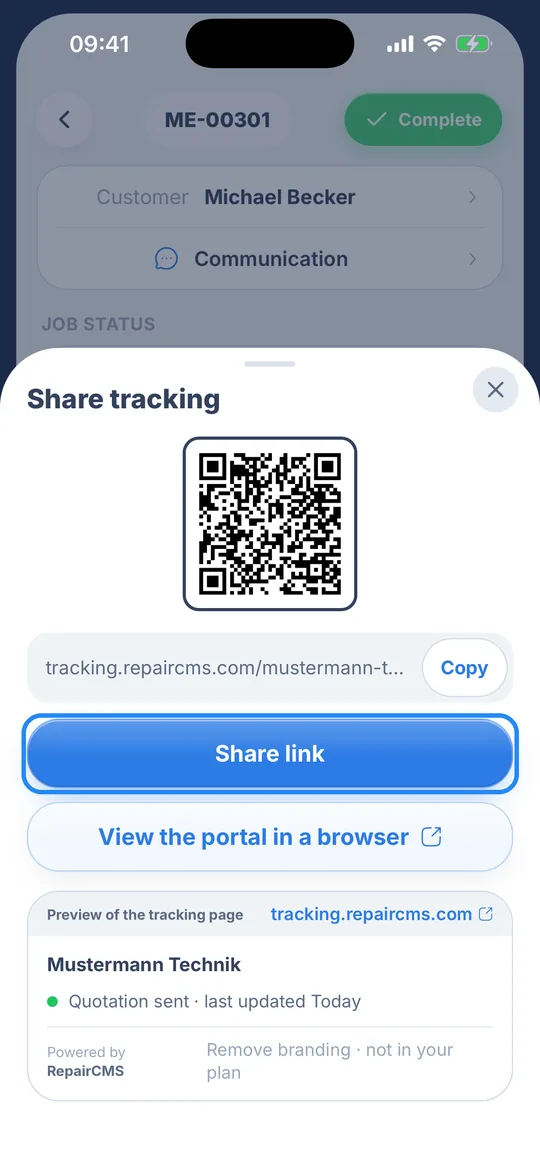
Your phone’s share sheet opens with the text “Track the repair status live:” and the link. Pick the app and the chat with your customer from there. With FastPAY active, “Share payment link” on the “Quote sent” screen opens the share sheet as well.
See the quote in the app
Everything you sent is in the customer communication on the job. On the “Quote sent” screen, “To customer communication” takes you straight there, and going back brings you to “Quote sent” again.
The customer’s name sits at the top, with the job number and “email and chat” below it. Your message from the “Send the quote” sheet appears as a bubble with your name and the time. Right under it is the “Quote” card with its number and a “Sent” badge.
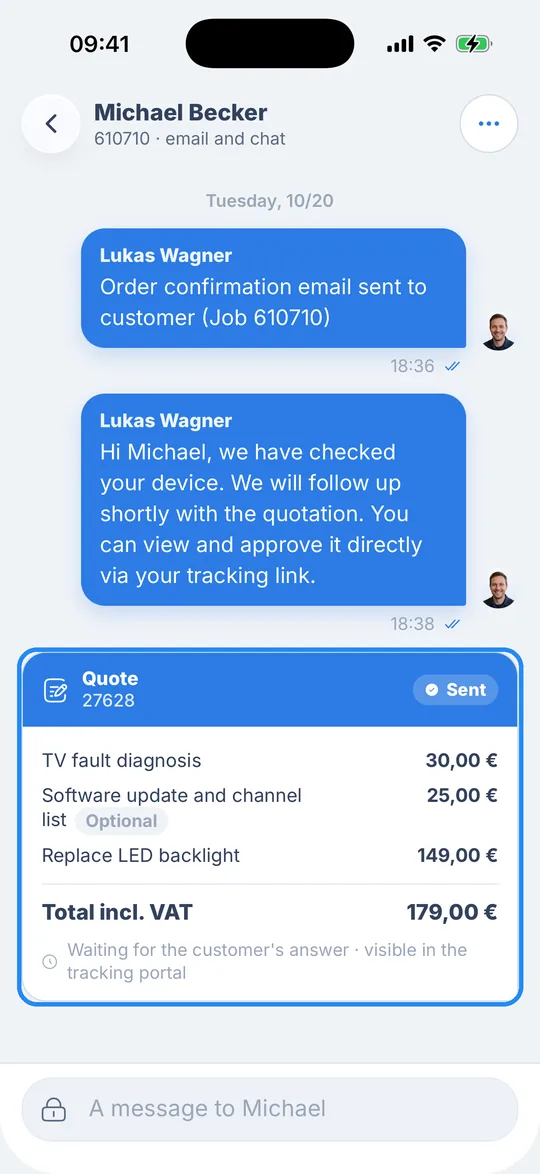
The card lists every line item with its gross price, optional ones marked “Optional”, followed by “Total incl. VAT”. The line “Waiting for the customer’s answer · visible in the tracking portal” tells you the quote is in the customer portal and your customer hasn’t replied yet. Use the message field at the very bottom to write to them again.
How your customer opens the quote
The link takes your customer to the customer portal, where they see the status of their repair straight away as a timeline with date and time, for example “Quotation sent” and “Booked”. The job details and the device are hidden at first, with “View” next to them. To open the quote, they sign in once with a code.
- Your customer taps “View” and gets “View quotation · Your repair shop is waiting for your reply”.
- They tap “Send code”, and a six-digit code goes to their email address, which the portal shows partly hidden.
- Under “Quick confirmation” they enter the code in the six fields and tap “Confirm”. They then stay signed in for 30 days.
- Now they see the job details, with job number, fault and description, and their device. The quote is in the “Inbox” at the top right, which has a counter.
- There they find your message and the quote with all line items below it. Under “Optional positions · Choose what you would like to add” they tick the optional items they want, and the total is shown “without optional items” to begin with. “PDF” downloads the quote.
- Under “How would you like to proceed?” they tick “I agree to the terms” and tap “Decline” or “Accept”. Each button shows the amount that will be due. Below that, they can “Write a message” to you.
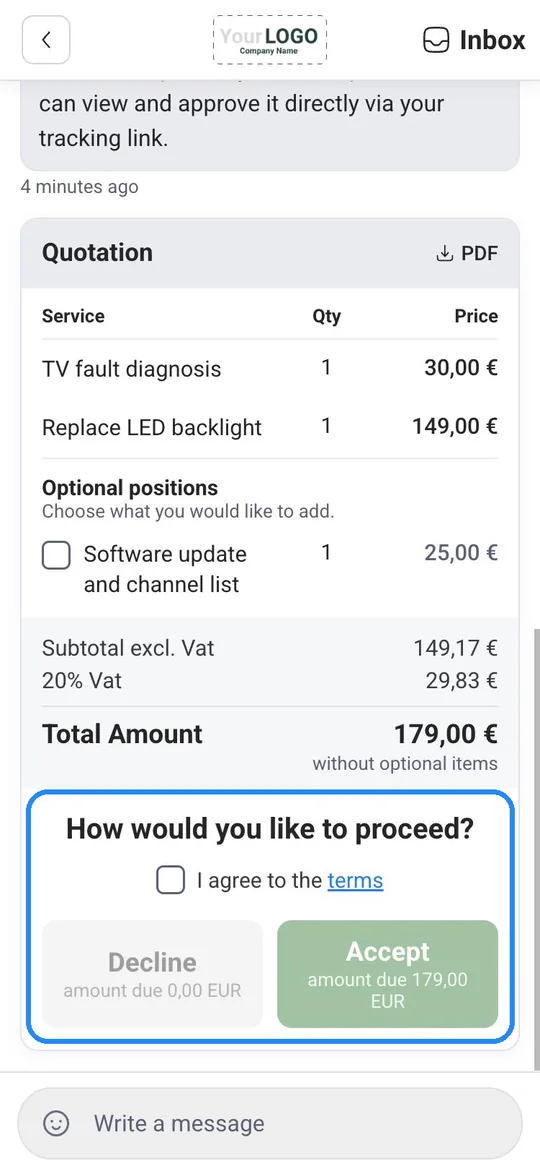
The code arrives by email, so save your customer’s email address even if you send the link on WhatsApp, ideally at drop-off. As the portal itself says, “Your repair status stays visible without a code.”
With FastPAY, your customer pays online as soon as they accept. Once they accept, RepairCMS updates the status straight away and creates the invoice. To see what that looks like on your customer’s side, read how customers approve quotes online.
After that, the status does the talking
From here on you don’t write status messages by hand. You change the status on the job, and your customer sees it through the same link. No new link needed.
- Open the job and tap the “Status” row.
- Pick the new status in the “Change the status” sheet. The app tells you what happens next: “Your customer sees the new status immediately in the tracking portal.”
- If you want to send your customer an email as well, turn on “Notify the customer” before you pick the status. This works when there’s an email address saved for the customer.
You edit the text of these emails in the web app, with placeholders for the first name, job number and tracking link. Here’s how to customize your email templates.
Your customer can get text messages too. For that, you connect the SMS app to your own seven.io account, which is also where the messages are billed. There are three events you turn on one by one, all off by default: job confirmation, status change and repair completed. Customers can’t reply to these texts. The SMS app is available in every plan.
Good to know
- One link for the whole job. The same link always shows the current status. Your customer opens the quote and the chat there after signing in with the code from their email. You send the link once, and nothing needs retyping when something changes.
- Net in the service report. The price list shows your prices including tax. In the service report the app converts them to net at your company’s tax rate, which is why the “Take line items from the service report” card shows a net amount.
- If your customer declines. Under “Amount due for rejected quotes”, use “Edit the fee” to set what’s due in that case, for example for the diagnosis. The amount is shown in the quote.
- WhatsApp replies stay in WhatsApp. If your customer writes back there, you read it in WhatsApp. None of it reaches RepairCMS. Questions about the quote can also go through the customer portal.
What’s next
When you want to write your customer something of your own on WhatsApp, you can open the chat straight from the job. Here’s how to open WhatsApp from a job.
Frequently Asked Questions
Do WhatsApp messages show up in RepairCMS?
No. WhatsApp isn't part of RepairCMS. The RepairCMS app opens WhatsApp with the message already written, and you send it yourself. RepairCMS doesn't send, receive or store anything you or your customer write there.
What if the customer doesn't have an email address?
You can still send them the link on WhatsApp, with “Send via WhatsApp” or through “Share tracking”, and it's printed as a QR code on the job sheet too. Through it, your customer sees the status of their repair. To open and approve the quote in the customer portal, though, they need a code, and that code comes by email. So save their email address, ideally at drop-off.
Why don't I see the “Send via WhatsApp” button?
The button lives on the “Quote sent” screen, so it only shows up after you've sent the quote with “Send the quote now”. It also needs a phone number saved for the customer and a tracking link for the job. If the number is missing, send the link through “Share tracking” and “Share link”, and add the number with its country code for next time, like +49 171 2345678.
Do I need a particular plan?
The tracking link comes with every plan. The Business plan adds quotes, communication on the job, text snippets and your own email templates, and they're all included in the 14-day trial. Ultimate FastPAY is optional and has to be activated.
Do I have to send a new link every time the status changes?
No, the link stays the same for the whole job. It always shows the current status, and once your customer has signed in with the code from their email, the quote and the chat as well.
Where do the line items in the quote come from?
From the service report. The services you pick from the price list at drop-off are the first line items there. After the diagnosis you add the parts and labour needed, and “Take line items from the service report” brings everything into the quote with one tap.
Can my customer decide on extra work themselves?
Yes, as long as you mark the line item as optional. In the customer portal your customer ticks optional line items on or off. They don't count towards the total in the quote.
Can my customer pay online right away?
Yes, with Ultimate FastPAY. If FastPAY is active and online payment is turned on when you send the quote, your customer accepts in the customer portal and pays online straight away. FastPAY is off by default and needs your own Stripe account.
Does my customer get the quote as a PDF too?
Yes. The quote lives in the customer portal, and once your customer has signed in with the code from their email, they can download it there as a PDF. They can approve it right in the portal.
Did this guide help you?