
Receive stock in the app
On this page · 8 sections
In the RepairCMS app, you receive stock, often called goods receipt, in four steps under “Goods receipt”, so spare parts and articles from your supplier go into your stock. You scan the delivery note, pick the supplier, scan the articles and check the delivery. “Book in” raises your stock, and the app creates a goods receipt note.
A customer’s device that comes in for repair isn’t stock. It’s a device check-in and never goes into your stock. The article on receiving stock and device check-in explains the difference.
Stock management is included in the RepairCMS Team and Enterprise plans. During the 14 day trial, everything in the Team plan is open, so you can try receiving stock right away. Anyone with the “Access to stock” right can book. Everyone else sees “Only the owner may change this”.
Where do I start receiving stock in the app?
There are two ways, and both lead into the same flow.
From the plus menu:
- Tap the plus at the bottom, then “Book arrival”.
- Under “What arrived?”, choose “Goods receipt” with the subtitle “Spare parts from a supplier”. Next to it you see how many orders are still open.
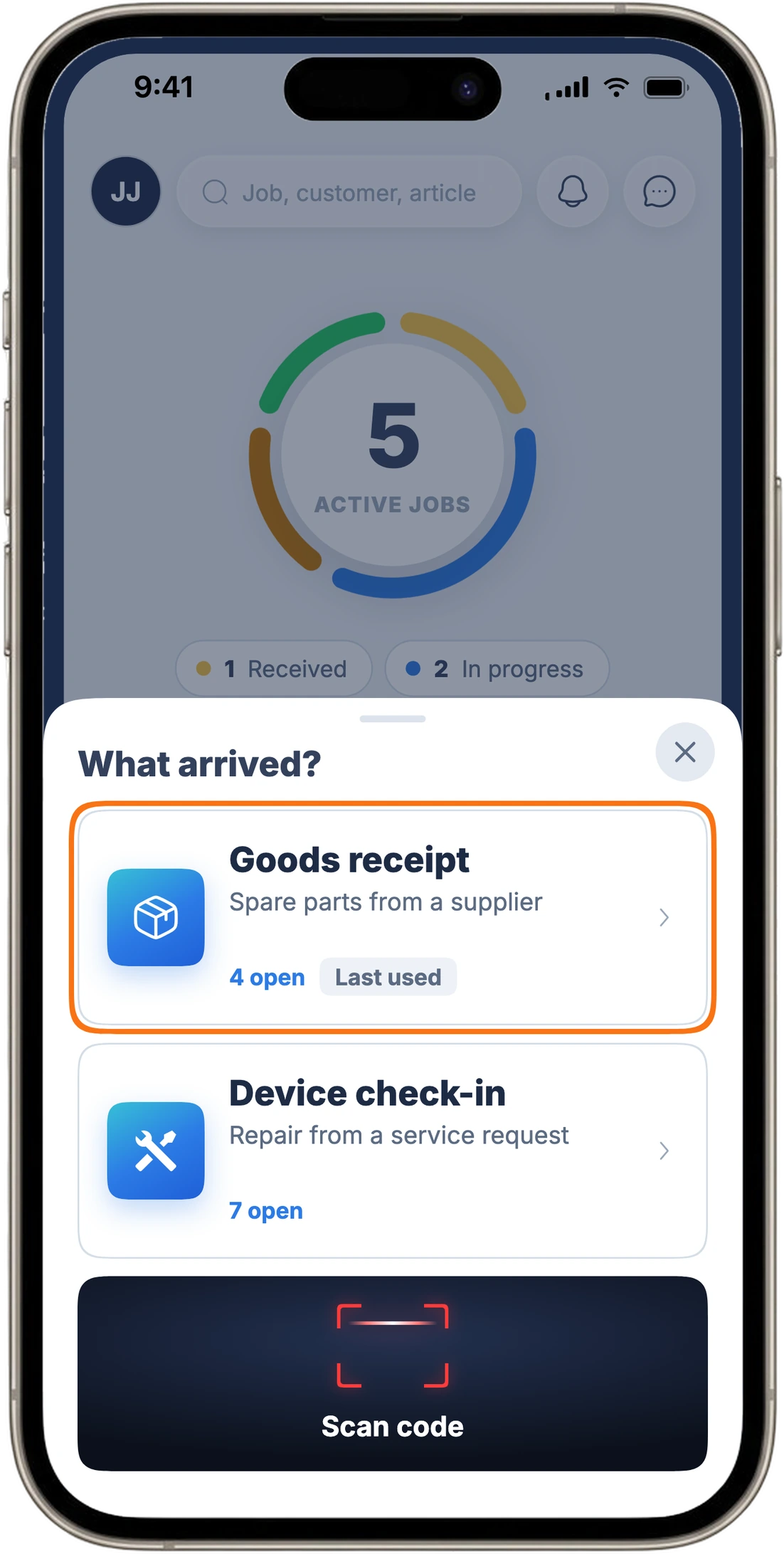
The option you chose last appears at the top with the “Last used” tag. “Device check-in” in the same choice is for customer devices from a service request.
From stock:
- Tap “More” at the bottom, then “Stock”.
- Tap “New”.
- Under “What are you booking?”, choose “Goods receipt”, described as “Book in a delivery from the supplier”.
How do I receive stock with my phone?
The app takes you through four steps and only ever shows the step you’re on. The top of the screen tells you where you are, for example step 1 of 4.
The example in this article: you ordered three iPhone batteries for three repairs. Today the courier brings the delivery, but there are only two in the box.
Step 1: Delivery note
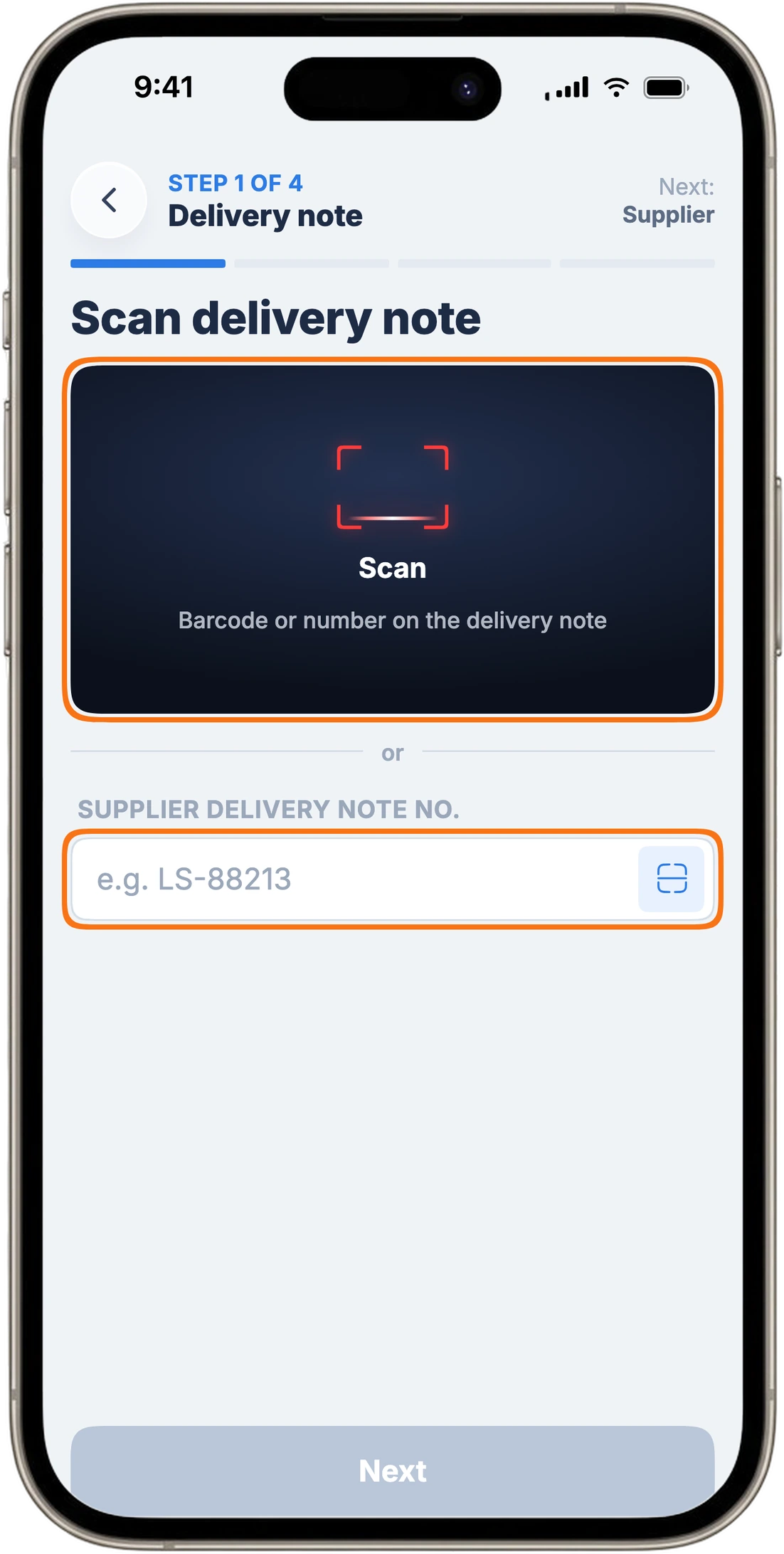
- Tap “Scan” and point the camera at the “Barcode or number on the delivery note”.
- If the delivery note has no barcode, type the number into “Supplier delivery note no.” instead, for example LS-88213.
- Tap “Next”.
The app won’t move on without a number and shows “Delivery note no. missing”.
Step 2: Supplier
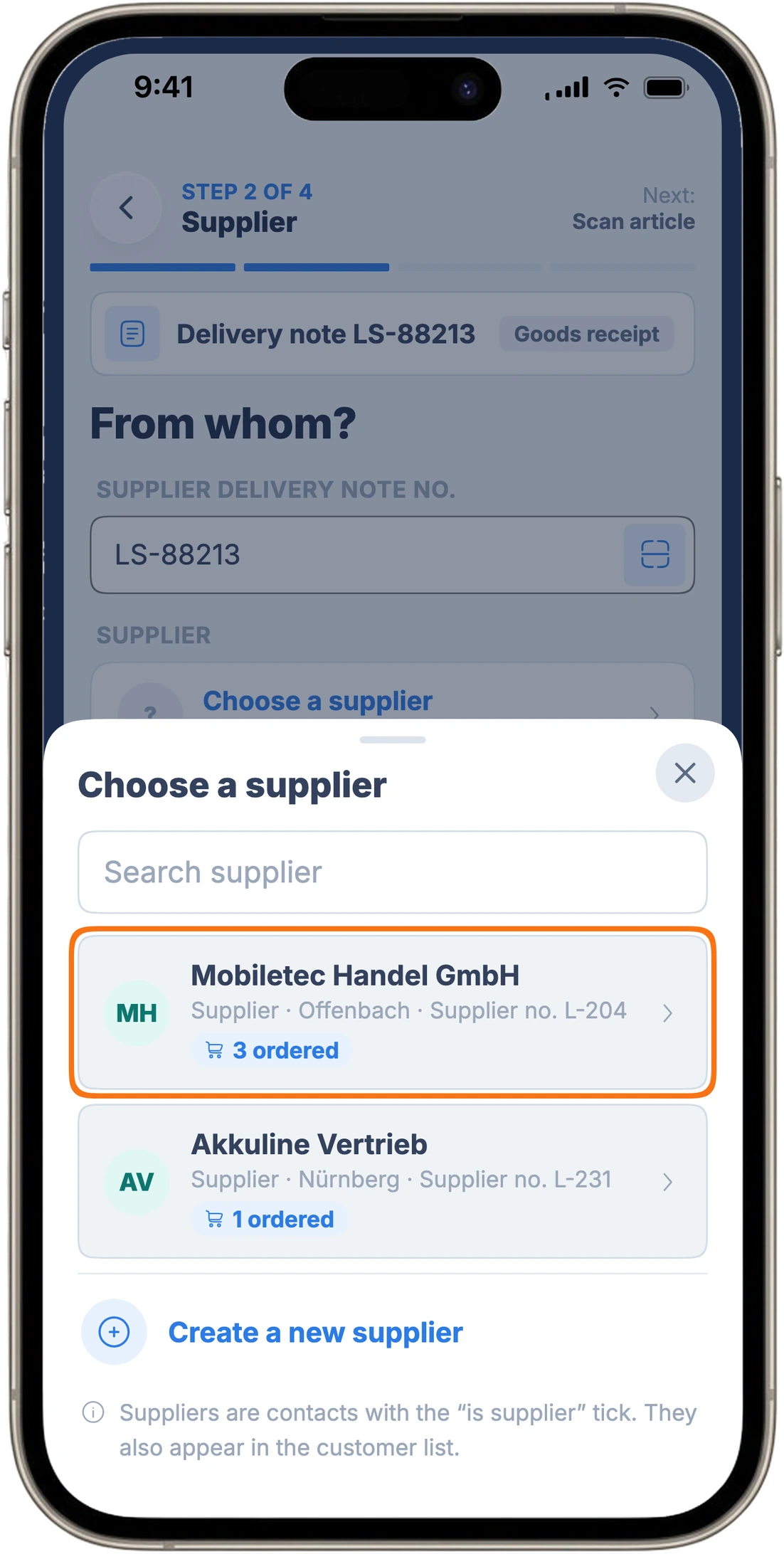
Under “Choose a supplier”, pick the supplier. Suppliers with open orders are at the top, with a note such as “3 ordered”. If the delivery note number matches an order from the Purchasing Hub, the app sets the supplier for you. Open orders only exist with the Purchasing Hub, which you add as an add-on in the RepairCMS Business, Team and Enterprise plans. Without it, you book everything in as “Not ordered”.
Step 3: Scan article
- Tap “Scan” and scan the barcode on the first battery. If an article has no barcode, find it with “Search”.
- Scan the other batteries. The camera stays open, and each scan counts one up. In the example, the app shows that 2 of 3 batteries are in.
- Change the quantity with plus and minus on the row if you need to. Minus at quantity 1 removes the row.
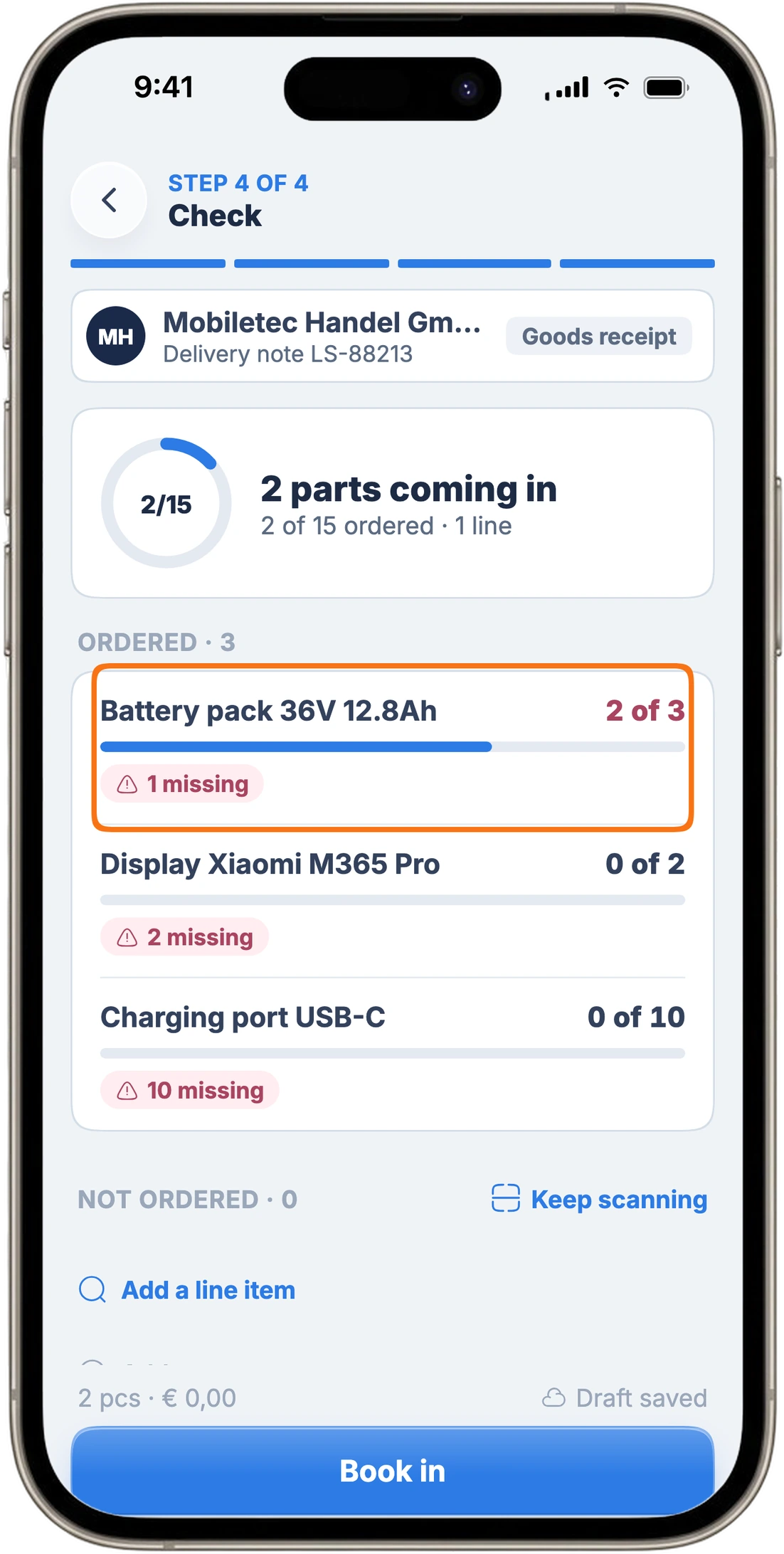
Ordered articles are listed separately from articles marked “Not ordered”. When something from the order is still missing, the row shows “1 missing”, and the ring at the top shows how much has arrived.
Step 4: Check and book in
The app shows all items with the total number of pieces. If you want to record something about the delivery, tap “Add a note”, and it appears on the booking document later. Then tap “Book in”.
What happens when an ordered spare part is missing?
In the example, one battery is missing. When you book in, the app shows the “Not everything arrived” dialog: the missing battery stays on order and isn’t booked. The two batteries that arrived go into stock. Order lines that arrived in full are marked as delivered in the Purchasing Hub, and the app tells you how many ordered articles it booked as delivered.
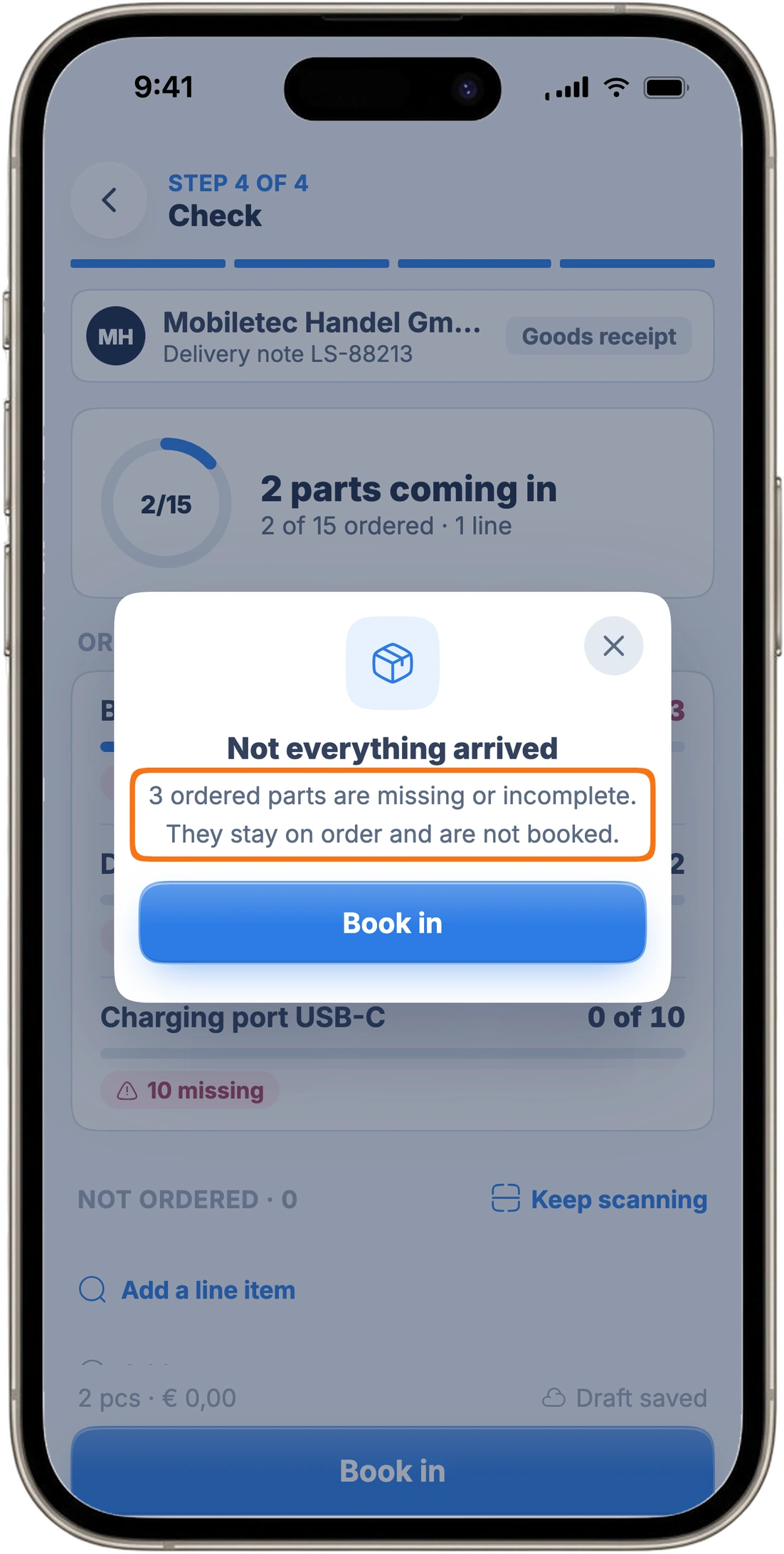
When the third battery arrives a week later, you book it in with a new goods receipt.
Can I scan the articles?
Yes, in step 3 you scan the barcode on the spare part or its box. The camera stays open, so you can scan a whole delivery in one go.
If the app doesn’t know a barcode, it opens “Create an article quickly”. You create the new article there and book it in with the same goods receipt. You can also scan a barcode from the “Scan code” tile under “Book arrival”. For an unknown code, the app asks “What is this?” and offers “Delivery note” or “New item”.
For articles with serial numbers, the app asks for one number per piece during the goods receipt. The delivery can be booked in once every piece has its number.
What happens to my stock and the purchase price?
Every goods receipt raises the stock of the articles you book, and the document stays as a record. For each item, you see the quantity, “Cost price net per unit”, “Storage spot”, “Markup %” and “New sales price net”.
If the purchase price differs from the one in your article data, the item shows you the previous price. When you book in, the app shows “The cost price has changed” and asks whether it should take over the new price.
Which document do I get?
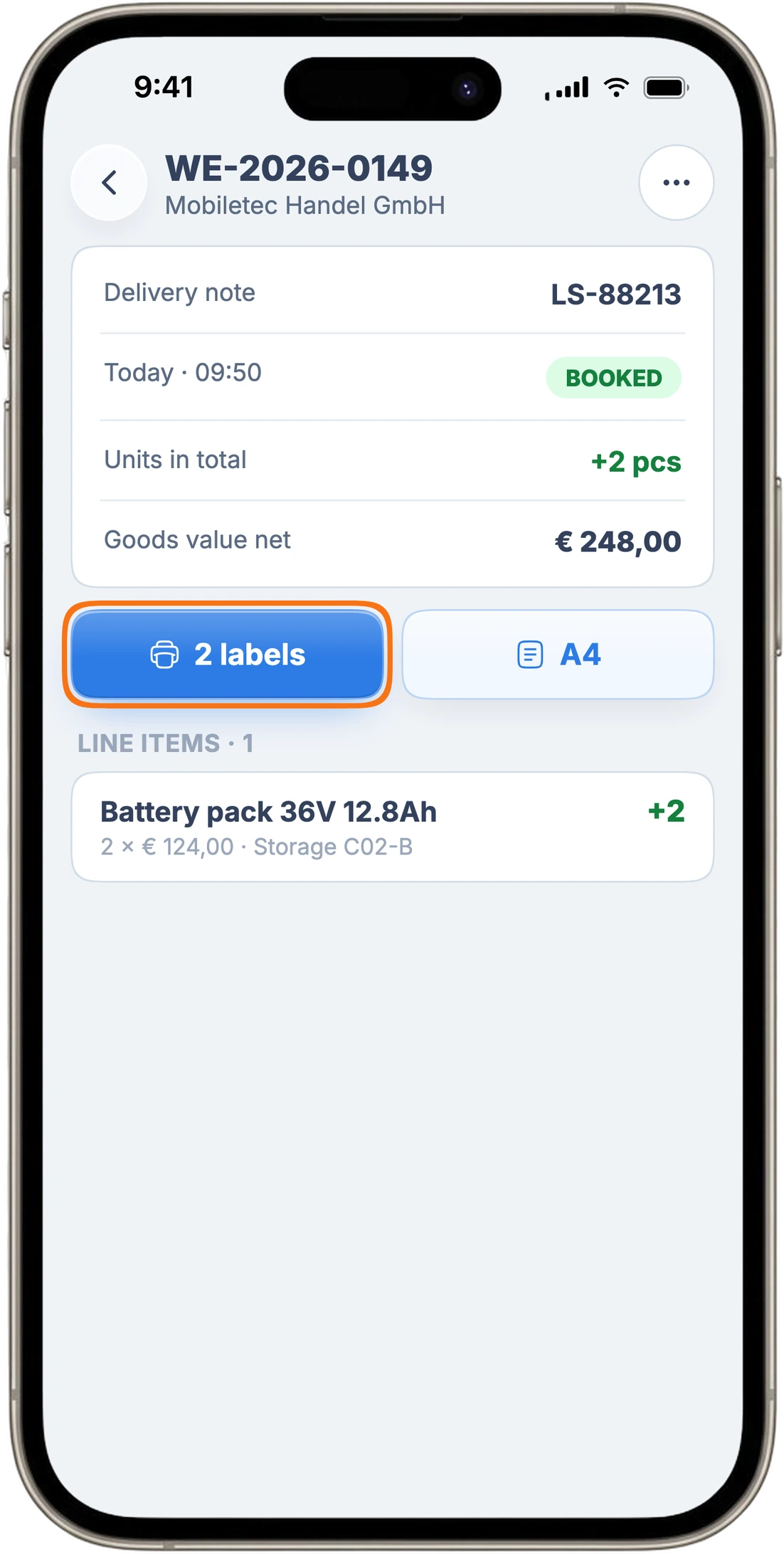
After you book in, the app opens the goods receipt note with the “BOOKED” tag. It shows how many pieces were booked in, the “Goods value net” and every item. The printed document has date and signature fields, one for the delivery and one for checking and booking it in.
- Tap “2 labels” to print product labels for the batteries that arrived. For a single piece, the button says “Print 1 label”.
- Under “More” on the document, you can use “Edit the document details”. The quantities stay as they are.
How to set up your printer is explained in the article on printing in the app.
To correct quantities on a booked goods receipt, use “Correct the booking” under “More”. Owners and admins can do this.
How do I send goods back to the supplier?
If a spare part arrived faulty or wrong, tap “Return to this supplier” under “More” on the goods receipt note. As the reason, you pick for example “Wrong delivery”, “Delivered faulty”, “Ordered too many” or “Warranty”. The app creates a “Return note” for it.
For breakage, own use or consumption without a job, there’s the “Withdrawal” booking under “More”, “Stock” and “New”. It needs no supplier and creates a “Withdrawal note”.
If you want to check whether a customer’s device has been with you before, see the article on finding a device by serial number or IMEI. How to take in a repair order in the app is shown in the article on booking your first repair order.
How stock management in RepairCMS works overall is explained on the inventory software page.
Frequently Asked Questions
How do I receive stock with my phone?
In the RepairCMS app, tap the plus, then “Book arrival” and “Goods receipt”. Then you scan the delivery note, pick the supplier, scan the articles and tap “Book in”.
Do I need internet to receive stock in the app?
To book in, the app needs a connection, because the server assigns the document number so there's no gap in the number sequence. Until then, the app keeps your goods receipt as a draft. You carry on as soon as you're back online.
Where do I find a goods receipt I started?
The app saves every goods receipt you start as a draft automatically. You carry on from the plus menu or under “More”, “Stock” and “Drafts”.
Can I receive stock without a purchase order?
Yes, you book in articles you didn't order with the same goods receipt. The app lists them separately as “Not ordered”, with the ordered articles above them.
What do I do with an article RepairCMS doesn't know yet?
Scan it like any other. If the app doesn't know the barcode, it opens “Create an article quickly”, and you book the new article in with the same goods receipt.
Does a customer's device go into the goods receipt?
You book a customer's device as a device check-in, under “Book arrival” right next to “Goods receipt”. That way it stays with the customer's job and doesn't go into your stock. The article on receiving stock and device check-in explains more.
Which plan includes receiving stock?
Receiving stock is part of stock management, which is included in the RepairCMS Team and Enterprise plans. During the 14 day trial, everything in the Team plan is open.
Did this guide help you?