
Receiving stock or checking in a device: what’s the difference?
On this page · 9 sections
In RepairCMS, receiving stock, often called a goods receipt, means items you own go into stock and your stock level goes up. A device check-in means a customer’s device arrives for repair. In RepairCMS it gets a job, never goes into stock and doesn’t change your stock level. What you own goes into stock. What the customer owns gets a job.
| Receiving stock | Device check-in | |
|---|---|---|
| What arrives | Spare parts and items for your stock | A customer’s device that you repair |
| Who owns it | You | The customer |
| Stock level | Goes up | Stays the same |
| Where in RepairCMS | “Stock”, then “Goods Reception” | “Service Requests” or a new job |
| Record | “Inbound Delivery Note” | A job with a label for the device |
| Counterpart | Stock going out, through “Deduct Items”, “Return to Vendor” or the invoice | Returning the device to the customer |
An example from a hi-fi repair shop: a customer brings in their speaker for repair. That’s a device check-in, and the speaker gets a job. For the repair, you order a new cone from your supplier. When it arrives, you receive it into stock, and your stock of cones goes up by one. When you create the invoice, RepairCMS takes the cone back out of stock.
Stock management is included in the RepairCMS Team and Enterprise plans. You can book a job for a customer’s device in every RepairCMS plan.
What is receiving stock?
Receiving stock is any booking that raises your stock level. Most of the time it’s a delivery from your supplier, such as batteries, displays or speaker cones. It can also be a used or refurbished item you already have and now add to stock. For every booking, RepairCMS creates a record, the “Inbound Delivery Note”.
What is a device check-in?
At a device check-in, a customer’s device arrives for repair, whether they drop it off or send it by post. The device still belongs to the customer. That’s why RepairCMS creates a job for it and no stock booking. The job holds the device, serial number, condition, photos and the fault the customer describes.
Is receiving stock the same as a goods receipt?
In everyday use, most people mean the same thing: items coming into stock. Some textbooks and inventory systems treat the goods receipt as accepting and checking the delivery, and receiving stock as putting it away afterwards. In RepairCMS it’s one step, because the booking raises your stock level right away.
In the web app, a delivery from your supplier is booked with the “Book in Delivery” method. Next to it is “Record items”, which is for items you already have and add to stock without a supplier. Both raise your stock level, so both count as receiving stock in this article.
How do I receive stock in RepairCMS?
- In the sidebar, open “Stock” and click “Goods Reception”. You see all previous bookings there.
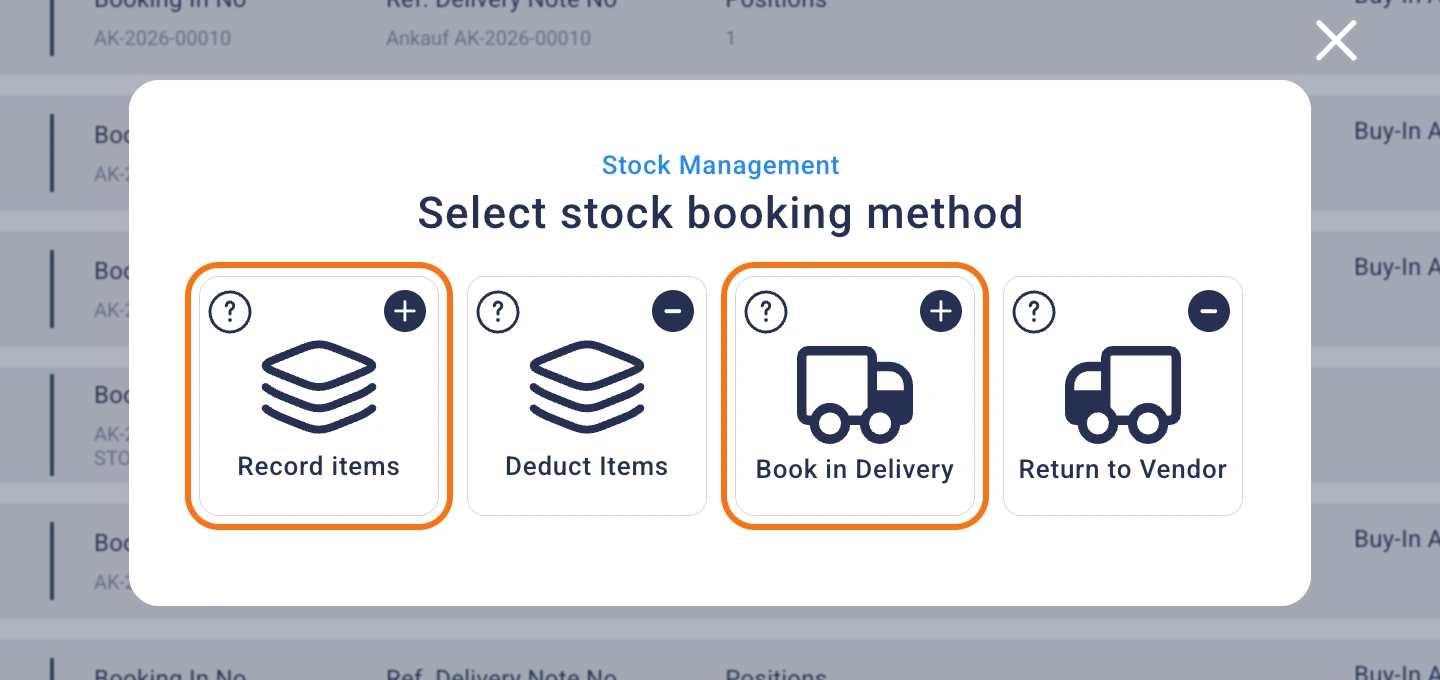
- Click the plus next to the search. The “Select stock booking method” dialog opens.
- Pick the method that fits your booking and click “Start booking”.
- For “Book in Delivery” and “Return to Vendor”, pick the supplier and enter the delivery note number or a reference. For “Record items” and “Deduct Items”, there’s space for a reference or note.
- Search for the item and enter the quantity, “PP (Net)” or “PP (Gross)” and the physical location. Each further item gets its own row.
- Click “Create booking”. The record gets its own number, and you print it with “Print”.
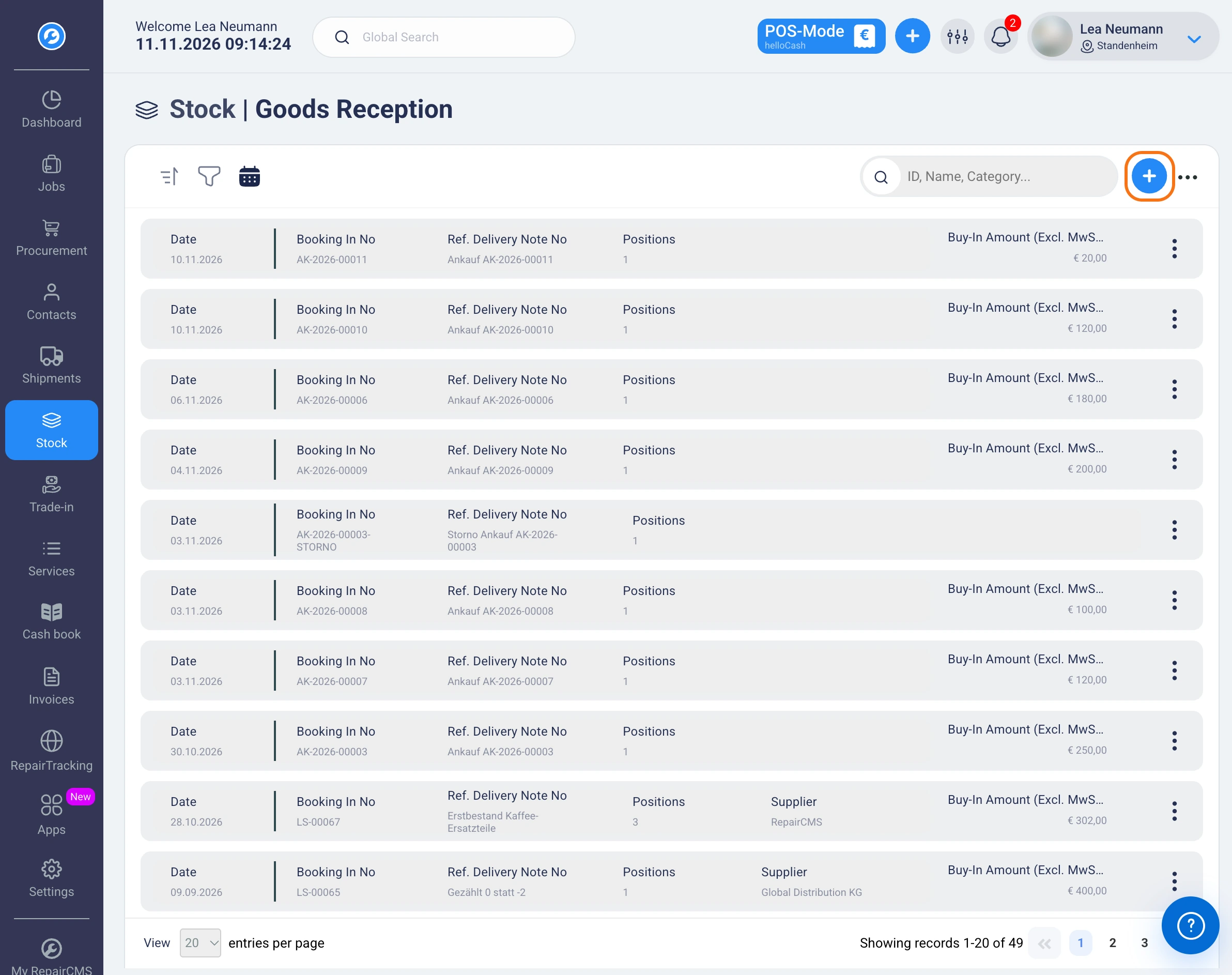
The four methods in the dialog:
- Record items raises your stock level. Use it for items you already have, such as used or refurbished items.
- Deduct Items lowers your stock level, for example for defective or missing items.
- Book in Delivery raises your stock level when new items arrive from your supplier.
- Return to Vendor lowers your stock level when items go back to the supplier, for example after a wrong delivery.
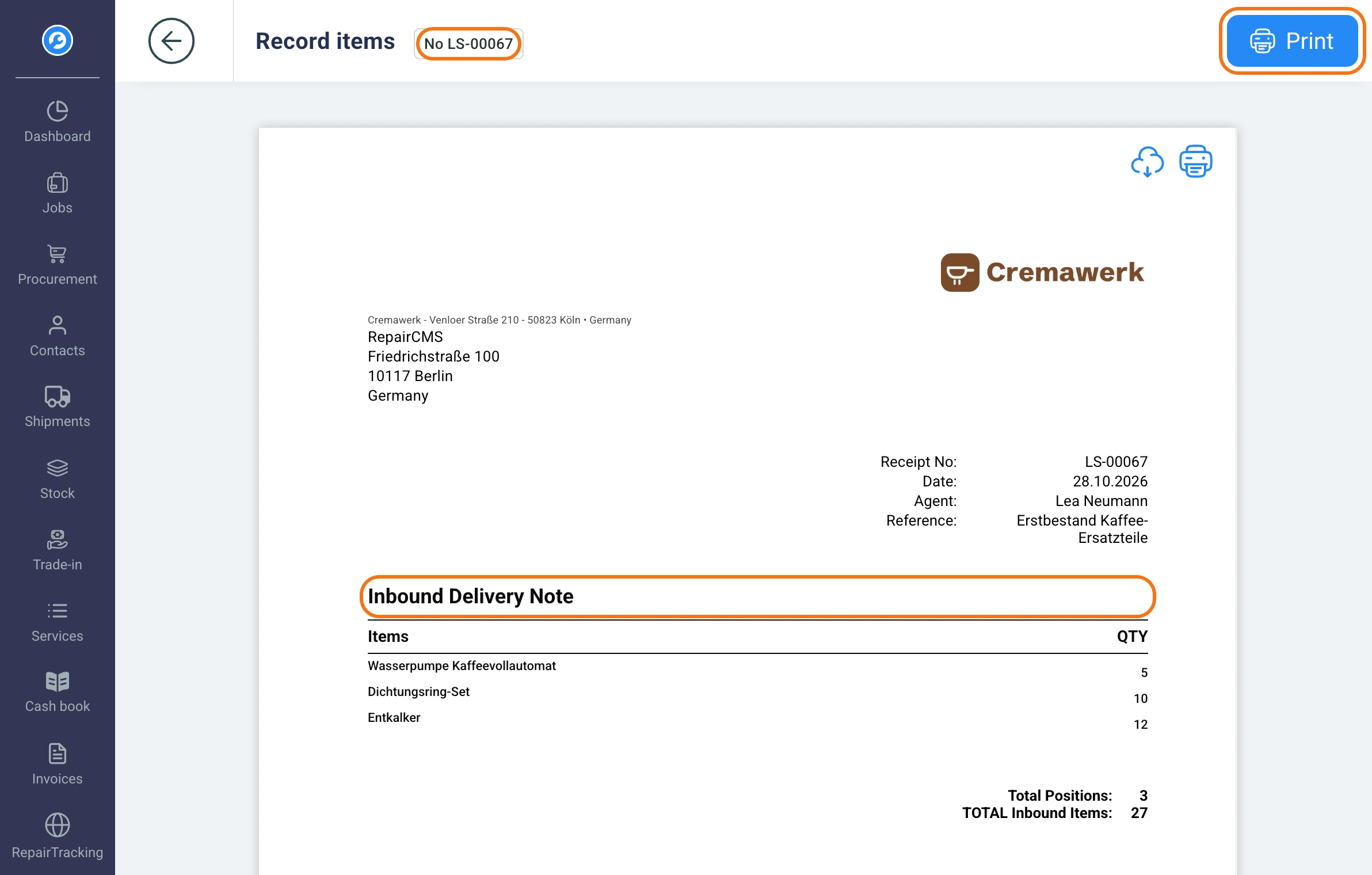
The record is called “Inbound Delivery Note” for all four methods, including deductions and returns.
You can find deliveries with a supplier later on the supplier’s contact. It shows what they delivered and when.
How do I check in a customer’s device?
There are two ways, depending on how the customer booked.
The customer booked online or on site themselves. Then their booking is waiting in the service requests. Bookings from the self check-in, the Ultimate Repair Form Builder and the B2B portal land there, for example. When the device arrives, you check it in there:
- In the sidebar, open “Jobs”, then the “Service Requests” tab and the customer’s request. How the service requests are organized is explained in the article on service requests.
- Click “Convert To Job” at the top. The “Confirmation of arrival” dialog opens.
- Choose whether to scan a QR code and continue on your phone, or check in on this device.
- Record photos and the condition of the device and add brand, model and serial number.
- Enter the job type, symptoms and problem description. If you already know which spare part you need, you can assign it from stock in this step.
- Set the physical location and the team member, and pick a status if needed.
- Click “Confirm arrival & print”. RepairCMS turns the service request into a job and prints the label for the device.
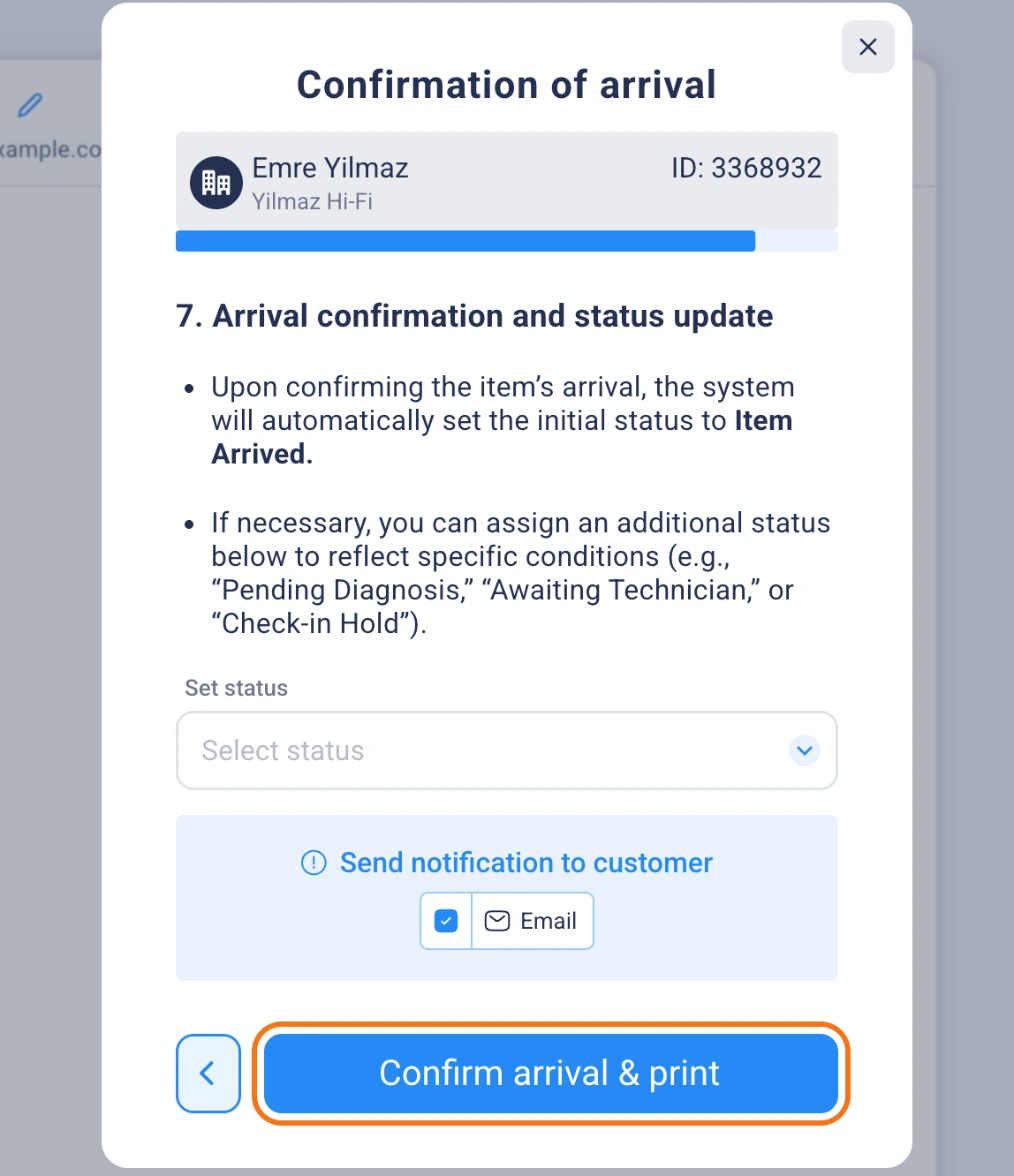
After the check-in, the job has the status “Arrival is confirmed”, unless you picked a different status. Your stock level doesn’t change.
The customer is standing in front of you with the device. Then you book a job right away. The article on booking a repair ticket shows how.
When does a spare part leave stock?
When you create the invoice. If you assign a spare part from stock to a job, it shows up right away on the job ticket, service report, quote and invoice. It stays in stock until you create the invoice. Only then does RepairCMS book it out and your stock level go down.
In the example, the cone sits in stock after you receive it and is already linked to the speaker’s job. It’s booked out with the invoice to the customer.
What happens with an order from the Purchasing Hub?
If you order spare parts through the Purchasing Hub, there are two steps. With “Mark as delivered”, you enter the delivery note number and the delivered quantity, and the job’s status changes to parts delivered. The items aren’t in stock yet at this point. When you select the delivered items and click “Goods Receipt”, RepairCMS creates the stock booking and your stock level goes up. How to mark an order as delivered is explained in the article on delivered orders.
You add the Purchasing Hub as an add-on in the RepairCMS Business, Team and Enterprise plans. For the stock booking with “Goods Receipt”, you also need stock management, which is included in the Team and Enterprise plans.
Does this also apply in the RepairCMS app?
Yes, the app separates both right at the start. Tap the plus at the bottom and then “Book arrival”. Under “What arrived?”, choose “Goods receipt” for spare parts and items from your supplier, or “Device check-in” for a repair from a service request. In the app, the record is called “Goods receipt note”. How receiving stock works in the app step by step is explained in the article on receiving stock in the app.
Everything else stock management in RepairCMS can do is on the inventory software page.
Frequently Asked Questions
Do I book spare parts into stock or straight onto the job?
Both, one after the other. You receive the spare part into stock first, then assign it to the job. It's booked out when you create the invoice.
What counts as receiving stock?
Anything that raises your stock level. In the web app, that's “Book in Delivery” for a delivery from your supplier and “Record items” for items you already have. A customer's device doesn't count, it gets a job.
How do I add used or refurbished items to stock?
With the “Record items” method when you start a new booking under “Goods Reception”. It raises your stock level without a supplier, and you enter a reference or note instead of a delivery note.
Does a device check-in change my stock level?
A device check-in creates a job and leaves your stock level as it is, because the device belongs to the customer. If you assign spare parts from stock during the check-in, they're linked to the job and leave stock with the invoice.
Does “Mark as delivered” put the items into stock?
“Mark as delivered” records the delivery note number and quantity and sets the job's status to parts delivered. The items go into stock with the second step, the “Goods Receipt” button in the Purchasing Hub.
What record do I get when I receive stock?
The “Inbound Delivery Note” with its own record number. You can save and print it. In the RepairCMS app, it's called “Goods receipt note”.
What's the difference between receiving stock and stock going out?
Receiving stock raises your stock level, stock going out lowers it. Stock goes out through the “Deduct Items” and “Return to Vendor” methods and through the invoice, when RepairCMS books out the spare parts you used.
Did this guide help you?