
Find a device by serial number, IMEI or scan
On this page · 6 sections
In the RepairCMS app, you find a device by its serial number or IMEI with the search on the home screen or in the “Jobs” tab. Both searches also find jobs that were picked up long ago and highlight the number in the result. Scanning opens a job through the QR code on the device label.
An example: a customer brings in their iPhone for the second time and can’t remember when it was last with you. You type the serial number into the search on the home screen and see the old job and, if you’ve already booked it, the new one.
Where do I search for a serial number or IMEI?
The RepairCMS app has two searches, and both find a device by its serial number or IMEI. The search on the home screen also covers customers, articles and invoices. The search in the “Jobs” tab suits you when you’re already working in the job list and need filters.
Search on the home screen
- On the home screen, tap the “Job, customer, article” search field.
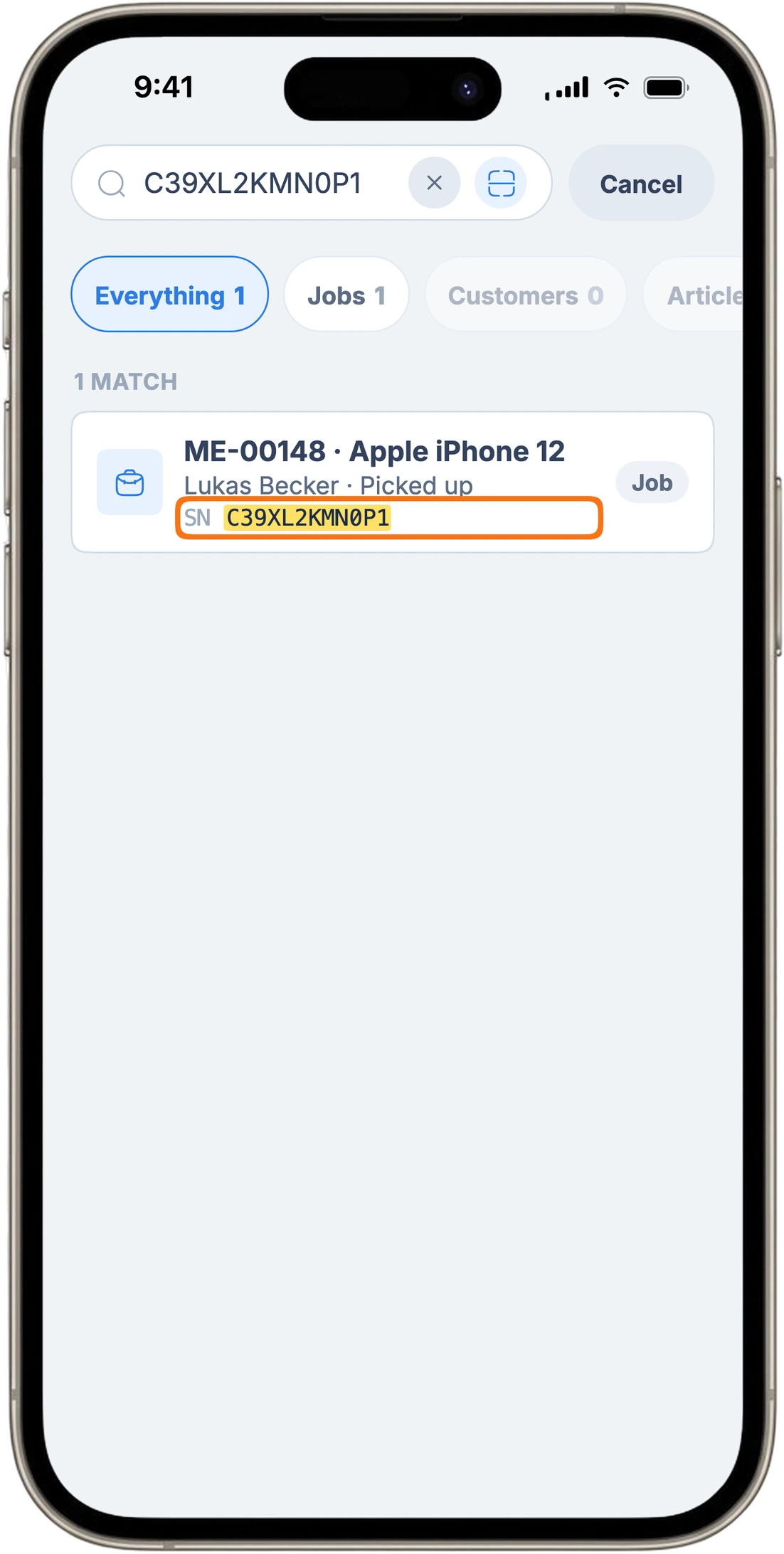
- Type the serial number or IMEI. The search starts from 2 characters.
- If you like, pick an area at the top, for example “Jobs” instead of “Everything”.
- Tap the result to open the job.
Below each job result, the line “SN …” or “IMEI …” shows the number you searched for, highlighted in yellow. That tells you right away why the job came up. Before you type anything, the search lists the jobs you opened last in this session under “Recently opened”. “Cancel” closes the search.
The search only shows the areas you have rights for. If “Invoices” is missing, for example, your account has no right for it.
Search in the “Jobs” tab
- Tap “Jobs” at the bottom.
- Tap the “Customer, job, device, IMEI” search field at the top.
- Type the serial number or IMEI.
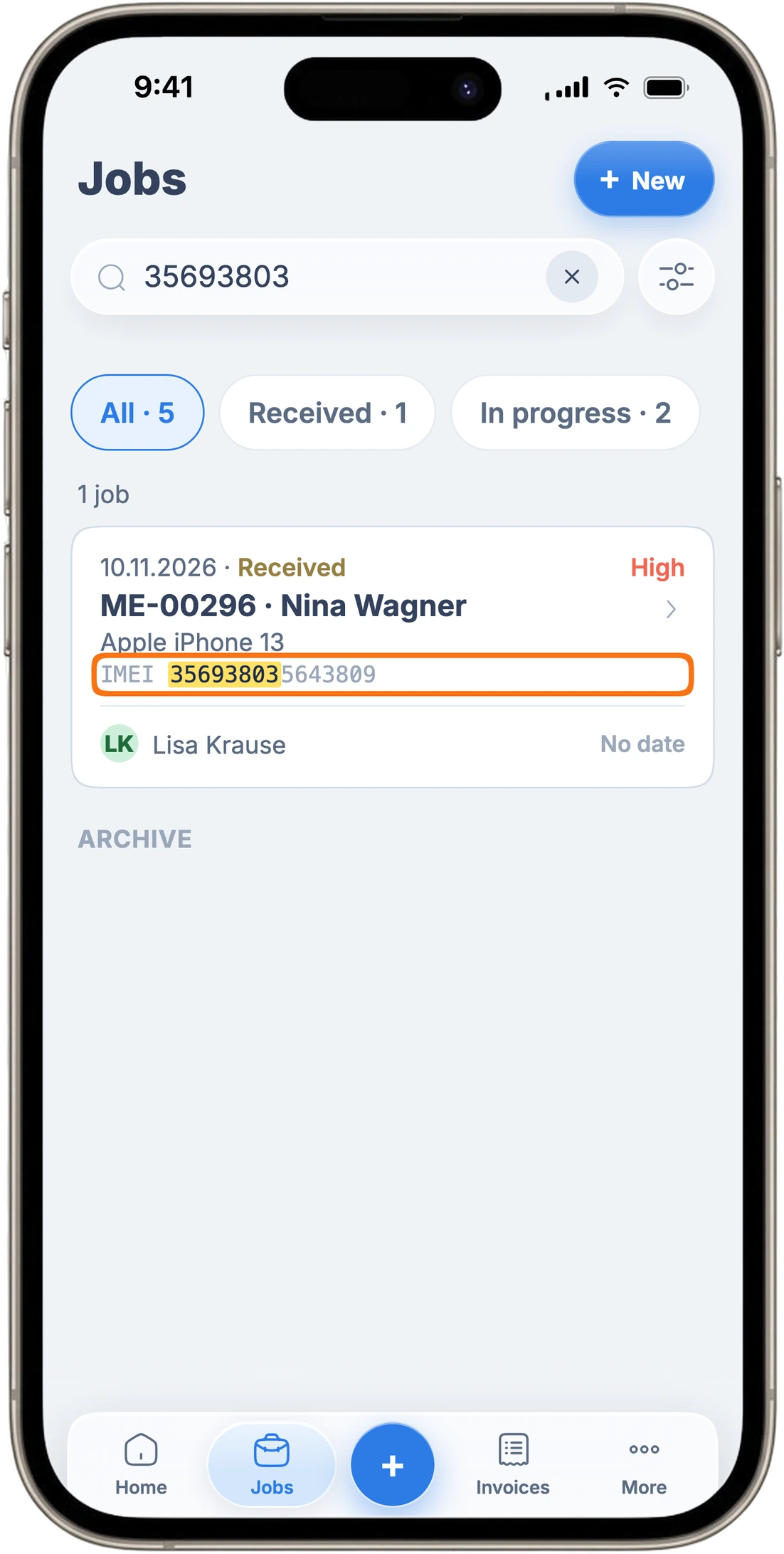
Every matching job card shows the line “IMEI …” or “SN …” with the number highlighted in yellow. You can also filter the list by status, team member, location, period and priority.
Can I find completed jobs too?
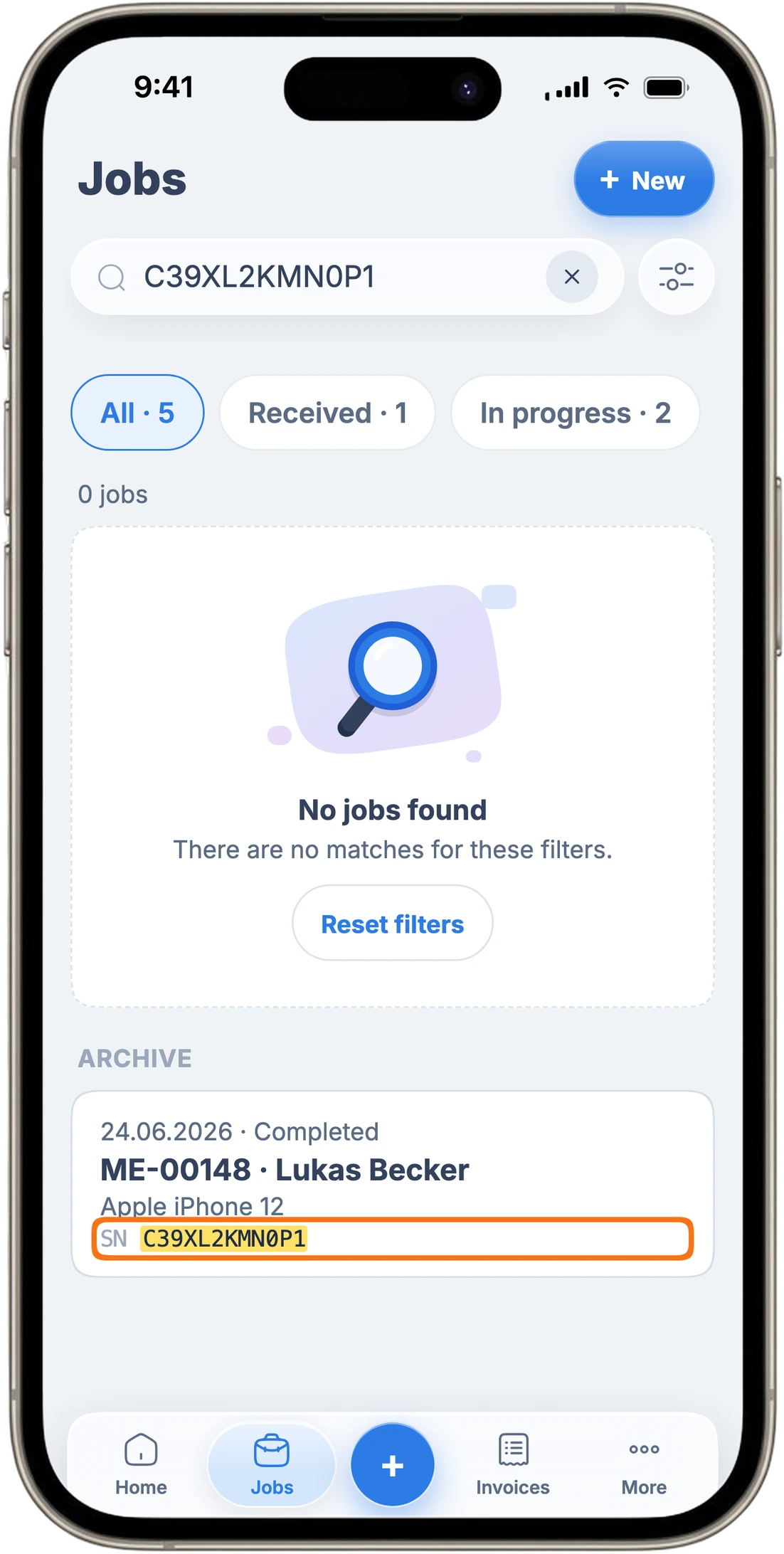
Yes, both searches also find jobs that were picked up long ago. In the “Jobs” tab, picked-up jobs older than 90 days move to “Archive”. You find them there by serial number or IMEI too, and the card shows the line “SN …” with the highlighted number.
Can I scan the number instead of typing it?
The scanner opens a job through the QR code on the device label. You type the serial number or IMEI into the search field, because the scanner doesn’t use them to look for jobs.
- In the search on the home screen, tap the scan icon in the search field.
- Under “What are you scanning?”, choose “Scan a job”.
- Point the camera at the QR code on the device label. The app opens the job.
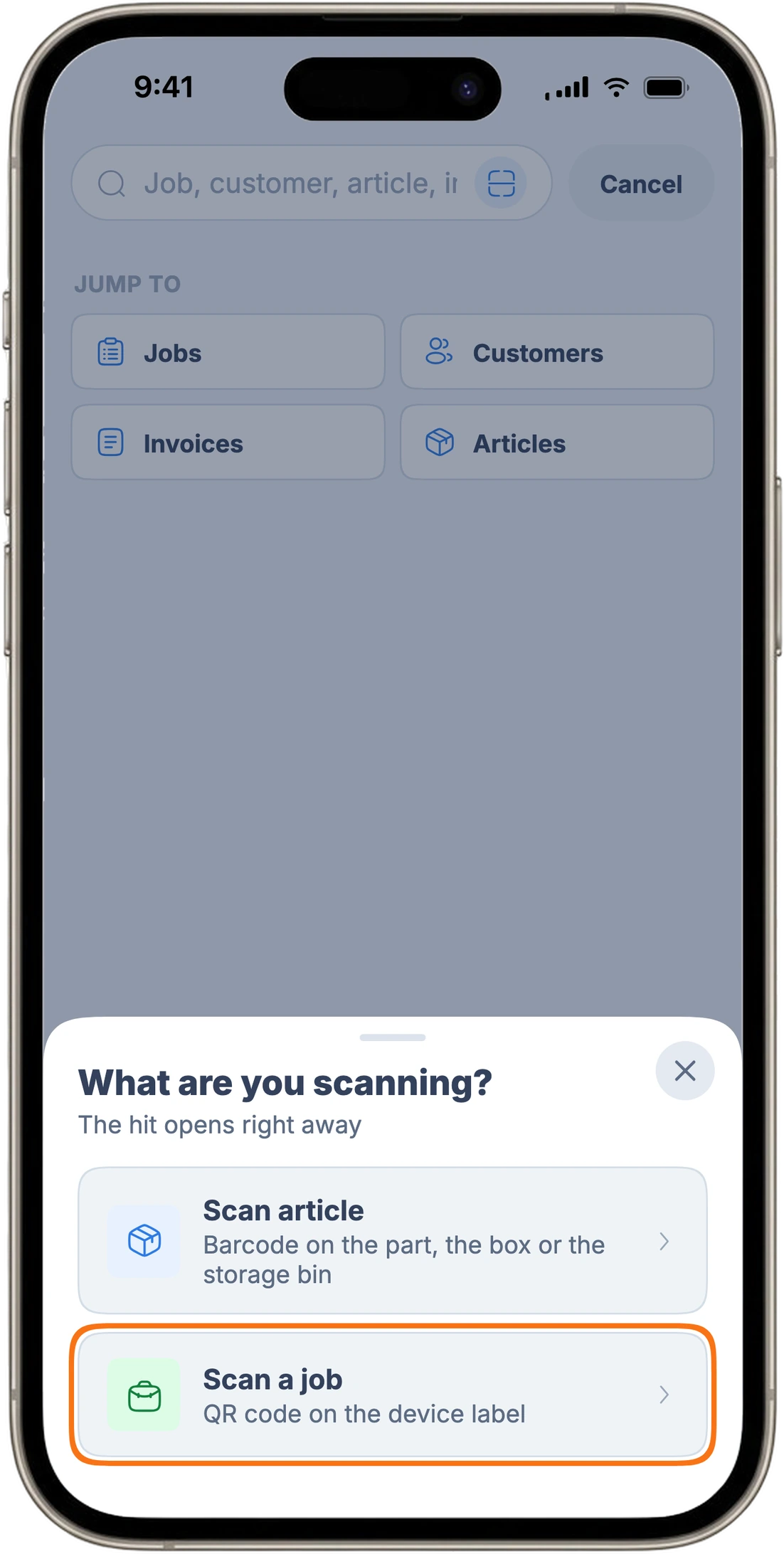
The second option, “Scan article”, reads the barcode on a spare part, its box or the storage bin. When you scan a barcode that doesn’t belong to a job, the app asks “What is this?” and offers “Delivery note” or “New item”.
If the label is missing or worn, the serial number gets you to the job just as fast. Type it into the search on the home screen.
Can I see whether the device has been here before?
Searching for the serial number shows you every job with that number. If there’s more than one result, the device has been with you before, and each result is one repair on it. In the example, you find the old iPhone job this way and can read what was done back then.
When does a job have a serial number?
The serial number sits in the device details of the job, in the “IMEI / serial” row. The row is there when the device type of the job has serial number or IMEI turned on. When you edit the device details, the field is called “Serial number or IMEI”.
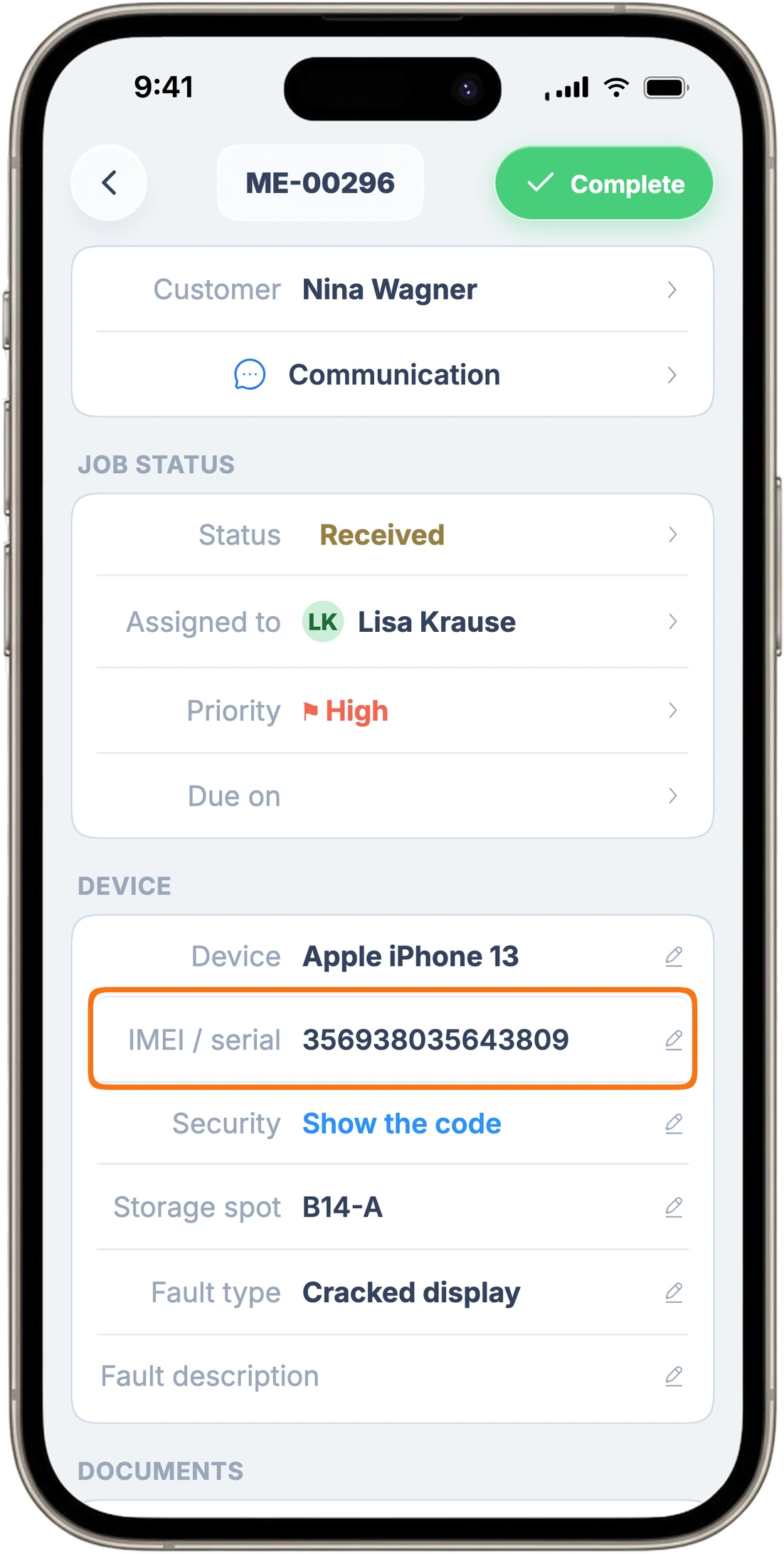
For the search to find a device by its number, the number has to be on the job. You choose which fields a device type asks for in the article on device types.
How to take in a device in the app is explained in the article on booking your first repair order. When you want to book in spare parts from your supplier, see the article on receiving stock in the app.
Everything else the RepairCMS app can do is on the RepairCMS app page.
Frequently Asked Questions
How do I find a device by serial number in the RepairCMS app?
Type the serial number into the search on the home screen. The search starts from 2 characters and shows the line “SN …” with the highlighted number below each job result. Tap the result to open the job.
Can I find jobs that have already been picked up?
Yes, the search on the home screen and the search in the “Jobs” tab both find picked-up jobs. In the “Jobs” tab, picked-up jobs older than 90 days move to “Archive”, and you find them there by serial number or IMEI too.
Can I scan the serial number or IMEI with the camera?
With the camera, you scan the QR code on the device label, and the app opens the job. You type the serial number and IMEI into the search field, because the scanner finds jobs through the device label.
How do I see whether a device has been repaired before?
Search for the device's serial number. The search shows you every job with that number, and each result is one repair on that device.
Why doesn't my job have a row for the serial number?
The “IMEI / serial” row appears when the device type has serial number or IMEI turned on. How to set that up for your device types is explained in the article on device types.
What's the difference between the home screen search and the search in the “Jobs” tab?
Both find jobs by serial number or IMEI, including picked-up ones. The home screen search also covers customers, articles and invoices. The search in the “Jobs” tab works together with filters such as status or team member.
Do I need a specific plan for the search?
Searching for jobs is included in every RepairCMS plan. You open results in the “Articles” area in the RepairCMS Team and Enterprise plans, because stock management is included there.
Did this guide help you?