
Ultimate Repair Form Builder: create your first form
On this page · 5 sections
With the Ultimate Repair Form Builder you build your own forms that customers use to book repairs. They work on your website, through a link or QR code, or on a tablet at your location. You pick a form type, give the form a name and set the location and languages. Then the editor opens and you adjust the steps and the look.
The Ultimate Repair Form Builder is included from the Team plan at no extra cost. You’ll find it under “Apps”.
The four form types
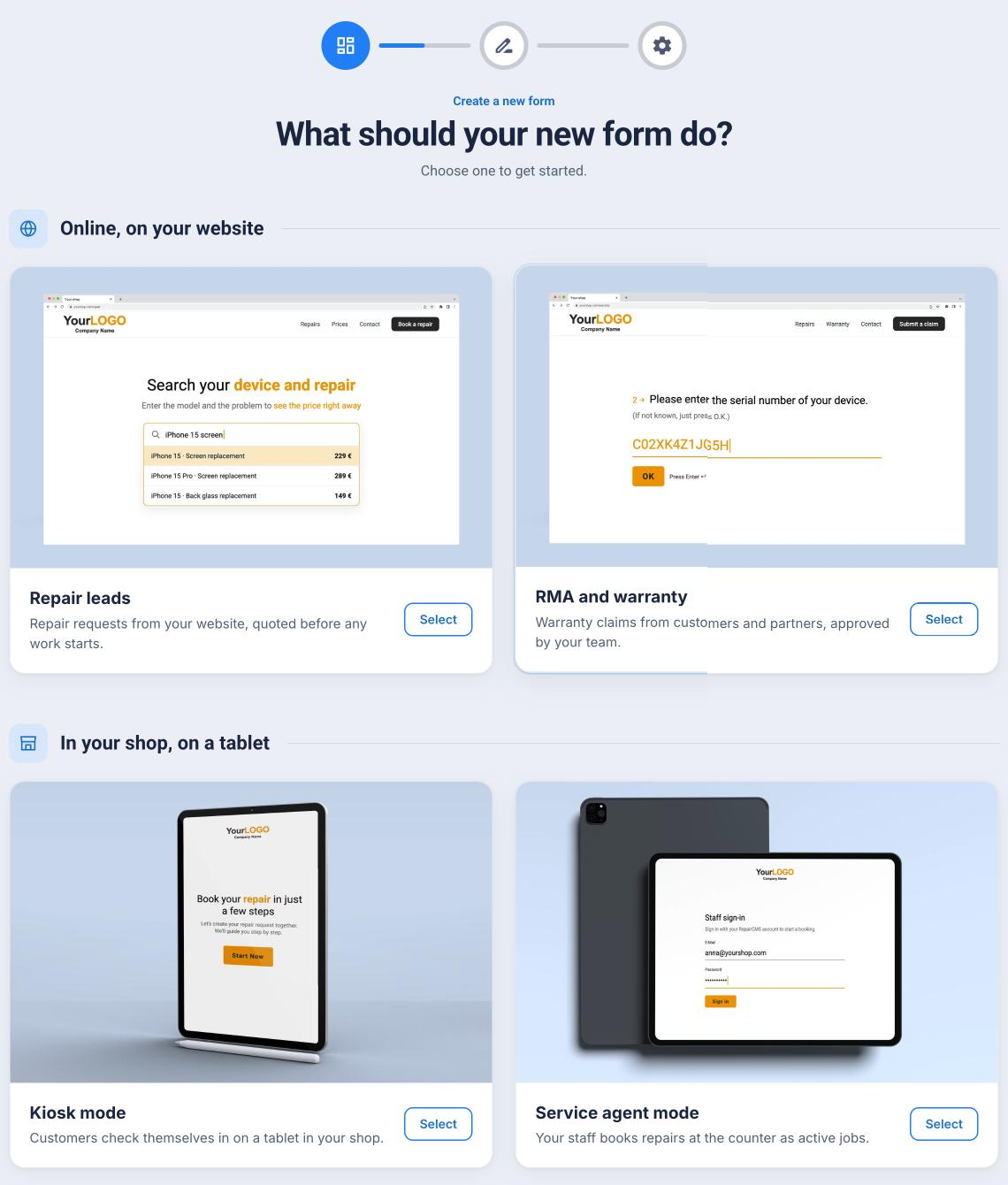
You create as many forms as you need. When you create one, you pick one of four form types.
| Form type | What it is for | Where it runs |
|---|---|---|
| Repair leads | Customers request a repair, as a price search on your website or as a full booking form | Website, link, QR code, social media |
| RMA and warranty | Customers and partners report warranty cases with serial number, purchase date and photos | Website, link, QR code |
| Kiosk mode | Customers check themselves in on a tablet at your location | Tablet at your location |
| Service agent mode | Your team takes in repairs on site and books them straight as active jobs | Your team’s device on site |
The form type is fixed once you create the form. If you need another type, create a new form.
Activate the app
- Click “Apps” in the menu on the left.
- Open “Ultimate Repair Form Builder”.
- Click “Activate”. The page then shows “App Activated”.
The app page has two tabs. “Description” explains the app, “Forms” holds your forms.
Create a new form
- Open the “Forms” tab and click “New form”.
- Pick the form type and click “Continue”.
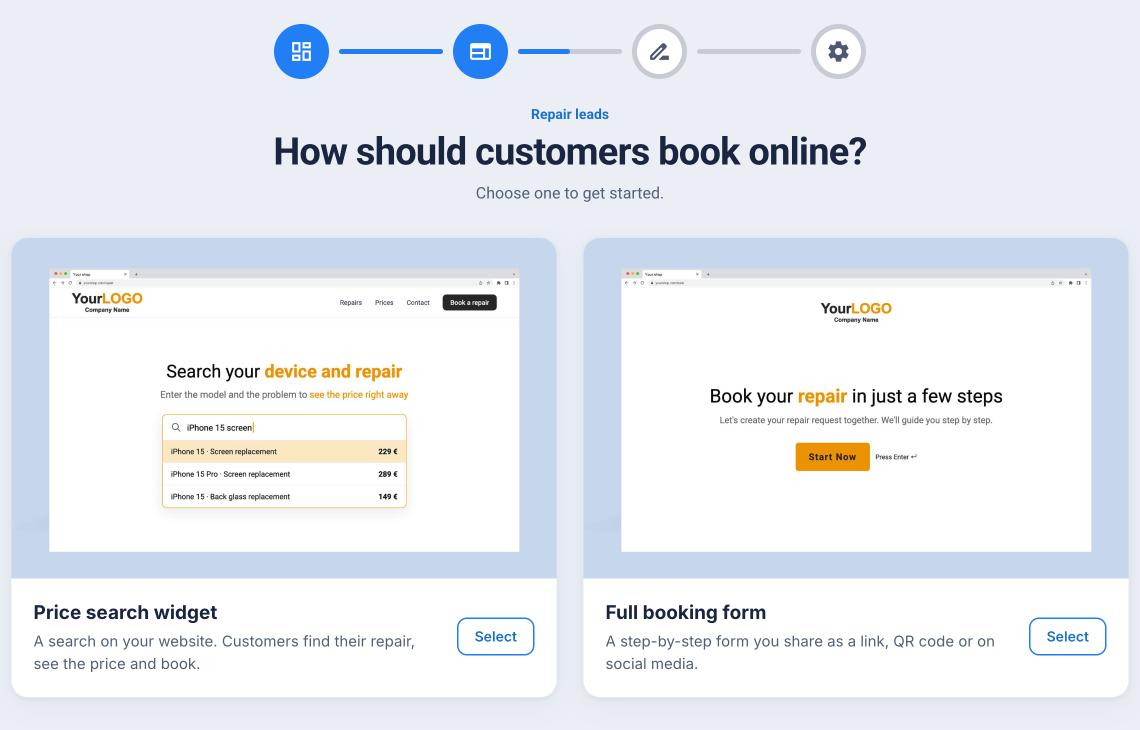
- Repair leads only: choose how customers book online. “Price search widget” is a search on your website. Customers find their repair there, see the price and book. “Full booking form” takes customers through the booking step by step. You share it as a link, as a QR code or on social media.
- Enter a name for the form and click “Continue”. Only your team sees this name. It helps you tell your forms apart.
- Set the form settings: “Booking location”, “Confirmation email” and the “Languages” your form appears in.
- Click “Create form”.
The editor opens with a set of steps already in place for your form type. To adjust them, see Edit the steps of your form.
You can change the settings from step 5 at any time in the editor under “Settings”.
Your forms at a glance
The “Forms” tab shows every form as a card with a preview, its name and form type. The top left corner of the card shows its status.
| Status | Meaning |
|---|---|
| Unpublished | The form has never been online. Customers see nothing. |
| Published | The form is online, as you last published it. |
| Unpublished changes | The form is online, but you have changes your customers do not see yet. |
| Offline | You unpublished the form. The link and widget show nothing anymore. |
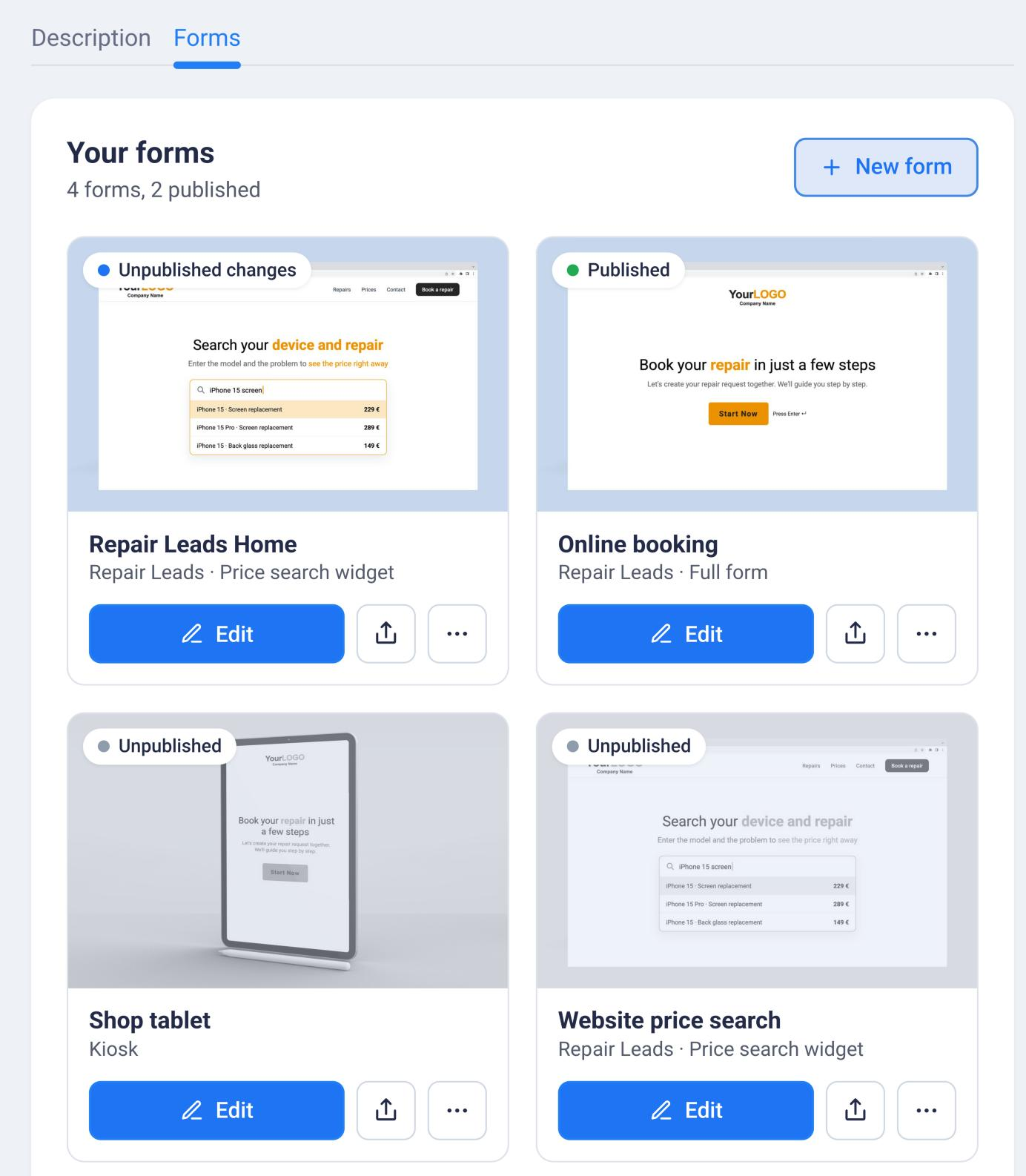
Below each card you’ll find “Edit”, a share button and a menu with “Publish” and “Delete”.
The Ultimate Repair Form Builder is not the form builder for your device types. To set up device types and their required fields, see Configure device types.
Frequently Asked Questions
How many forms can I create?
As many as you need. The four form types are templates, not a limit. For example, you can create one form for your website and a second one for social media.
Which plan includes the Ultimate Repair Form Builder?
It's included from the Team plan at no extra cost. Starter and Business don't include it.
Can I change the form type later?
No. You choose the type when you create the form. For another type, create a new form.
Do customers see my form right after I create it?
No. A new form only goes online when you publish it. Until then you can take your time with it.
Did this guide help you?