
Design and set up your form
On this page · 3 sections
Under “Design” you match your form to your brand, with logo, colors, font, corners and a background image. No coding needed. Under “Settings” you decide which location bookings go to, which confirmation email the customer gets and which languages the form shows in.
Design
Open your form with “Edit” and pick the “Design” tab on the right. You see every change right away in the preview. A small label on each section shows where it applies: “Form” only applies in the form, “Form + widget” also in the price search on your website.
| Section | What you set |
|---|---|
| Logo | “Show logo” on or off, “Upload logo”, “Logo height” in pixels |
| Colors | Questions, Answers, Highlighted words, Buttons, Button text, Complementary Color, Background |
| Font | Font, text styles with size, weight and color, plus the overall size from Small to Extra large |
| Corners | Default, None, Small, Large or exactly in pixels |
| Alignment | Questions, plus start screen and thank you page: Default, Left or Center |
| Background image | Upload an image and set the background opacity |
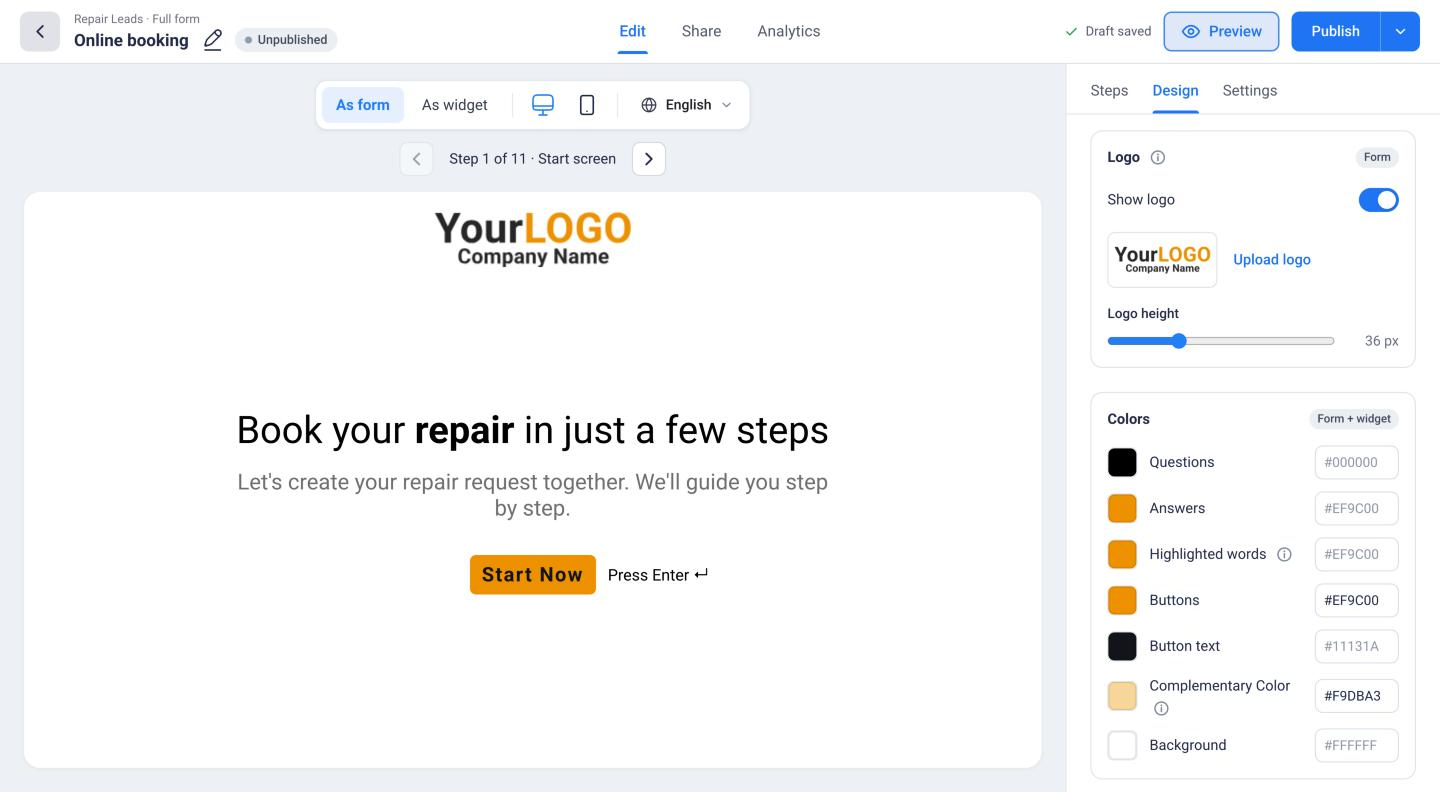
You enter colors as a color code, for example #2589F6, or pick them from the color field.
Use the colors and font of your website. That way the form feels like part of your site.
Settings
Pick the “Settings” tab on the right.
Form type
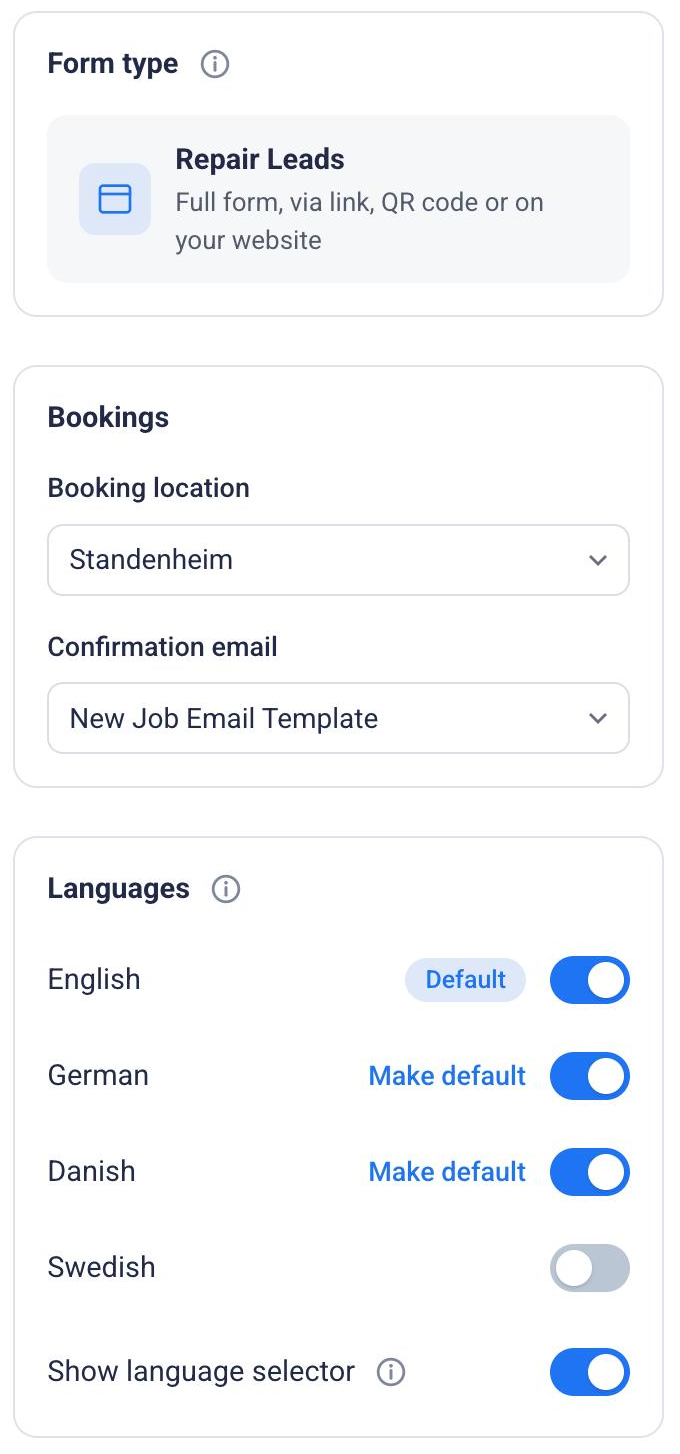
This shows the type of your form, for example “Kiosk”. You choose the type when you create the form. For another type, create a new form.
Bookings
- Booking location: Bookings from the form go to this location. Each form has exactly one booking location. If bookings should arrive at different locations, create a separate form for each.
- Confirmation email: The customer gets this email template after booking. How to adjust templates is explained in Customize email templates.
Automatic restart
This setting is only available in kiosk mode and service agent mode. After a booking the last page stays on screen for a while. Then the form starts over for the next customer. You can choose 30 seconds, 60 seconds, 5, 15, 20 or 25 minutes. The default is 15 minutes.
Languages
Switch on the languages your form should show in. “Make default” sets the language customers see first. With “Show language selector” on, customers pick their language in the form themselves.
You edit the step texts for each language separately. Switch the language in the bar above the preview. More in Edit the steps of your form.
Frequently Asked Questions
Do I need to code to match the form to my brand?
No. You set logo, colors, font, corners and background under “Design” and see every change right away in the preview.
How long does the last page stay on the kiosk?
You set that under “Settings” in “Automatic restart”, from 30 seconds to 25 minutes. The default is 15 minutes.
Can my customers choose the language themselves?
Yes, if “Show language selector” is on. They then pick from the languages you switched on. They see the default language first.
Where do bookings go if I have several locations?
At the location you picked under “Booking location”. If bookings should also arrive at another location, create a separate form for it. Where customers can drop off their device is set separately in the “Mail in or drop off” step.
Did this guide help you?