
All steps of your form at a glance
On this page · 5 sections
For each step of your form, this article shows what your customer does there and what you set up. It also covers which steps each form type starts with, how an add-on gets into the job and how RMA and warranty claims work. To add, move or remove steps, see Edit the steps of your form.
Which steps each form type starts with
A new form comes with a set of steps already in place. You can add more or remove some afterwards.
| Form type | Steps in a new form |
|---|---|
| Repair leads | Start screen, Brand & Model, Defect, Device Security, Mail in or drop off, Contact Details, Address, Terms and privacy, Signature, Thank you page |
| RMA and warranty | Start screen, Brand & Model, Defect, Serial number, IMEI, Purchase date, Original invoice number, Photos, Device Security, Contact Details, Address, Terms and privacy, Signature, Thank you page |
| Kiosk mode | Start screen, Brand & Model, Defect, Device Security, Contact Details, Address, Terms and privacy, Signature, Thank you page |
| Service agent mode | Start screen, Brand & Model, Defect, Device Security, Contact Details, Address, Terms and privacy, Signature, Print |
If you picked the price search widget for repair leads, the “Price search” step is added right after the start screen.
“Mail in or drop off” is only available for repair leads and RMA and warranty. “Print” is only available in kiosk mode and service agent mode. In the editor, these steps carry the label “Online only” or “On site only”.
The basic steps of a repair intake form
You edit the title, subtitle, placeholder and button of every step right in the preview. The table shows what else you set up. In service agent mode, your team goes through the steps with the customer.
| Step | What the customer does | What you set up |
|---|---|---|
| Start screen | Sees your welcome message and gets started. | Only the texts. This step is always first. |
| Brand & Model | Enters the brand and model of the device. | “Required” on or off. |
| Defect | Describes what is wrong with the device. | “Required” on or off. |
| Device Security | Picks passcode, unlock pattern or no lock and enters the code or pattern. | The texts of the three answers. |
| Contact Details | Enters their name, email and other contact details. | “Required” on or off for each field. |
| Address | Enters their address. | “Required” on or off for each field. |
| Terms and privacy | Reads your terms and agrees. | The terms text and the consents. |
| Signature | Signs on the screen. | “Required” on or off. It’s on by default. |
| Thank you page | Sees a confirmation or a QR code at the end. | What shows at the end, links and the Done button. More in Edit the steps of your form. |
Contact details and address
In these two steps you decide for each field whether the customer has to fill it in. The table shows how the fields are set in a new form.
| Step | Required by default | Optional by default |
|---|---|---|
| Contact Details | First name, last name, email | Telephone number, company |
| Address | Street and number, postal code, city | Additional address information, country |
If you like to call customers before a repair, switch “Required” on for the telephone number.
Terms and privacy
A new form uses the repair terms from your job receipt as its terms text. You can change the text right in the preview. The change only applies to this form, your job receipt stays as it is.
Under “Consents” you list what the customer says yes to. A new form has one consent, and it is required.
- Click “+ Consent” to add another one, for example for your newsletter.
- Write the consent text in the preview.
- Use “Required” to decide whether the customer can continue without ticking it.
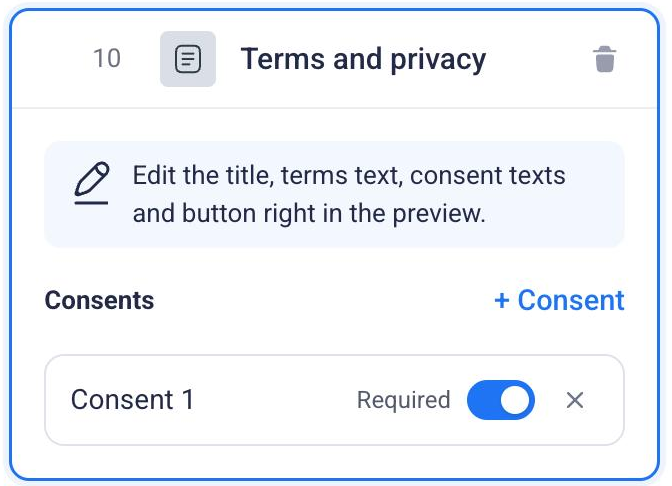
New consents start out optional. Leave a newsletter consent that way. To remove a consent, click the cross next to it.
Add-on sales: add-on services and add-on items
Two steps let you offer your customer something extra during the booking. You’ll find them under “Add step” in the group “Prices and add-on sales”.
| Step | What for | Where the offers come from |
|---|---|---|
| Add-on services | Services such as a data backup | Your services |
| Add-on items | Items such as a screen protector or a case | Your stock |
The answer “No thanks!” always stays. That way every customer can say no.
An add-on only gets into the job if the answer is linked to one of your services or an item from your stock. Without a link, the answer is just text. If the customer picks it, nothing is added to the job. The preview tells you so below the answer, for example with “No price yet, so it won’t be added to the job.”
Set up add-on services
- Add the step “Add-on services”.
- The step already has an answer for data backup, still without a service behind it. In the preview, click “Set a price” below that answer.
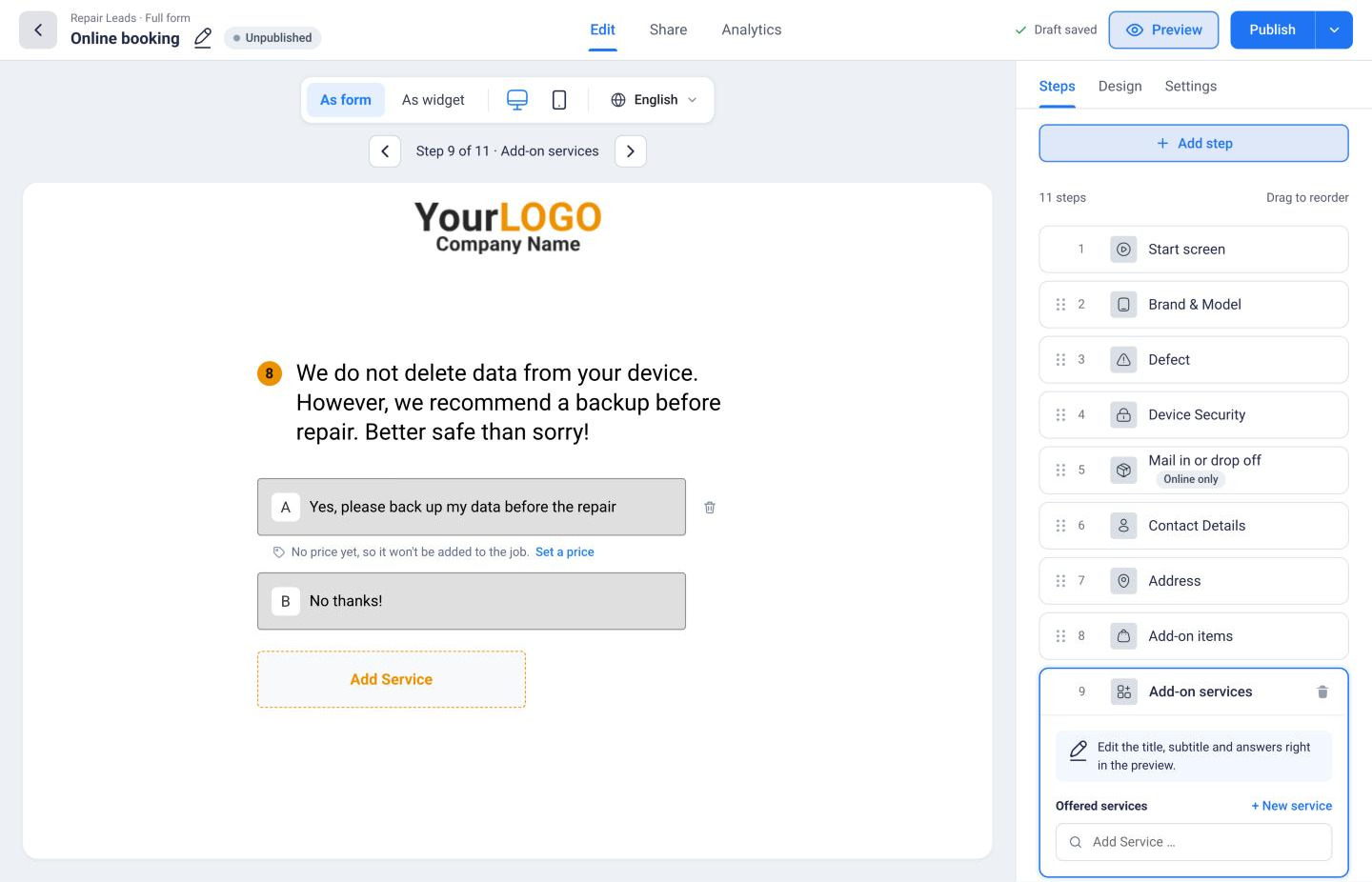
- Create the service “Data backup” with your price and save it. It replaces the text answer.
- Pick more services on the right under “Offered services”. If one is missing, create it with “+ New service”.
Each service shows up in the form as its own answer with its price. To remove an answer, use “Remove answer” in the preview.
Set up add-on items
- Add the step “Add-on items”.
- On the right under “Offered items”, pick the items from your stock, for example your screen protectors. If one is missing, create it with “+ New item”.
- In the preview, remove the answer “Yes, please show me screen protectors and cases” with “Remove answer”. It is just text and otherwise stays next to your items.
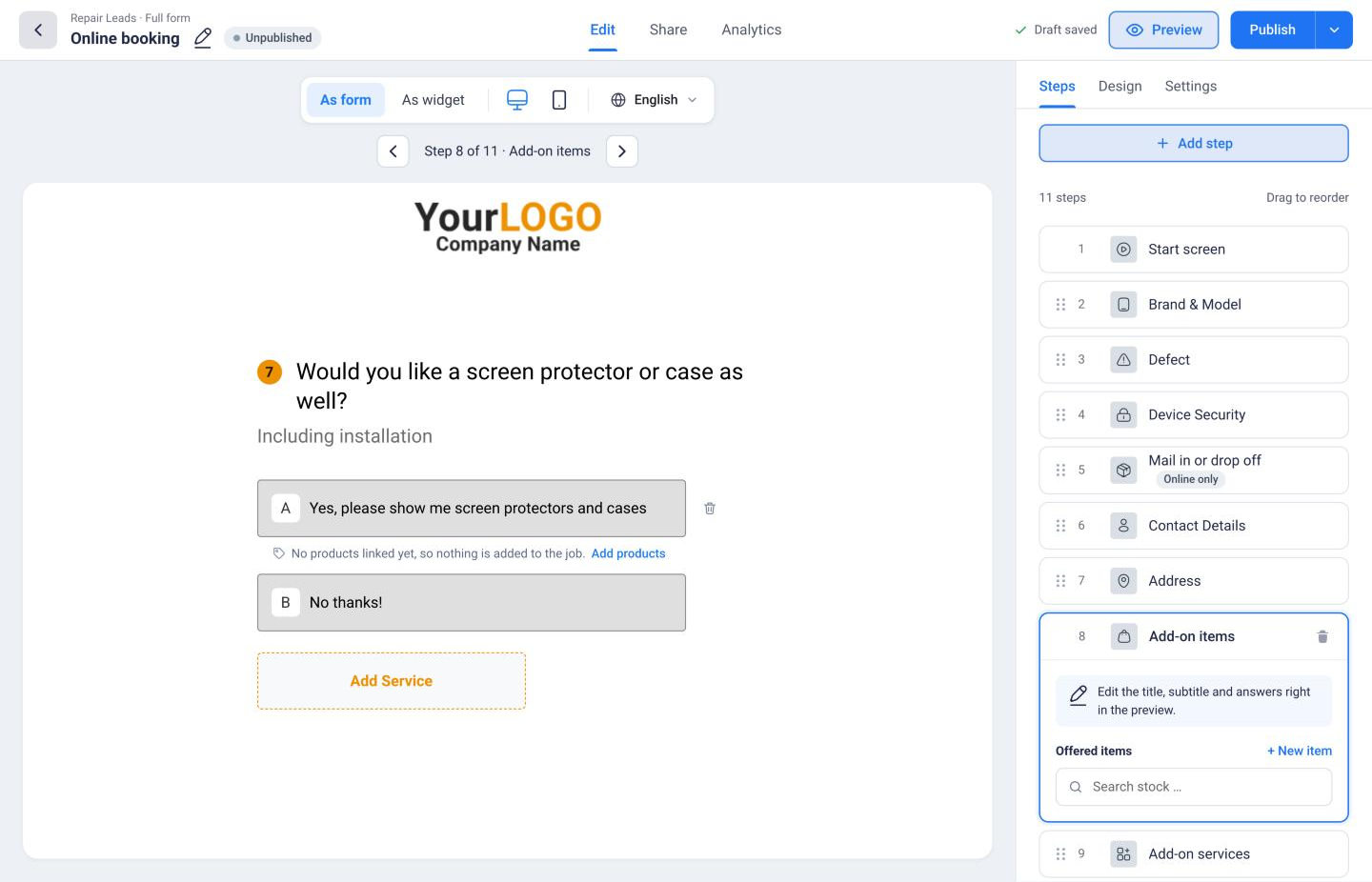
Each item shows up in the form as its own answer with its price. As long as no item is linked, the preview shows “No products linked yet, so nothing is added to the job.” and the button “Add products”.
RMA and warranty claim forms
With the form type RMA and warranty, customers and partners submit warranty claims online. Each claim becomes a service request that your team checks and approves.
Right after the “Defect” step, the form asks about the device and the purchase. That gives your team what it needs to check the claim.
| Step | What the customer provides |
|---|---|
| Serial number | The serial number of the device |
| IMEI | The IMEI, 15 digits long. On phones, dial *#06# to see it. |
| Purchase date | When they bought the device |
| Original invoice number | The number on their purchase receipt |
| Photos | Photos of the device or the damage, also a PDF such as the receipt or a short video. Up to 5 files, 10 MB in total. |
By default, these details are optional. If you always need the purchase date, for example, open the step and switch “Required” on. “Photos” has no “Required” switch.
You can use these five steps in the other form types too, for example the IMEI in kiosk mode. You’ll find them under “Add step” in the group “Device details”. They always come before the signature.
“Mail in or drop off” is not part of RMA and warranty forms by default. If the customer should send the device in right away, add it. To set it up, see Edit the steps of your form.
To turn the service request into a job, see Bookings from your form and the analytics.
Frequently Asked Questions
Why is an add-on missing from the job?
The answer isn't linked to a service or item yet. Open the form and look below the answer in the preview. If it says “No price yet, so it won't be added to the job.”, click “Set a price”. For add-on items, use “Add products” to link items from your stock. Then publish the form again. This applies to all bookings from then on.
Can I remove the answer “No thanks!”?
That answer always stays, so every customer can turn down an add-on. You can change its text right in the preview.
Does the customer have to enter their passcode?
No. In the “Device Security” step the customer can enter their passcode or unlock pattern. But one of the three answers is “I have no security”.
Can I ask for the serial number in a kiosk form too?
Yes. Under “Add step”, add “Serial number” from the group “Device details”. This works in every form type.
Can I use the form as a repair intake form on a tablet?
Yes. In kiosk mode, your customers fill in the form themselves on a tablet on site. In service agent mode, your team goes through the steps together with the customer, and the booking becomes an active job right away. Both start with the same basic steps, from brand and model to the signature.
Did this guide help you?