
Publish, share and add your form to your website
On this page · 7 sections
RepairCMS saves your changes as a draft. Customers only see the form once you click “Publish”. Under “Share” you get the link and QR code for social media, emails or a printed sign. For your website you copy a code once. Whatever you publish after that shows up there automatically.
Draft and publish
Everything you change in the editor is a draft first. At the top left, next to the form name, you see the status, for example “Unpublished”.
- Click “Preview” at the top right to see the form the way your customers do.
- Click “Publish”. From now on, customers see your changes through the link, QR code and website.
The arrow next to “Publish” opens a menu.
| Entry | What it does |
|---|---|
| View live form | Opens the form as it is online right now. |
| Discard changes | Deletes your draft. The last published version stays online. |
| Unpublish | Takes the widget and the link offline. Your design stays saved. |

Link and QR code
- Click “Share” at the top in the middle.
- Under “Link and QR code”, click “Copy link” or “Download QR code”. “Open form in a new tab” lets you try it yourself.
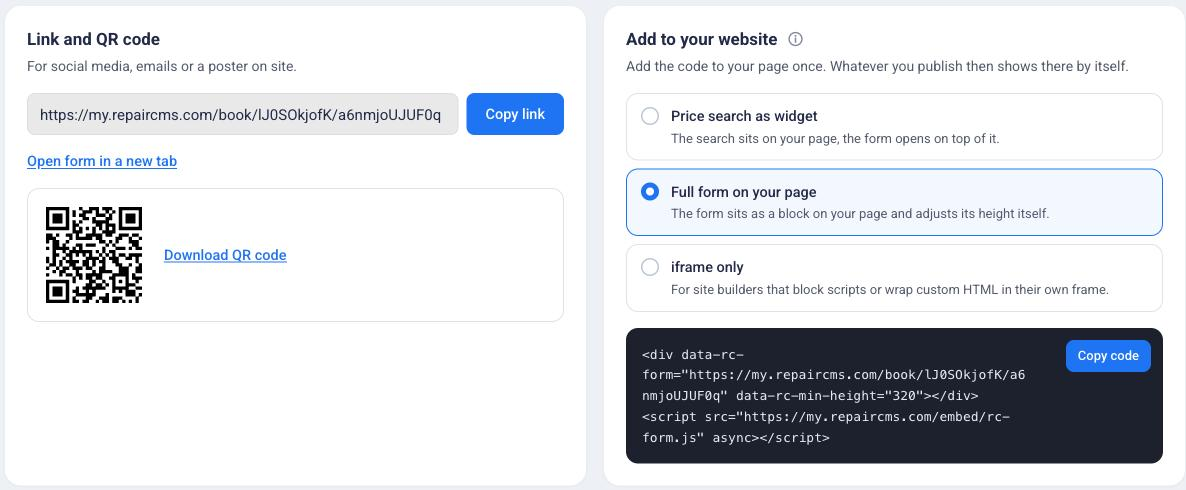
Put the link on social media, in emails or on your Google Business Profile. Print the QR code for flyers, posters or a sign at your entrance.
If the top says “Not published yet.”, the link, QR code and widget show your customers nothing. Publish the form first.
Add it to your website
Under “Add to your website” you choose how the form appears on your page.
| Type | When |
|---|---|
| Price search as widget | The search sits on your page, the form opens on top of it. |
| Full form on your page | The form sits as a block on your page and adjusts its height itself. |
| iframe only | For site builders that block scripts or wrap custom HTML in their own frame. |
- Choose the type.
- Click “Copy code”.
- Paste the code on your website where the form should appear, for example in an HTML block of your site builder.
For the steps in WordPress, Elementor, Wix, Jimdo and websites built with AI, see Add your repair form to WordPress, Wix and other websites.
You only paste the code once. When you publish changes in RepairCMS later, your website picks them up automatically.
Which types you see depends on the form type. The price search is only available for repair leads. RMA and warranty forms go in as a full form or an iframe. Kiosk and service agent forms don’t go on your website.
The iframe has a fixed height of 700 px. If a step gets cut off, change both height values in the code, height="700" and height:700px, for example to 900. If your website uses a Content Security Policy, it needs my.repaircms.com for scripts, frames and fonts and api-p.repaircms.com for requests. Best pass this on to your web designer.
Set up the price search
With the price search, customers search for their repair, see the price and book straight away. Everything it shows, prices included, comes from the services you set up in RepairCMS. If you change a price there, the price search on your website shows the new price.
For repair leads, switch to “As widget” above the preview. The preview then shows the price search on a sample page, in light or dark. “Widget state” shows how the search looks empty, with results, with a repair selected and during booking.
In the “Widget” tab, “Show in widget” sets what customers see.
| Switch | What it shows |
|---|---|
| Request without fixed price | A row for customers who can’t find their repair and still want to send a request. |
| Repair duration | The duration, if the service has one. It stays hidden on phones. |
| Stock status | Whether the part is in stock, if stock items are linked to the service. |
| Website font | The search field uses your website’s font. |
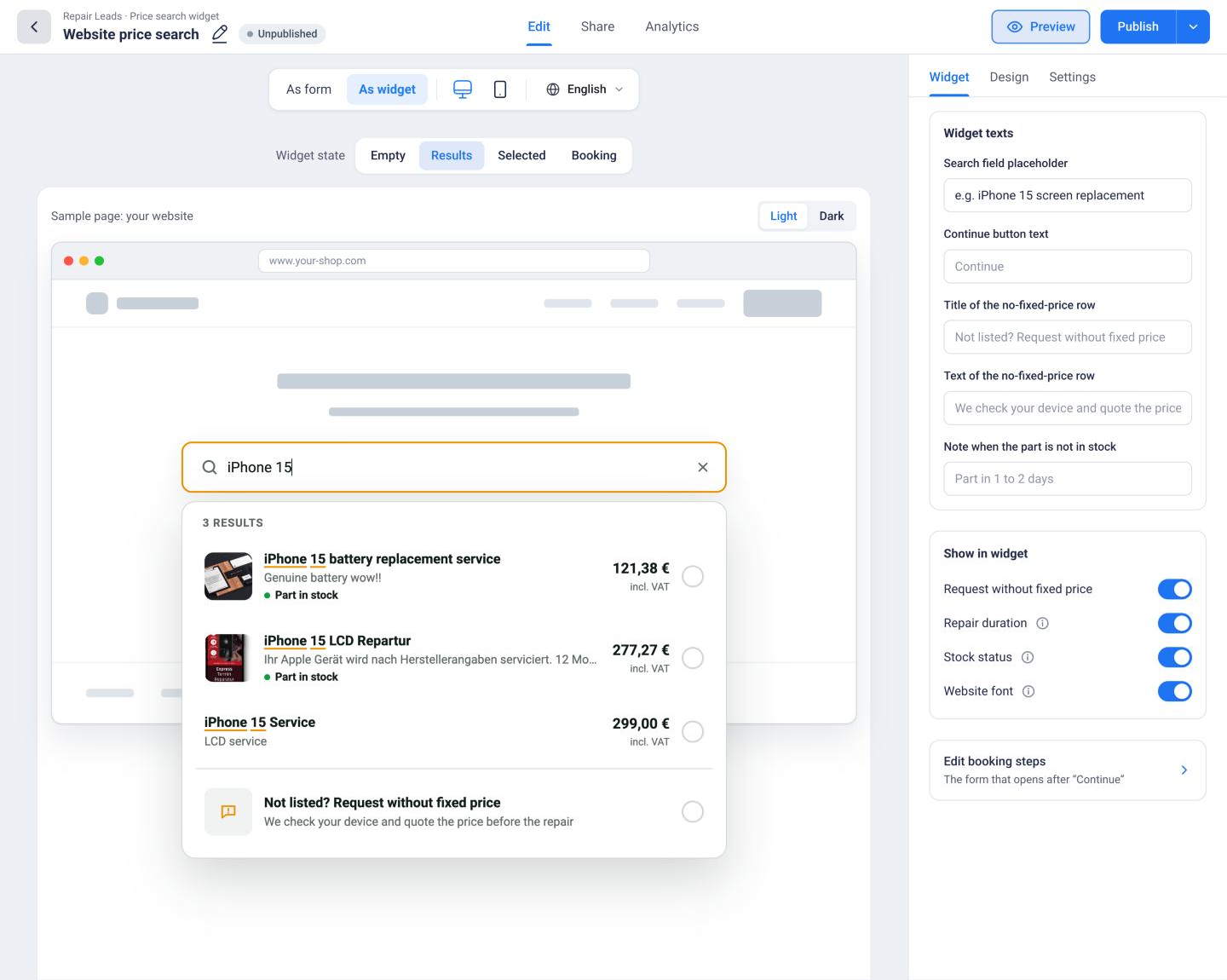
“Edit booking steps” takes you to the form that opens after “Continue”.
Kiosk mode on a tablet
In kiosk mode, “Share” only shows the link and QR code. Open the link on your tablet or scan the QR code with it. After each booking the form starts over for the next customer. To set the time for that, see Design and set up your form.
Service agent for your team
In service agent mode, “Share” only shows the link, without a QR code. The link is for your team only: whoever opens it signs in with a RepairCMS account. The finished booking becomes an active job assigned to that team member. Don’t put the link on your website.
Frequently Asked Questions
Do I have to paste the code again after every change?
No. You paste the code once. Whatever you publish in RepairCMS after that shows up on your website automatically.
My site builder blocks scripts. Which type do I use?
Choose “iframe only”. It's made for site builders that block scripts or wrap custom HTML in their own frame. Some site builders don't let you add your own code at all, like the Jimdo website builder. Then copy the link under “Share” and put it on a button. For the steps in Wix, Jimdo and other builders, see Add your repair form to WordPress, Wix and other websites.
Where do the prices in the price search come from?
From your services in RepairCMS. You keep prices and services in one place, and the price search on your website picks them up automatically.
How do I take a form offline?
Open the menu at the arrow next to “Publish” and choose “Unpublish”. The widget and link go offline, and your design stays saved.
Did this guide help you?