
Connect Lexware Office and send your invoices
On this page · 7 sections
You connect Lexware Office once in the web app under “Apps”. After that RepairCMS sends your invoices to Lexware Office automatically, including invoices from the mobile app. The Lexware icon in the invoice list shows you which invoices have arrived. RepairCMS doesn’t send drafts, invoices with a total of 0, HelloCash register receipts or the payment status.
The Apps page and the Lexware Office page currently show German labels even in the English interface. Where that’s the case, the German label is given in brackets.
What you need
- A paid RepairCMS plan. Lexware Office is included in Starter, Business, Team and Enterprise.
- A Lexware Office account.
Step by step: connect Lexware Office
- Click “Apps” in the sidebar. The Apps & Integrations page (“Apps & Integrationen”) opens.
- Click the “Lexware Office” tile.
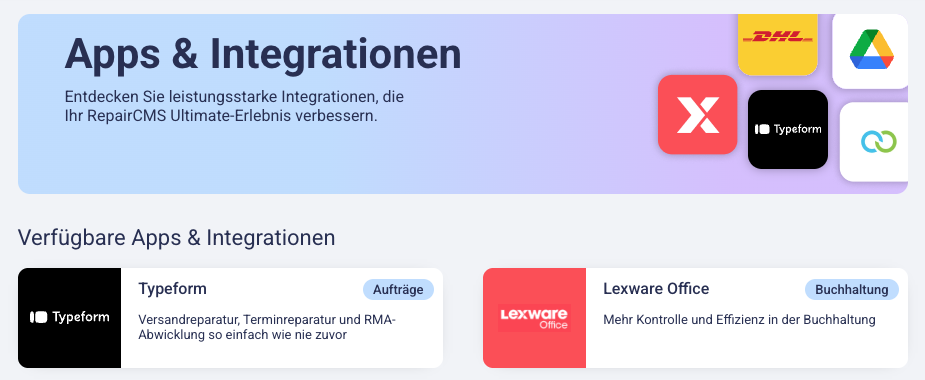
- Start the connection and link your Lexware Office account to RepairCMS. RepairCMS shows “We’re connecting to Lexware. This may take a few moments…” (“Wir stellen eine Verbindung zu Lexware her …”).
- Once connected, the top of the page says integration activated (“Integration Aktiviert”).
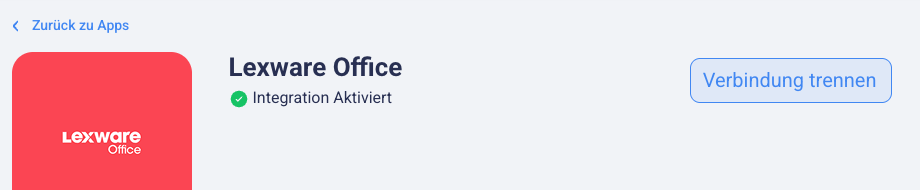
The connection stays in place even when you’re not signed in to RepairCMS. You only set it up once.
How your invoices get to Lexware
From now on RepairCMS sends your invoices to Lexware Office automatically. There’s nothing to export and nothing to upload by hand. This covers invoices from a repair job, invoices from an accepted quote (from Business), and invoices you create in the mobile app on a paid plan.
If the HelloCash register is active, invoices paid in cash or by card get a register receipt in HelloCash. RepairCMS doesn’t send those invoices to Lexware. Invoices paid by bank transfer don’t go to HelloCash. They stay regular RepairCMS invoices and go to Lexware as usual.
How to check: In the invoice list, every invoice that has been sent shows a Lexware icon next to the payment method. If the icon is missing, the invoice isn’t in Lexware.
These cases come through cleanly:
- Discounts that apply to single lines only. Lexware books each line with its own discount.
- Returns with a negative quantity.
- Single lines without an amount.
For a VAT ID, Lexware needs the country code in capitals, for example “DE” or “FR”. RepairCMS checks VAT IDs of customers outside Europe correctly.
What RepairCMS doesn’t send to Lexware
- Drafts. Only completed invoices go to Lexware.
- Invoices with a total of 0, for example a goodwill invoice with a full discount.
- Receipts from the HelloCash register. This includes invoices paid in cash or by card while the HelloCash register is active. They sit in the invoice overview next to your invoices, marked as register receipts. Sending to Lexware is switched off for them.
- The payment status. If you mark an invoice as paid in RepairCMS, it stays open in Lexware Office. Lexware doesn’t let outside systems set this status, so this isn’t a fault in the connection. With your bank account connected to Lexware, the bank reconciliation matches the payment. Without a bank connection, you record it by hand in Lexware.
- Later changes. A document that’s already in Lexware isn’t changed there afterwards. RepairCMS tells you so with “This document won’t be updated on your Lexware-Account!” (“Dieser Beleg wird nicht in Ihrem Lexware-Konto aktualisiert!”).
Disconnecting
- Under “Apps”, open the “Lexware Office” page.
- Click the disconnect button at the top right (“Verbindung trennen”).
- Confirm the prompt. RepairCMS shows “Lexware Disabled Successfully” (“Lexware erfolgreich deaktiviert”).
From then on RepairCMS no longer sends invoices to your Lexware account. Anything already sent stays in Lexware.
What’s next
- To create invoices from a repair job, see the Organize Repair Orders category.
- For cash sales at the counter there’s the HelloCash register, covered in Set up the HelloCash POS.
- You’ll find more connections under Apps & Integrations.
Frequently Asked Questions
Do I have to send each invoice to Lexware myself?
No. Once you've connected Lexware Office, RepairCMS sends your invoices automatically. In the invoice list, a Lexware icon next to the payment method shows which invoices have been sent.
Why is the Lexware icon missing on an invoice?
Usually it's still a draft, its total is 0, or it's a HelloCash register receipt. RepairCMS doesn't send those. If none of that applies, the upload may have failed. Then contact support.
Why is my paid invoice still open in Lexware?
RepairCMS doesn't send the payment status, because Lexware doesn't let outside systems set it. You match the payment in Lexware through the bank reconciliation or record it there by hand.
Which plans include Lexware Office?
Every plan: Starter, Business, Team and Enterprise.
Did this guide help you?