
Customer not in the shop: check in the device and get approval
On this page · 9 sections
When your customer isn’t in the shop, you check in their device in RepairCMS without a signature and get their approval through the quote in the Repair Tracking portal. You book the job and turn on the confirmation email, and your customer follows the repair in the Repair Tracking portal. They give their approval there by accepting your quote. Devices from an online booking are checked in under service requests.
The example in this article: Mr Yilmaz’s speaker crackles because the cone is torn. In the first case, his daughter drops the speaker off and has to leave right away. In the second case, Mr Yilmaz books the repair online and sends the speaker by post.
Photos on the job and quotes are included in the RepairCMS Business, Team and Enterprise plans. Which plan you need for which step is shown in the overview below.
Do I need the customer’s signature?
Your customer confirms online instead of on the screen. You book the job, they get a confirmation email, and later they approve the repair in the Repair Tracking portal by accepting your quote. RepairCMS books the job without a signature too, so you simply leave the “SIGNATURE” step empty.
How do I check in a device when the customer isn’t there?
You book the job yourself, just like for any other device. Two things matter: your customer’s email address and the switch for the confirmation email at the end of the booking. In the example, you enter Mr Yilmaz’s details, even though his daughter brings the speaker.
- In the sidebar, open “Jobs” and book a new job.
- Enter the customer details, including Mr Yilmaz’s email address.
- Take photos of the speaker and upload them. Mr Yilmaz will see them in the Repair Tracking portal.
- Leave the “SIGNATURE” step empty.
- At the end, turn on “Send confirmation email to customer”.
- Finish the booking.
The text under the switch tells you what your customer gets: “customers can track repair progress, communicate, accept quotes and make payments”. Every step of the booking is explained in the article on booking a repair ticket.
How do I check in a device that arrives by post?
If your customer booked online, for example through a form on your website, their booking waits in your service requests. When the parcel arrives, you check in the device there. You record its condition on arrival with photos, and the service request becomes a job.
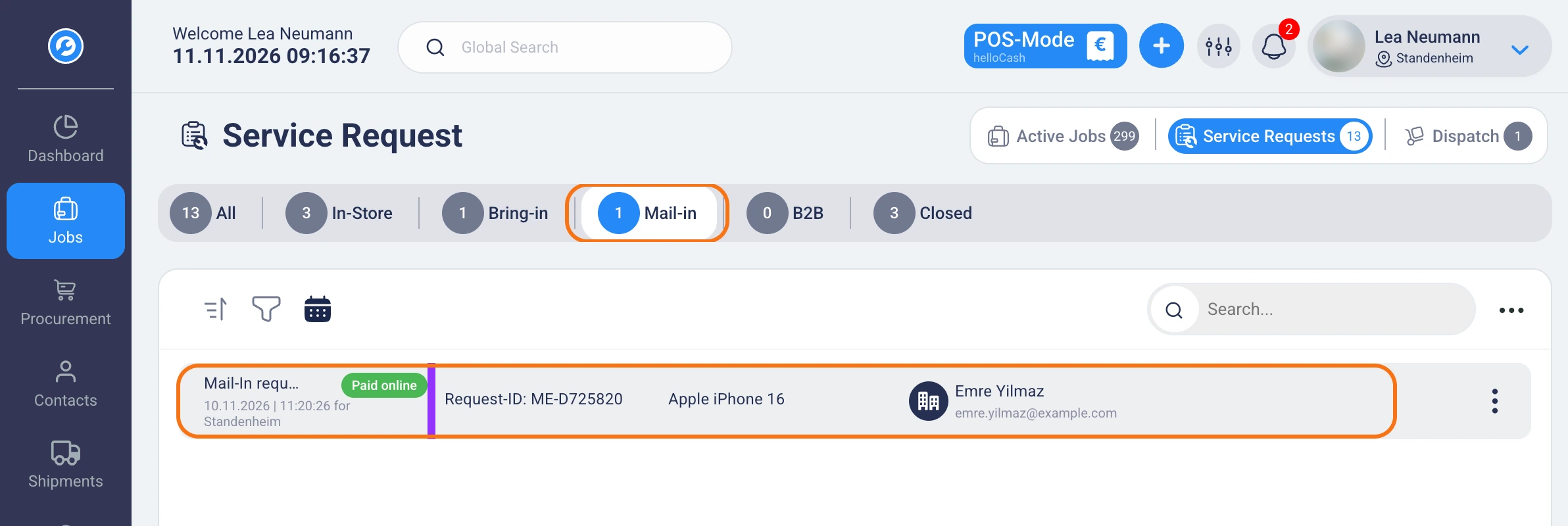
- In the sidebar, open “Jobs”, then the “Service Requests” tab and the “Mail-in” tab there.
- Open Mr Yilmaz’s booking and click “Convert To Job” at the top. The “Confirmation of arrival” dialog opens.
- Under “Choose your check in method”, choose whether to continue on your phone with the QR code or to check in on the device you’re using.
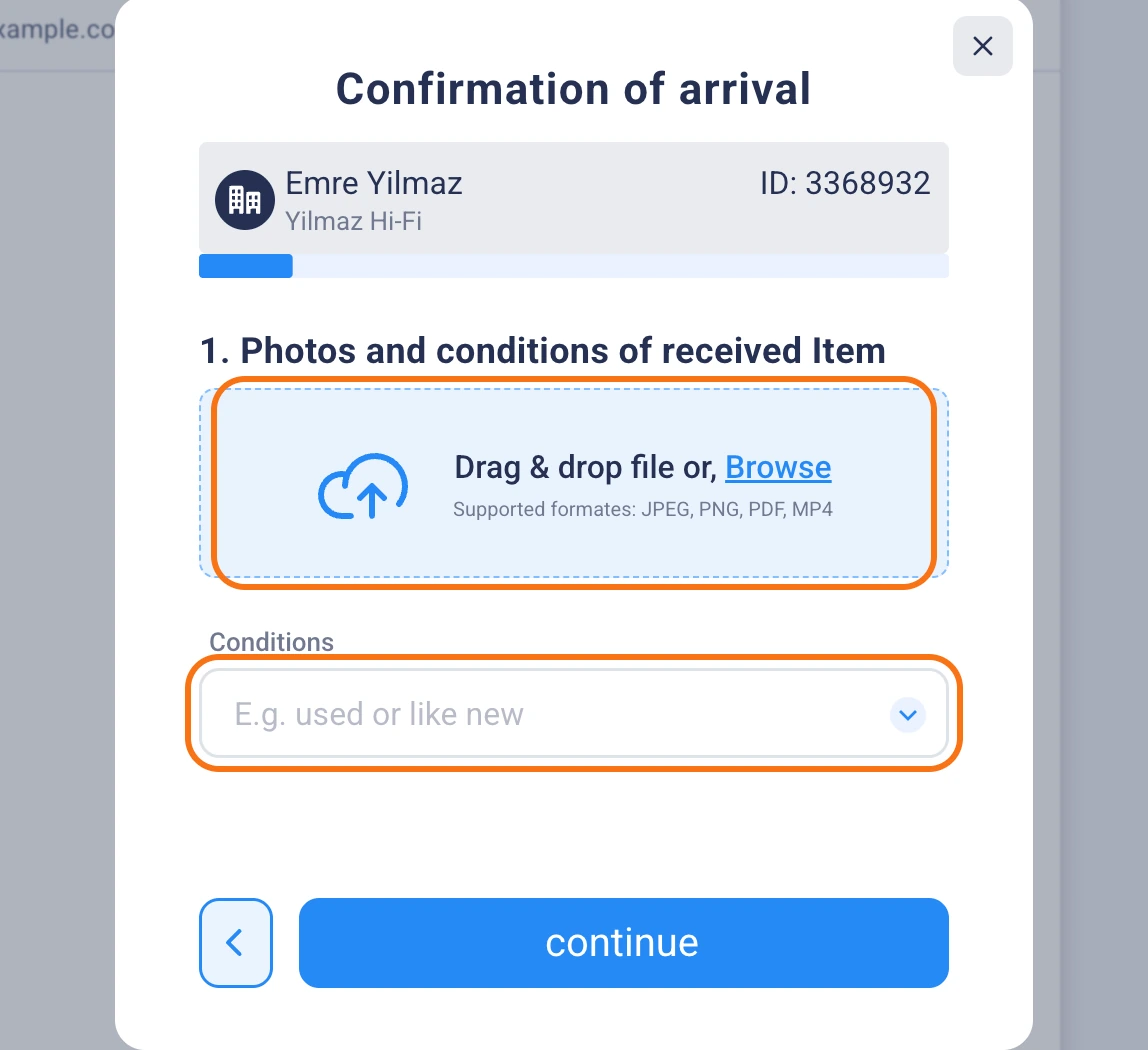
- In the “Photos and conditions of received Item” step, take photos of the speaker and record its condition.
- Check the “Item Details” and the job details, such as brand, model and problem description.
- Enter the physical location, assign a team member and turn on “Send notification to customer”.
- Click “Confirm arrival & print”.
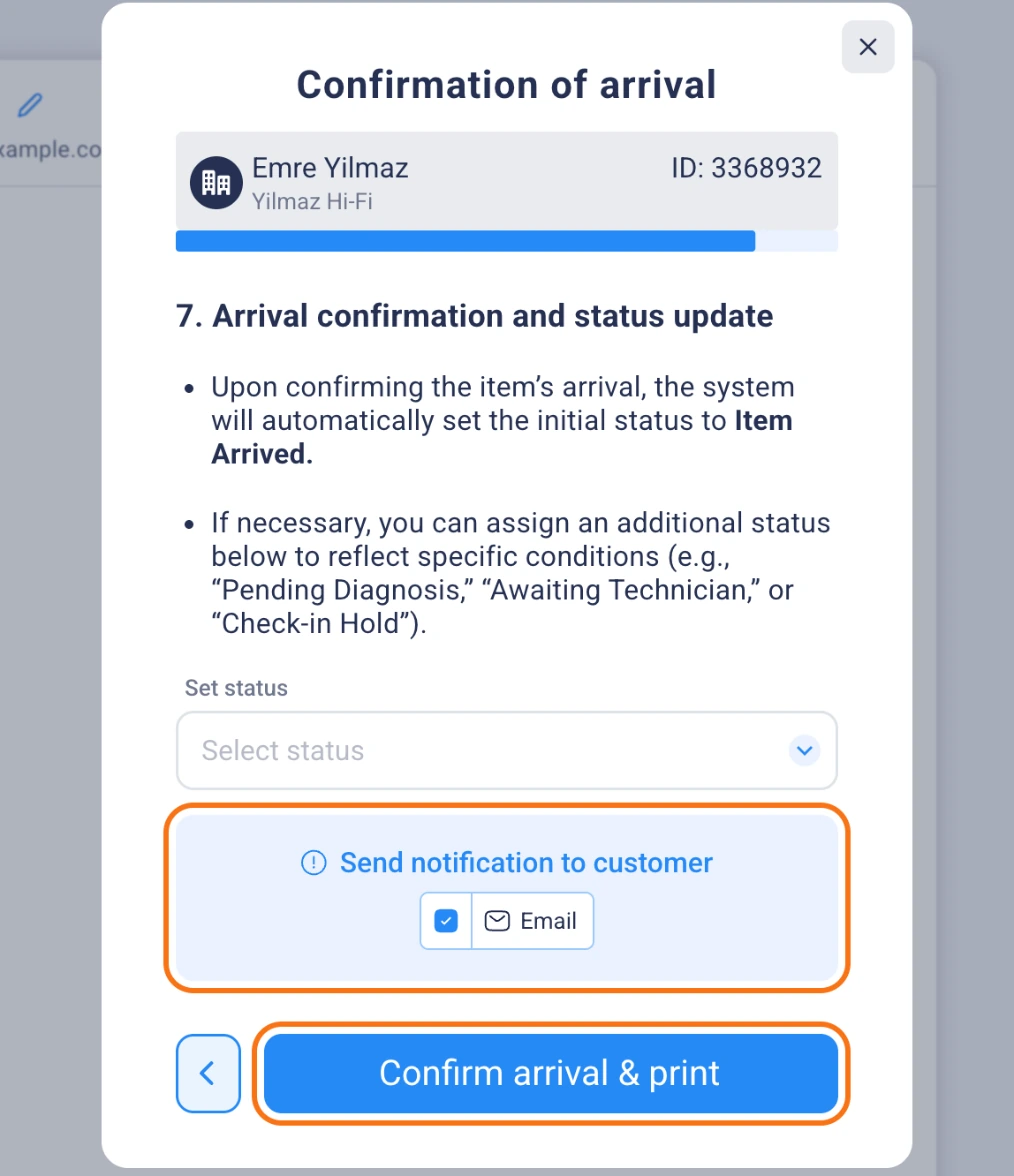
RepairCMS shows “Item successfully checked in.”, and the job gets the “Arrival is confirmed” status. If you picked a different status under “Set status”, the job gets that one instead. What else comes in through service requests is explained in the article on service requests.
How does the customer know their device has arrived?
For a job you book yourself, your customer gets the confirmation email if you turned on the switch. That email also gives them access to the Repair Tracking portal. When you check in a device from service requests, you turn on “Send notification to customer”.
How does the customer approve the repair?
Your customer approves the repair by accepting your quote. You send it from the job, Mr Yilmaz gets an email with the “View quotation” button, and he clicks “Accept” in the Repair Tracking portal. RepairCMS then sets the job to the “Quotation accepted” status, and you can replace the cone.
- Open the “Quotation” tab in the job and add the items, in the example the replacement of the cone.
- Click “Send Quotation”.
- Wait for the answer. When Mr Yilmaz accepts, the job shows “Quotation accepted”.
How to create a quote is explained in the article on creating and sending a repair quote. What your customer sees is shown in the article on approving quotes in the portal.
If Mr Yilmaz would rather call than click online, you accept the quote yourself and write an internal note with the date, time, name and what was agreed. How that works is explained in the article on changing a quote and accepting it yourself.
What does the customer see online?
In the Repair Tracking portal, your customer sees the details of their job, the photos on the job and your quote. They can message you in the chat, tick or untick optional items and download the quote as a PDF. So Mr Yilmaz can see for himself what condition his speaker was in when it reached you.
How do I get a digital signature?
If you still want your customer’s signature, you collect it online with a form in the Ultimate Repair Form Builder. The repair request form type comes with a signature step, and you can make it required in the form. The booking then lands in your service requests, and you check in the device as described above.
The Ultimate Repair Form Builder is included in the RepairCMS Team and Enterprise plans. How to create a form is explained in the article on creating a form.
Which plan do I need for what?
You can book jobs in every RepairCMS plan. Photos, quotes and online booking come with these plans:
| What you use | Included in the RepairCMS plans |
|---|---|
| Photos on the job, visible in the Repair Tracking portal | Business, Team and Enterprise |
| Quote with approval in the Repair Tracking portal | Business, Team and Enterprise |
| Online booking and digital signature with the Ultimate Repair Form Builder | Team and Enterprise |
How a job runs in RepairCMS from intake to pickup is shown on the repair shop software page.
Frequently Asked Questions
Does the customer have to sign if they aren't in the shop?
Your customer confirms online instead of signing. You book the job with the confirmation email turned on, and they approve the repair in the Repair Tracking portal by accepting your quote. RepairCMS books the job even if the “SIGNATURE” step stays empty.
How does a mail-in repair work in RepairCMS?
Your customer books online and sends their device. The booking waits in “Service Requests” under the “Mail-in” tab. When the parcel arrives, you check in the device in the “Confirmation of arrival” dialog with photos and its condition, then you send the quote, and your customer accepts it in the Repair Tracking portal.
How does the customer know their device has arrived?
When you check in a device from service requests, you turn on “Send notification to customer”. For a job you book yourself, you turn on “Send confirmation email to customer” at the end. That email also gives your customer access to the Repair Tracking portal.
Where can I see that the customer approved the repair?
The job status changes to “Quotation accepted”. In the job's chat, the quote block also shows “Quotation Accepted” with the time.
What happens if the customer rejects the quote?
The job gets the “Rejected Quotes” status, and you see the rejection with the time in the chat. If you charge an amount for rejected quotes, for example for the diagnosis, you set it in the quote. You then hand the device back with the “Return device” switch on the job.
Can the customer sign online?
Yes, with a form in the Ultimate Repair Form Builder. The repair request form type has a signature step that you can make required in the form. The Ultimate Repair Form Builder is included in the RepairCMS Team and Enterprise plans.
What if the customer would rather call than approve online?
Then you accept the quote yourself. Click “Accept” in the newest quote block in the job's chat and write an internal note with the date, time, name and what was agreed.
Did this guide help you?