
Change a repair quote, resend it and accept it yourself after a call
On this page · 6 sections
In RepairCMS, you change a quote you’ve already sent with “Edit”, send it again with “Send Quotation” and accept it yourself after a call with “Accept”. Every send adds a new quote block to the job’s chat. When your customer agrees on the phone, click “Accept” in the newest block. Then write an internal note with the date, time, name and what was agreed.
The example in this article: Ms Keller drops off her coffee machine because it’s leaking water. You send her a quote for €89 to replace the seals on the brewing unit. Once you take the machine apart, you find that the pump needs replacing too. You call Ms Keller, and she agrees to €149.
Quotes are included in the RepairCMS Business, Team and Enterprise plans. How to create and send a quote for the first time is explained in the article on creating and sending a repair quote.
Can I change a quote after sending it?
Yes, you edit it right in the job. Every job has exactly one quote, so your change replaces the previous version. To get the new amount to Ms Keller, you send it again afterwards.
- Open the job and go to the “Quotation” tab.
- Click “Edit”.
- Change the items. In the example, you add the new pump as an item.
- Check the quote with “Preview”.
- Click “Send Quotation”.
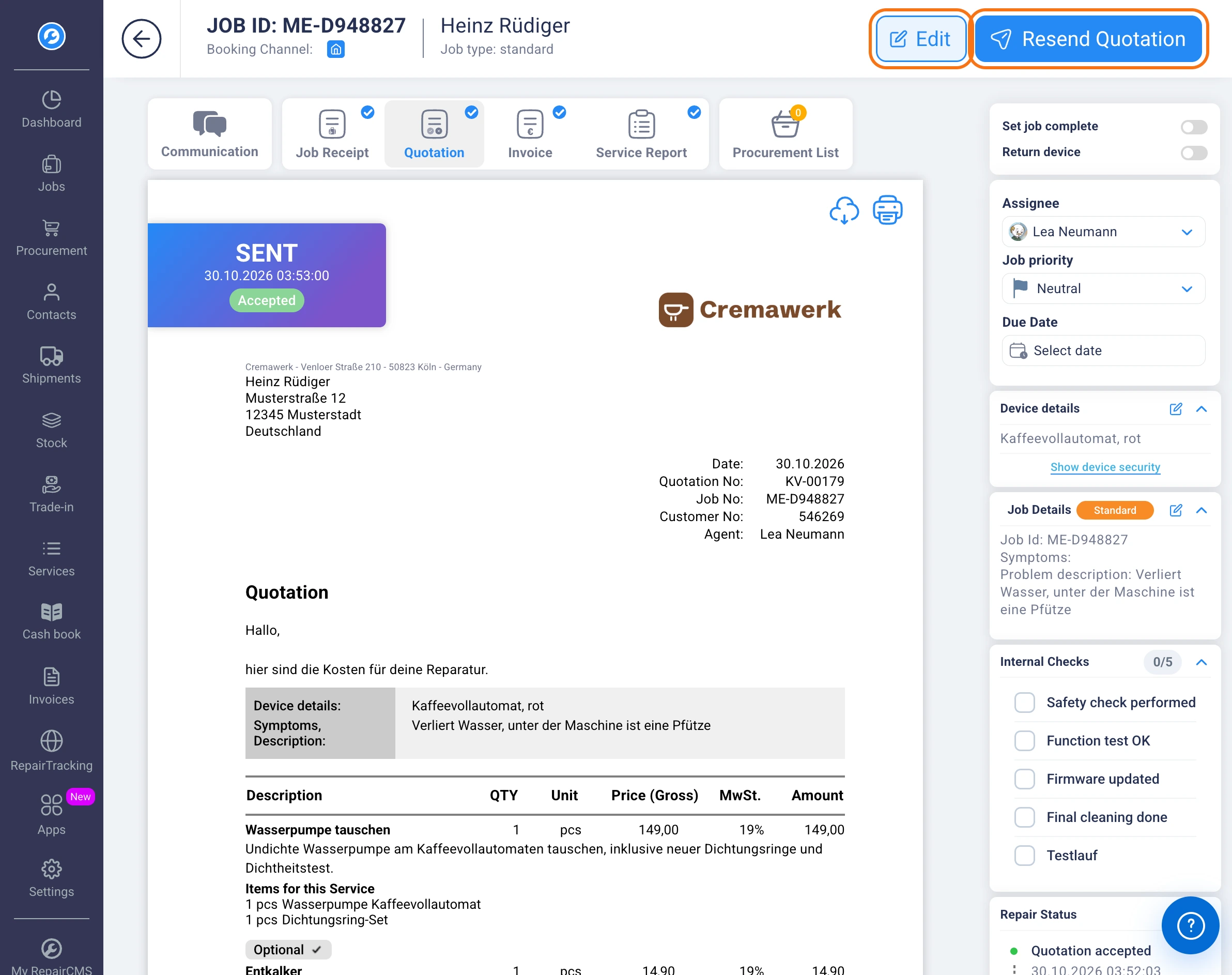
If you want to send the change later, click “Save” instead of “Send Quotation”. “cancel” discards it.
If nothing in the quote has changed and your customer just can’t find the email, send it again with “Resend Quotation”.
Which quote counts if I send it more than once?
The current version of the quote counts, and the newest block in the chat always shows it. Every send adds its own quote block there, and the older ones stay above it. The invoice later uses the current quote.
Always accept the newest quote block. In the example, that’s the block for €149, not the one for €89.
How do I accept a quote myself after a call?
When your customer agrees on the phone, you accept the quote on their behalf, just as they would in the Repair Tracking portal. RepairCMS then sets the job to the “Quotation accepted” status, and you can go ahead with the repair.
- Open the chat in the job.
- Scroll to the newest block headed “Quotation”. It’s at the very bottom.
- Click “Accept”. The button shows the amount, €149 in the example.
- The block now shows “Quotation Accepted” with the time.
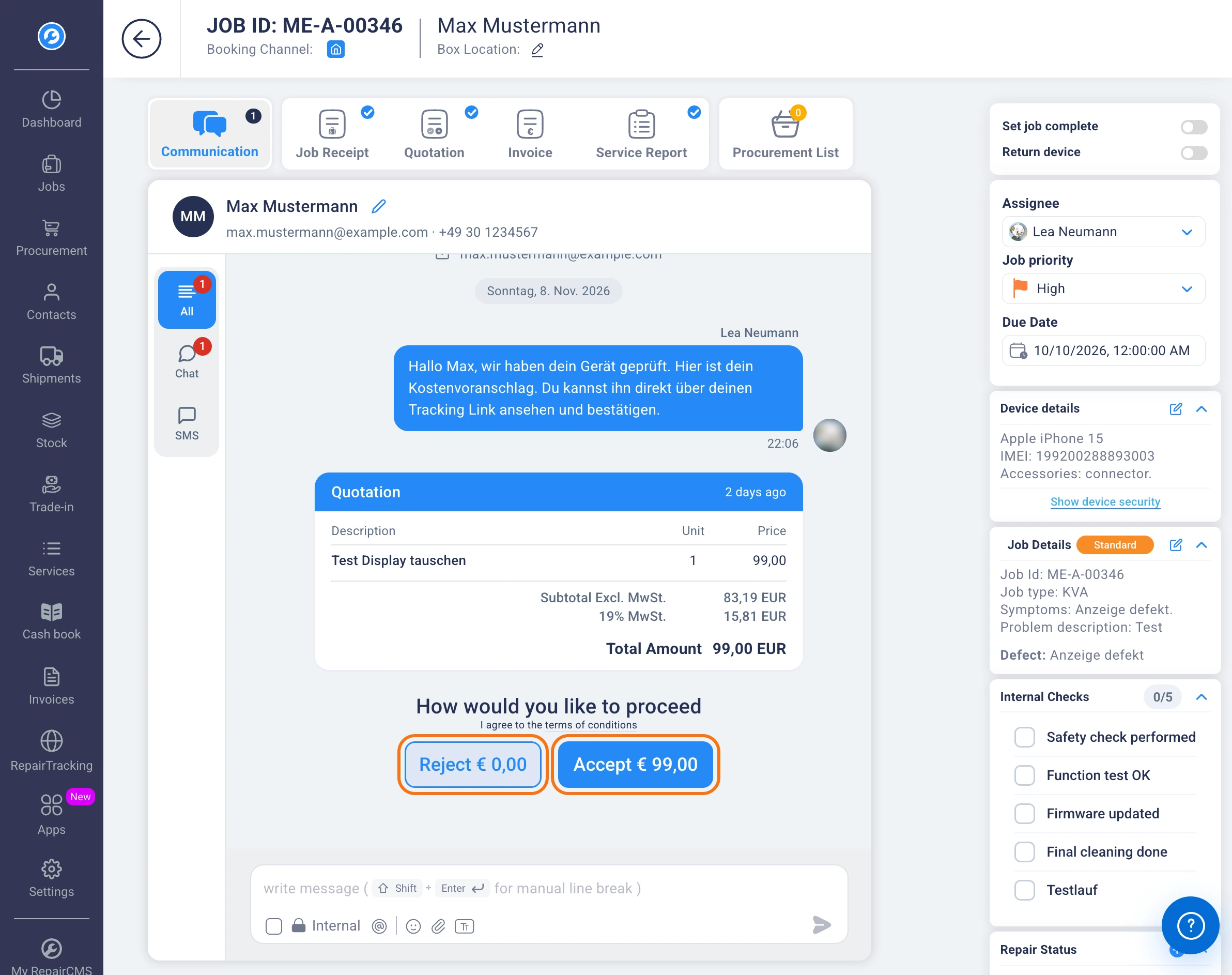
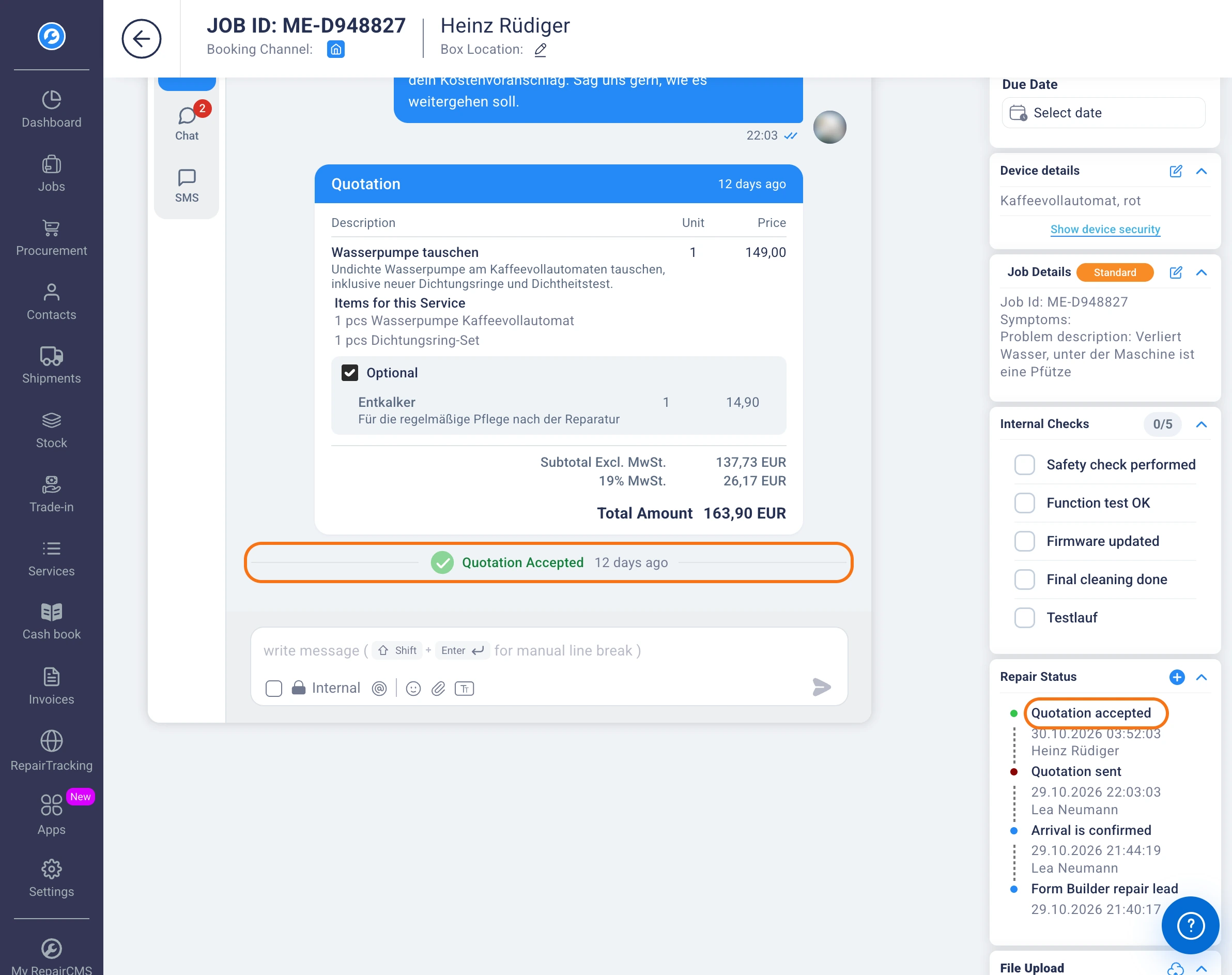
If your customer turns the quote down on the phone, click “Reject” in the newest block. The block then shows “Quotation Rejected”, and the job gets the “Rejected Quotes” status.
What do I write in the note?
Right after the call, write an internal note in the job’s chat. It holds the date, the time, the name of the person you spoke to and what they agreed to. Anyone who opens the job later sees straight away why the quote was accepted.
- In the chat input, turn on “Internal”.
- Write the note.
- Send it. A message marked “Internal” doesn’t go to the customer.
In the example, the note could read: “Call on 11 Nov 2026 at 2:20 pm with Ms Keller. She agrees to the quote for €149 with a new pump and new seals. Call taken by Tom.”

Can I pick optional items for the customer?
Your customer picks optional items themselves in the Repair Tracking portal. In the chat block they’re locked, and the amount on “Accept” only counts the fixed items. If your customer tells you on the phone that they want an optional item too, make it a fixed item first and send the quote again.
- Open the “Quotation” tab and click “Edit”.
- Untick “optional” on the item.
- Click “Send Quotation”.
- Click “Accept” in the new, newest block.
If your customer can’t bring their device in themselves, the article on customers who aren’t in the shop helps. How your customer accepts a quote online themselves is shown in the article on approving quotes in the portal.
How quotes work in RepairCMS overall is explained on the repair quoting software page.
Frequently Asked Questions
Can I change a quote after I've sent it?
Yes. Open the “Quotation” tab in the job, click “Edit”, change the items and click “Send Quotation”. Every job has exactly one quote, so your change replaces the previous version.
Which quote counts if I've sent it more than once?
The current version counts, and the newest block in the job's chat shows it. Every send adds its own block there. That's why you always accept the newest quote block.
How do I mark a quote as accepted when the customer agrees on the phone?
Open the chat in the job and click “Accept” in the newest quote block. RepairCMS then sets the job to the “Quotation accepted” status. Afterwards, write an internal note about the call.
How do I record a customer's approval over the phone?
With an internal note in the job's chat. Turn on “Internal” in the chat input and write down the date, the time, the person's name and what they agreed to. Only your team sees the note, it doesn't go to the customer.
How can I see whether a quote has been accepted?
The job status changes to “Quotation accepted”. In the chat, the block also shows “Quotation Accepted” with the time. If the quote was rejected, the block shows “Quotation Rejected” and the job status is “Rejected Quotes”.
Can I pick optional items for the customer?
Your customer picks optional items themselves in the Repair Tracking portal. If they tell you on the phone that they want one of them, untick “optional” on that item in the quote and click “Send Quotation”. Then accept the newest block.
How do I reject a quote when the customer declines on the phone?
Click “Reject” in the newest quote block in the job's chat. The block then shows “Quotation Rejected”, and the job gets the “Rejected Quotes” status. Record the decline in an internal note as well.
Did this guide help you?