
Notifications, language, several repair shops and deleting data
On this page · 9 sections
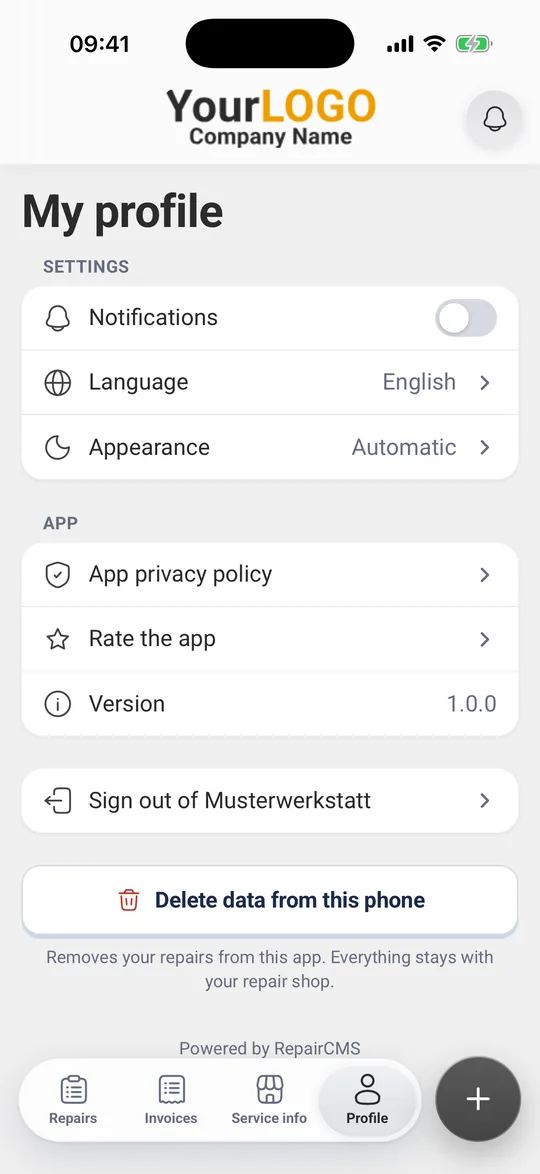
In the “Profile” tab you set notifications, language and appearance of the Repair Status app. If you have repairs at several repair shops, you switch with a tap on the logo. “Sign out of …” removes one repair shop from the app, “Delete data from this phone” removes everything. Everything stays with your repair shop.
Notifications
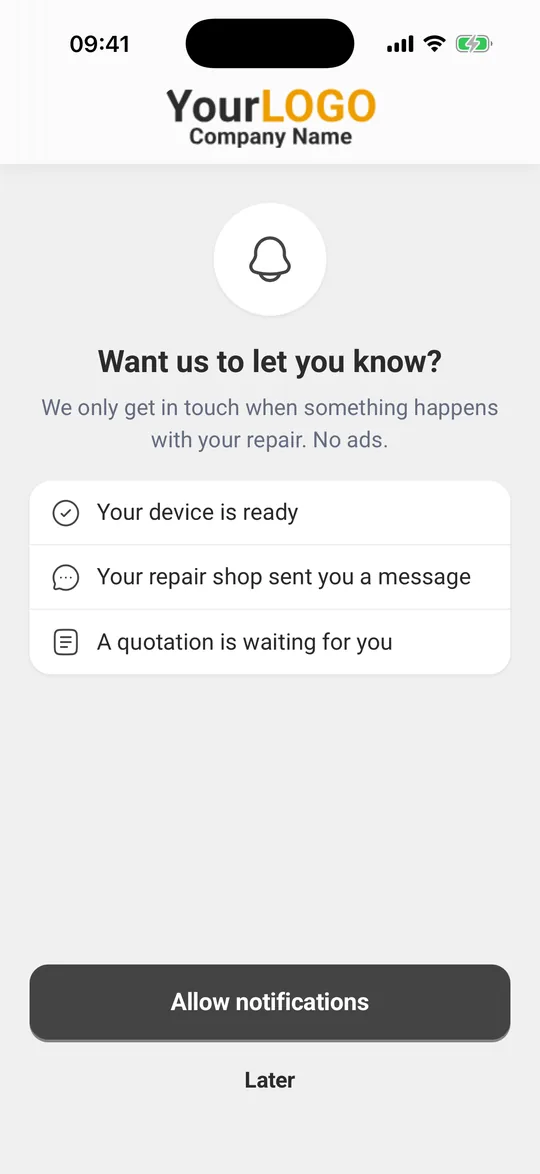
Once your first repair is in the app, it asks once: “Want us to let you know?” It only gets in touch when something happens with your repair, no ads. For example:
- “Your device is ready”
- “Your repair shop sent you a message”
- “A quotation is waiting for you”
Tap “Allow notifications” and confirm your phone’s prompt. “Later” lets you decide another time.
Turn them on later: Tap “Profile” at the bottom, then the switch next to “Notifications” under “Settings”. If you haven’t decided yet, your phone asks you now.
Turn them off, or back on after declining: You do this in your phone’s settings under “Repair Status”. On iPhone, the switch under “Profile” takes you straight there.
Notifications after the code: If your repair shows “Once you enter the code, you’ll also get notifications about this repair.”, notifications for this repair start once you have confirmed the code.
All notifications at a glance: Tap the bell at the top right. “Notifications” lists your repair shop’s updates, newest first. A tap takes you to the matching repair. Swipe a row to the left to remove it with “Delete”.
Language
- Tap “Profile” at the bottom, then “Language”.
- Choose German, English, Danish or Swedish.
The language applies to the app and its notifications. Messages from your repair shop stay as they were written. By default the app uses your phone’s language, otherwise English.
Appearance
Under “Profile” and “Appearance” you choose “Automatic”, “Light” or “Dark”. “Automatic” follows your phone’s setting.
Several repair shops
When you open a link from another repair shop, the app adds it. The first time, you see “You now have two repair shops” with “Tap the logo to switch shops.” Tap “Got it”.
- Tap your repair shop’s logo at the top.
- “My repair shops” lists every shop with its number of repairs.
- Tap the shop you want to see.
Next time you open the app, it starts with the repair shop you looked at last.
Sign out of a repair shop
- Pick the repair shop first if you have several.
- Under “Profile”, tap “Sign out of [repair shop name]”.
- Confirm with “Sign out”.
This shop’s repairs disappear from the app. Everything stays with your repair shop. If you open its link again later, you confirm with a new code.
Delete data from this phone
- Under “Profile”, tap “Delete data from this phone” at the very bottom.
- Read “Delete all data from this phone?” and tap “Delete”.
Your repairs, invoices and messages disappear from the app. Your code access ends too. Everything stays with your repair shop. If you open a link from your repair shop later, your repair is back and you confirm with a new code.
Internet needed: Deleting needs a connection. If it fails, the app says “Deleting didn’t work. Please try again in a moment.”
Privacy
- The app’s privacy policy is under “Profile” and “App privacy policy”.
- Your repair shop’s privacy policy, terms and legal notice are under “Service info” and “Legal”.
What’s next
- Overview: Repair Status app: keep track of your repair
- New code after signing out or deleting: Add your repair to the app and confirm with a code
Frequently Asked Questions
How do I turn notifications on or off?
To turn them on the first time, tap the switch next to “Notifications” under “Profile”. Turning them off, or back on after declining, works in your phone's settings under “Repair Status”. On iPhone, the switch takes you there.
Will I get ads through the app?
No. The app only gets in touch when something happens with your repair, for example a new message, a quotation or when your device is ready.
I have repairs at two repair shops. How do I switch?
Tap your repair shop's logo at the top. Under “My repair shops”, choose the other one.
What happens at my repair shop when I tap “Delete data from this phone”?
Everything stays with your repair shop. The app only removes your repairs, invoices and messages from this phone. If you open a link from your repair shop later, your repair is back.
Did this guide help you?