
Add your repair to the app and confirm with a code
On this page · 11 sections
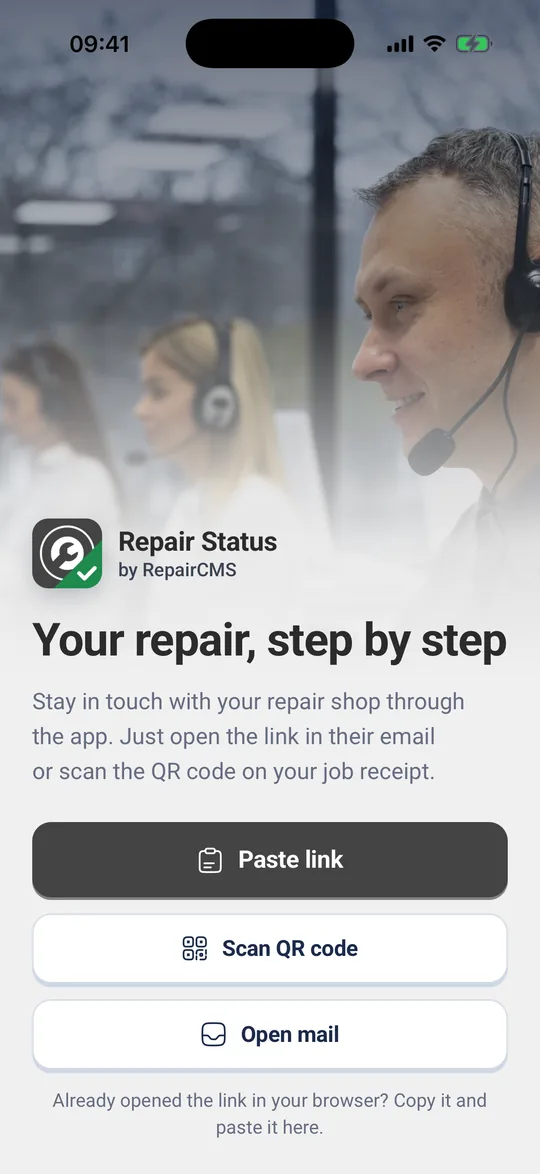
There are three ways to get your repair into the app: the link in your repair shop’s email, the QR code on your job receipt, or “Paste link”. You see the status straight away. For details, photos, messages and invoices you confirm a 6 digit code once per repair shop, sent to you by email or text message.
What you need
- The app on your phone.
- Your repair shop’s email with the link to your repair, or your job receipt with the QR code
- Access to the email address or mobile number your repair shop has for you. That’s where the code goes.
Option 1: Open the link in the email
- Open your repair shop’s email on the phone where the app is installed. In the app, “Open mail” takes you straight to your inbox.
- Tap the link to your repair in the email. The app opens and shows “Repair found” with your repair shop’s name.
- Your repair is now listed under “My repairs”.
If the browser opens instead of the app, copy the link from the address bar and use option 3.
Option 2: Scan the QR code
- Tap “Scan QR code”. The first time, your phone asks whether the app may use the camera. Allow it.
- Point the camera at the QR code on your job receipt.
- The app shows “Repair found”, and your repair then appears under “My repairs”.
If the app says “This QR code doesn’t belong to a repair”, you scanned a different code. Use the code on your job receipt. If it says “The camera is blocked for this app”, allow the camera for “Repair Status” in your phone’s settings.
Option 3: Paste the link
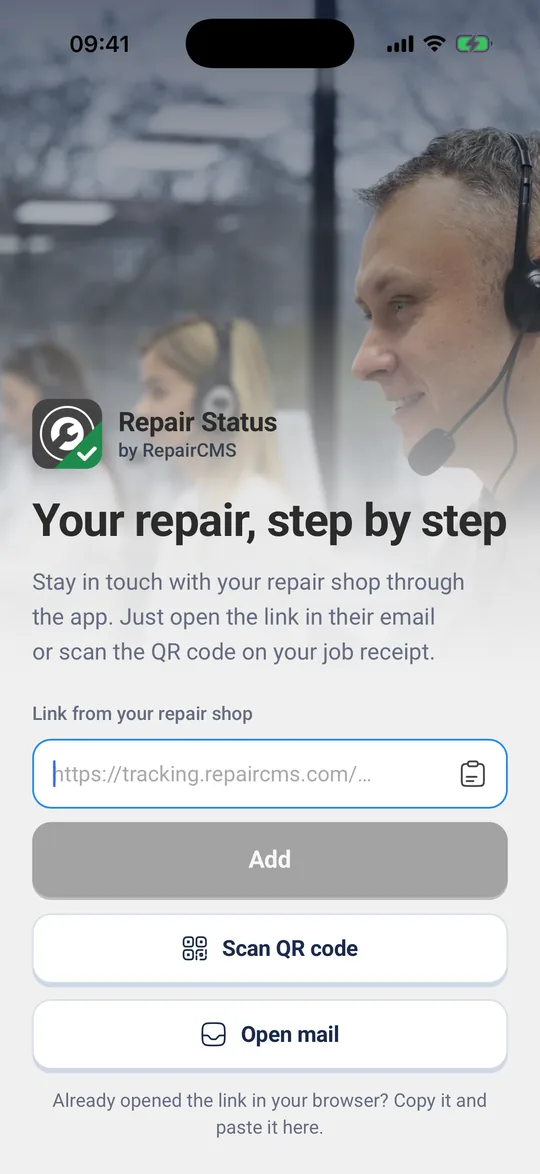
- Copy the link from the email or the browser. It starts with tracking.repaircms.com.
- Tap “Paste link” in the app. If a matching link is on the clipboard, the app takes it right away.
- Otherwise the field “Link from your repair shop” opens. Paste the link and tap “Add”.
If the app says “This is not a link from your repair shop”, the copied text doesn’t start with tracking.repaircms.com. Copy the full link again.
Add more repairs
Once a repair is in the app, tap the plus. “Add a repair” offers the same three options. A new repair shows up with “New repair added” and carries the “New” label in the list.
If the new repair belongs to another repair shop, the app adds that shop too. Switching between shops is covered in Notifications, language, several repair shops and deleting data.
Confirm with a code
Without the code you see the job number, status and history. The code opens details, photos, messages and invoices.
- Under “My repairs”, tap your repair. The card “Please confirm it is you” explains why you get a code.
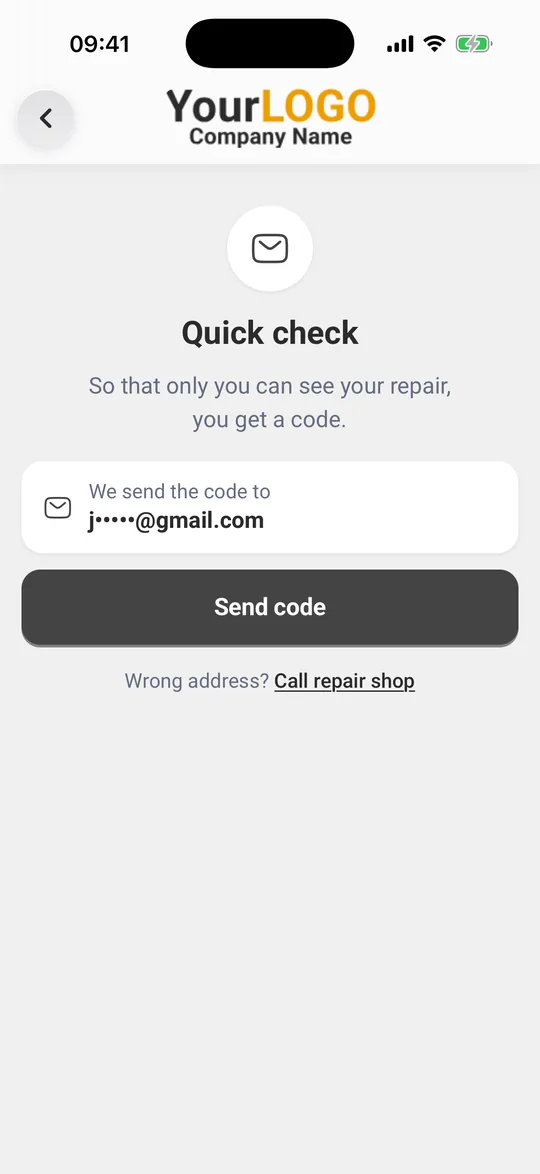
- Tap “Send code”. On “Quick check” you see where the code goes, for example “We send the code to” with your email address, partly hidden.
- Tap “Send code” again.
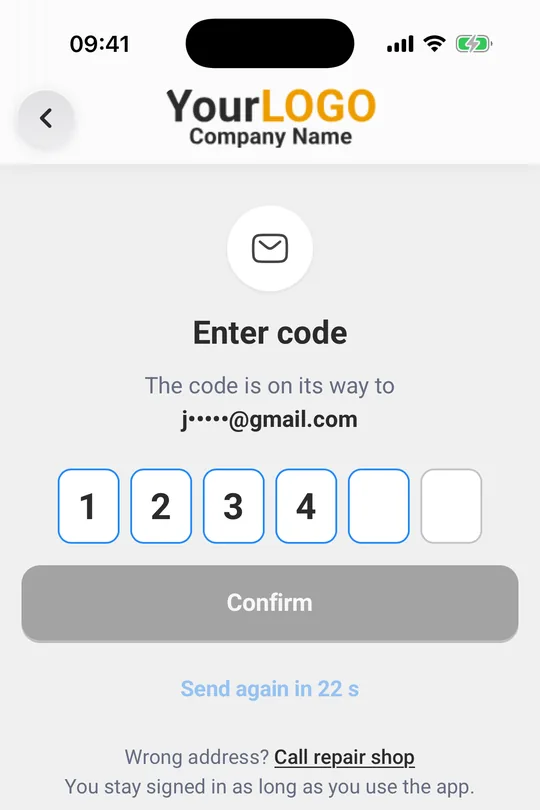
- On “Enter code”, type the 6 digits from the email or text message.
- Tap “Confirm”.
Details, photos, messages and invoices of this repair shop are now open. You stay signed in as long as you use the app.
One code per repair shop: The code covers all your repairs at this repair shop. If another repair from the same shop is added later, you don’t need a new code. You can also request the code from the “Invoices” tab with “Send code”.
When you need a new code
- You haven’t used the app for 90 days. The repair then shows “Please confirm again”.
- You use a new phone or reinstalled the app.
- You tapped “Delete data from this phone”.
- You signed out of the repair shop and open its link again.
If the code doesn’t arrive
- Check your spam folder.
- Wait a moment and tap “Send code again”. Until the button works again, it counts down the seconds, for example “Send again in 30 s”.
- If the address or number is wrong, tap “Call repair shop” next to “Wrong address?” or “Wrong number?”. Your repair shop can correct it.
What the messages mean
| Message | What to do |
|---|---|
| “That code is not right. Please try again.” | Check the digits and enter them again |
| “This code has expired. Get a new one.” | Tap “Send code again” |
| “Too many tries. Get a new code.” | Wait until “Send code again” works, then request a new code |
| “No email and no mobile number on file” | Call your repair shop. They can add one, then you get your code. Your repair status stays visible meanwhile. |
What’s next
- App overview: Repair Status app: keep track of your repair
- Message your repair shop: Message your repair shop and send photos
- Invoices: View invoices and pay online
Frequently Asked Questions
Why do I need a code?
With the code, only you see the details of your repair, the photos, the messages and the invoices. The app sends it to the email address or mobile number your repair shop has for you. Without the code, the job number, status and history stay visible.
Do I have to enter the code every time?
No. You stay signed in as long as you use the app. You need a new code after 90 days without use, on a new phone, after reinstalling, after “Delete data from this phone” or after signing out of the repair shop.
The code doesn't arrive. What now?
Check your spam folder and tap “Send code again” once the wait is over. If the address or number is wrong, call your repair shop. They can correct your details.
The link in the email opens the browser instead of the app. What now?
Copy the link from the address bar, open the app and tap “Paste link”. The app takes the link from the clipboard.
Did this guide help you?