
View, accept or decline a quotation
On this page · 7 sections
When your repair shop sends you a quotation, it shows up in the messages of your repair. There you see every position with its price, add optional positions and accept the terms. Then you tap “Accept” or “Decline”. If your repair shop takes online payments, you can pay right after in the app.
Before you start
Code confirmed: You see the quotation once you have confirmed the code for your repair shop. See Add your repair to the app and confirm with a code.
Open the quotation
- Tap the notification “A quotation is waiting for you”. Or open your repair under “Repairs” and tap “Messages”.
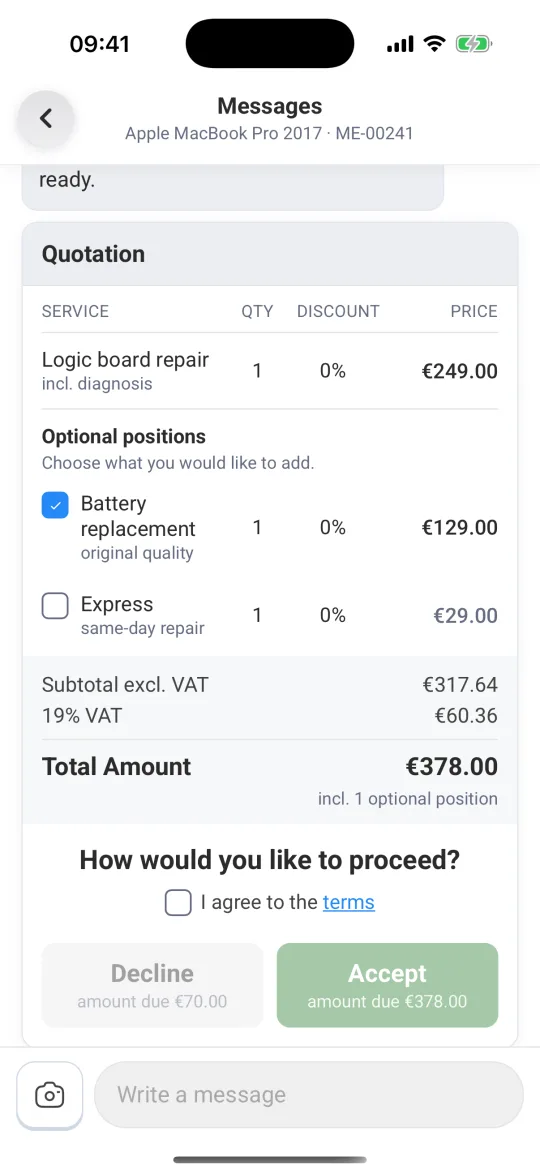
- The “Quotation” card lists every position with “Service”, “Qty”, “Discount” and “Price”.
- Below it you see “Subtotal excl. VAT”, the VAT and the “Total Amount”.
- If the card shows “PDF” at the top, tap it to get the quotation as a PDF.
Pick optional positions
Some repair shops offer extras, for example a new screen protector or a spare battery. These are listed under “Optional positions” with the note “Choose what you would like to add.”
- Tap an optional position to tick it. A second tap removes the tick.
- The “Total Amount” updates straight away. Below it you see how many optional positions are included, for example “incl. 1 optional position”.
Accept or decline
- Under “How would you like to proceed?”, tick “I agree to the terms”. Tap “terms” to read them first.
- Tap “Accept”. The amount shows below the button, for example “amount due €89.00”.
- If you don’t want the repair, tap “Decline”. If your repair shop charges a fee for declining, the amount shows below the button.
- The card then shows “Accepted” or “Rejected”. Your repair shop sees your decision.
If the terms aren’t ticked, the app says “Please accept the terms first”.
Paying after your decision
What comes next depends on how your repair shop takes payments.
- With online payment: Under “Continue to payment” you see your repair shop’s payment methods and “Secure payment via Stripe”. Tap “Pay now”. How the payment works is covered in View invoices and pay online.
- Declined with a fee: The card shows “Diagnostic fee due” and the amount. If your repair shop takes online payments, you pay it with “Pay now”.
- Without online payment: The card shows “You pay directly at your repair shop.”
After paying, the card says “Paid”. With some payment methods it first says “Payment is being confirmed”.
New version: If your repair shop changes the quotation and sends it again, the old one is replaced by “Your repair shop sent this quotation again. The current version is further down.” Decide on the new card.
What’s next
- Paying: View invoices and pay online
- Questions about the quotation: Message your repair shop and send photos
- Get notified: Notifications, language, several repair shops and deleting data
Frequently Asked Questions
Can I accept only part of the quotation?
You tick or untick the positions under “Optional positions” yourself, and the total updates. The other positions are a fixed part of the quotation. If you want to change any of them, message your repair shop.
Can I decline a quotation?
Yes. In the “Quotation” card, tick “I agree to the terms” and tap “Decline”. Your repair shop sees your decision, and the card shows “Rejected”. If your repair shop charges a fee for declining, the amount shows below the button, and after declining you see “Diagnostic fee due”.
Does declining cost anything?
Your repair shop decides that. If they charge a fee, the amount shows below “Decline”, and after declining the card shows “Diagnostic fee due”. If there's no amount below “Decline”, nothing is due in the app.
Can I change my decision?
After “Accept” or “Decline” the card shows your decision and can't be changed in the app. If you've changed your mind, message or call your repair shop.
Do I have to pay in the app?
If your repair shop takes online payments, you pay right in the app with “Pay now”. Otherwise the card shows “You pay directly at your repair shop.”
Did this guide help you?