
Repair Status app: keep track of your repair
On this page · 11 sections
The Repair Status by RepairCMS app shows you how far the repair of your device has come, lets you message your repair shop and decide on quotations. You don’t need an account. Your repair gets into the app through the link in your repair shop’s email or the QR code on your job receipt. A code confirms that it’s yours.
Who the app is for
You took your phone, e-bike or coffee machine in for repair, and your repair shop works with RepairCMS. The app then shows you what’s happening with your device. Everything in the app comes from your repair shop. For questions about the repair, the price or pickup, your repair shop is the one to ask.
Install the app
Once installed, the app is called “Repair Status” on your phone.
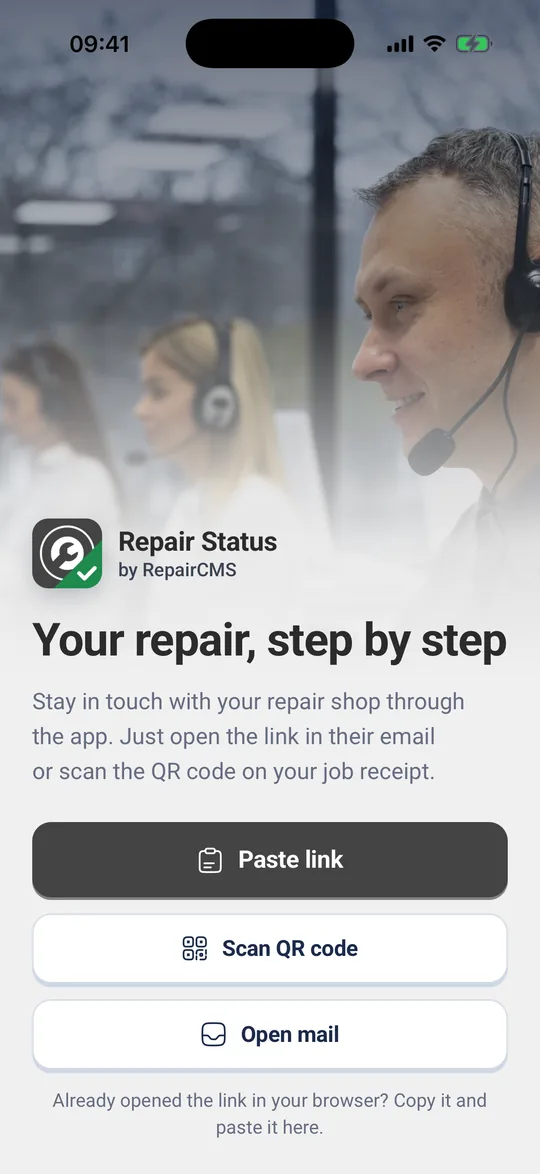
What you’ll find in the app
Your repair shop’s logo sits at the top in the middle, the bell for notifications at the top right. At the bottom you switch between four areas:
- Repairs: your repairs at this shop, ongoing ones at the top, finished ones below.
- Invoices: open, paid and cancelled invoices, each as a PDF.
- Service info: address, email, website and opening hours of your repair shop with “Route” and “Call”, plus its privacy policy, terms and legal notice.
- Profile: notifications, language, appearance, signing out and deleting data.
See status and history
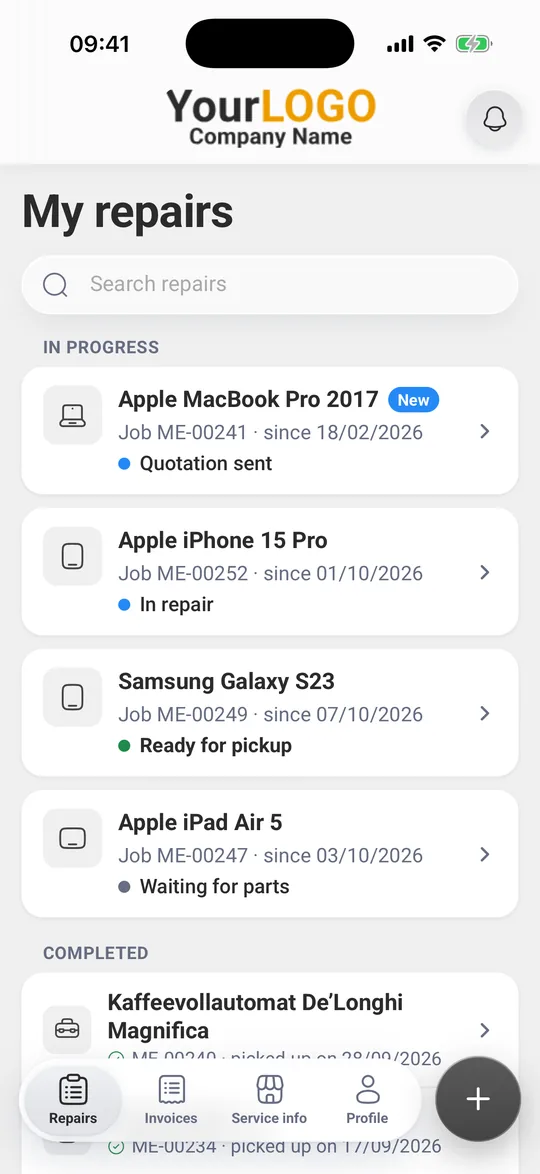
- Tap “Repairs” at the bottom. Your repairs are listed under “My repairs”. Ongoing ones are under “In progress”, picked-up and closed ones under “Completed”. A device that is ready for pickup stays under “In progress”.
- Each card shows your device, the job number, since when the job has been running, and the current status.
- Tap a repair. The status is at the top, and the “Status” card below shows the history with date and time.
- If the history is long, the app shows the three newest entries. “Show all …” opens the full history.
Your repair shop chooses the names of the statuses. So you may see “Waiting for parts” or your repair shop’s own wording.
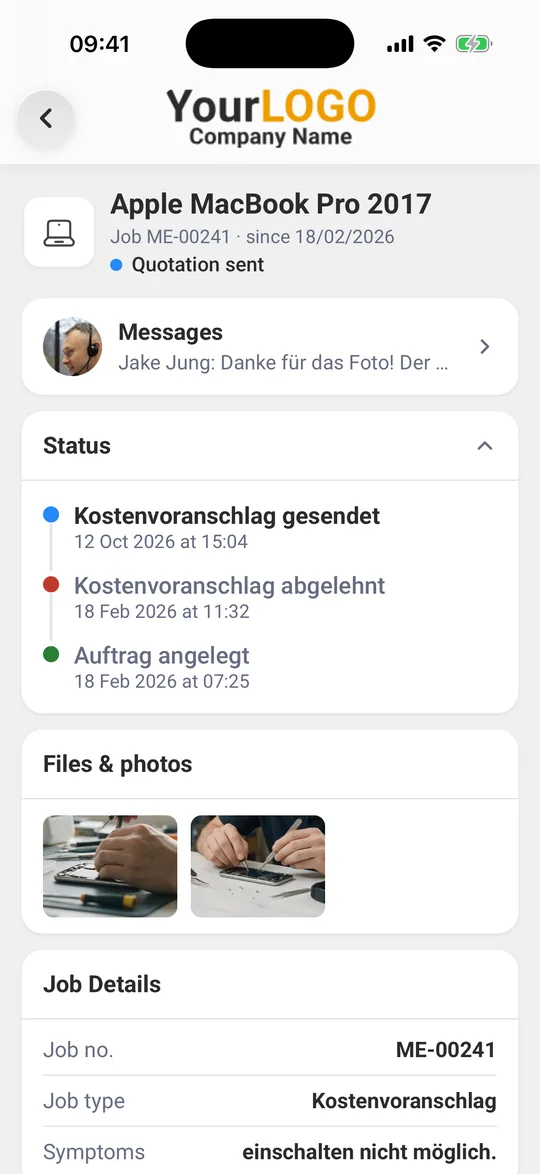
Before the code: Until you confirm the code, you only see the job number, status and history. The card “Please confirm it is you” takes you to the code. How that works is covered in Add your repair to the app and confirm with a code.
After the code, the repair shows more:
- Messages: your chat with the repair shop, including quotations and invoices
- Files & photos: pictures your repair shop saved to your repair
- Job Details: job no., job type and symptoms
- Device: device name and, if available, the IMEI
Refresh the list: Pull the list down and the app fetches the latest status. With five or more repairs at one shop, “Search repairs” appears at the top.
When your device is ready
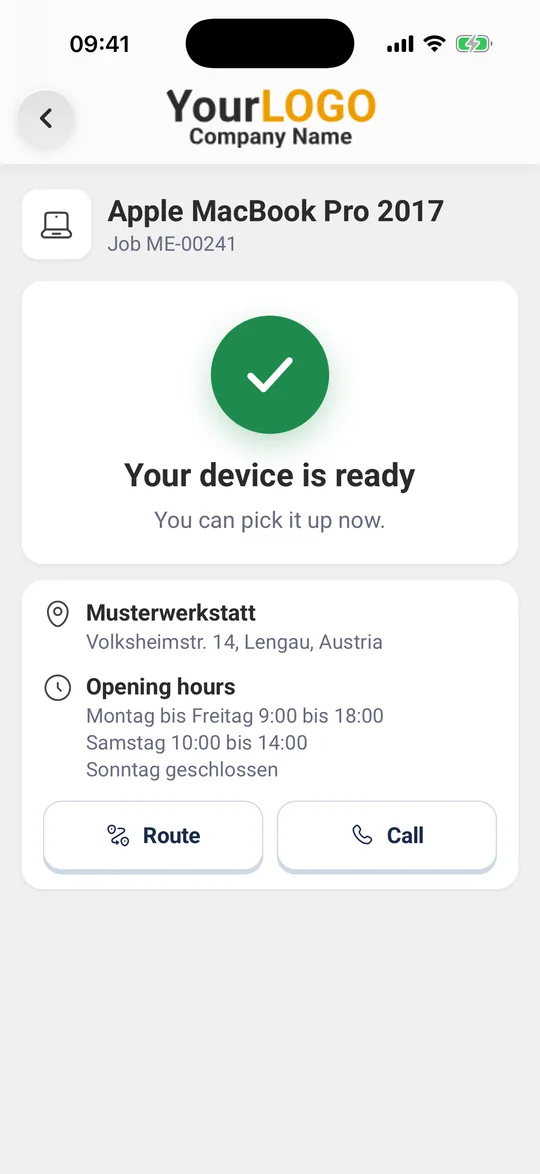
When your repair is set to “Ready for pickup”, the app shows the screen “Your device is ready” once, with “You can pick it up now.” Below it you see your repair shop’s address and opening hours. “Route” opens directions, “Call” calls the shop straight away.
Review your repair shop
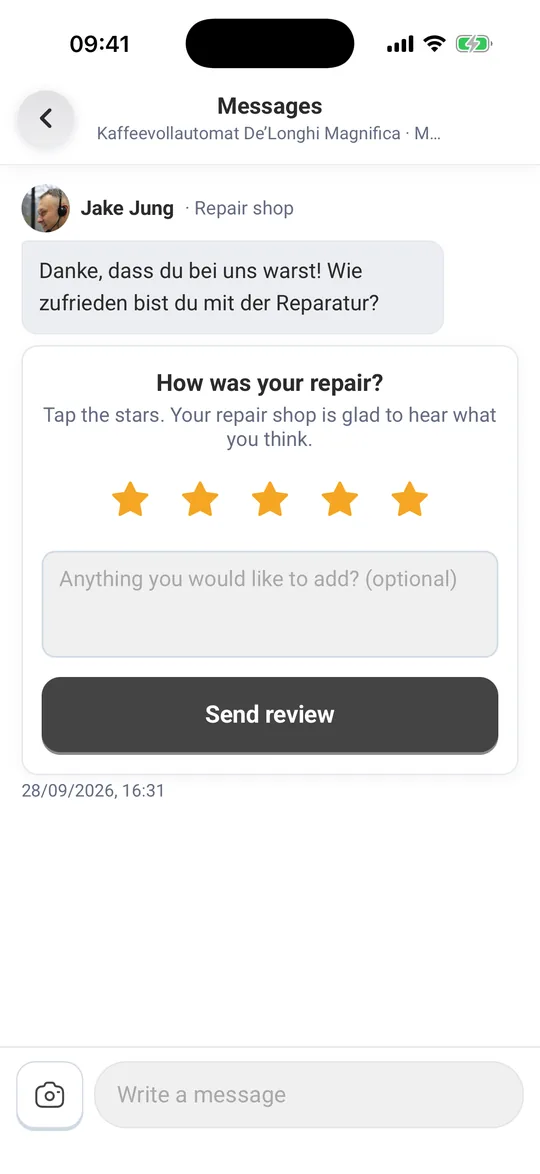
If your repair shop asks for a review after the repair, the request “How was your repair?” shows up in the messages of your repair.
- Tap the stars, from one to five.
- If you like, add a few words under “Anything you would like to add? (optional)”.
- Tap “Send review”. The app confirms with “Thanks for your review!”.
- If your repair shop offers it, “Review on Google too” lets you write a Google review as well.
Without internet
Without a connection the app shows “No internet.” at the top and the time of your last update, for example “You’re seeing the status from today, 14:20.” As soon as you’re back online, the app loads the latest status.
When a repair has disappeared
If your repair shop removed a repair, the app shows “This repair no longer exists”. “Remove from this phone” deletes it from the app. Call your repair shop if you have questions.
Help with the app itself
Your repair shop answers questions about your repair. Under “Service info”, “Call” puts you straight through. If the app itself doesn’t work as described, write to us at support@repaircms.com.
What’s next
- Add a repair: Add your repair to the app and confirm with a code
- Message your repair shop: Message your repair shop and send photos
- Decide on a quotation: View, accept or decline a quotation
- Pay an invoice: View invoices and pay online
- Settings: Notifications, language, several repair shops and deleting data
Frequently Asked Questions
How do I check the status of my repair?
Tap “Repairs” at the bottom, then tap your repair. The current status is at the top, and the “Status” card below shows the history with date and time. Pull the list down and the app fetches the latest status.
Do I need an account for the Repair Status app?
No. You need neither an account nor a password. Your repair gets into the app through the link in your repair shop's email or the QR code on your job receipt. For details, messages and invoices you confirm a code once, by email or text message.
Who can see my repair in the app?
Only you see details, photos, messages and invoices, once you have confirmed the code. The app sends the code to the email address or mobile number your repair shop has for you. Without the code, the app only shows the job number, status and history.
Who do I ask if something is wrong with my repair?
Your repair shop. Write to them in the app under “Messages” or call them with “Call” under “Service info”.
Does the app work without internet?
The app shows you the last status it loaded, with date and time. New messages and status updates arrive once you're back online.
Is this the repair status on my iPhone?
No. The Repair Status app shows your repairs at repair shops that work with RepairCMS. You add them with the link or QR code from your repair shop. For a repair with Apple, please contact Apple directly.
Did this guide help you?