
View invoices and pay online
On this page · 8 sections
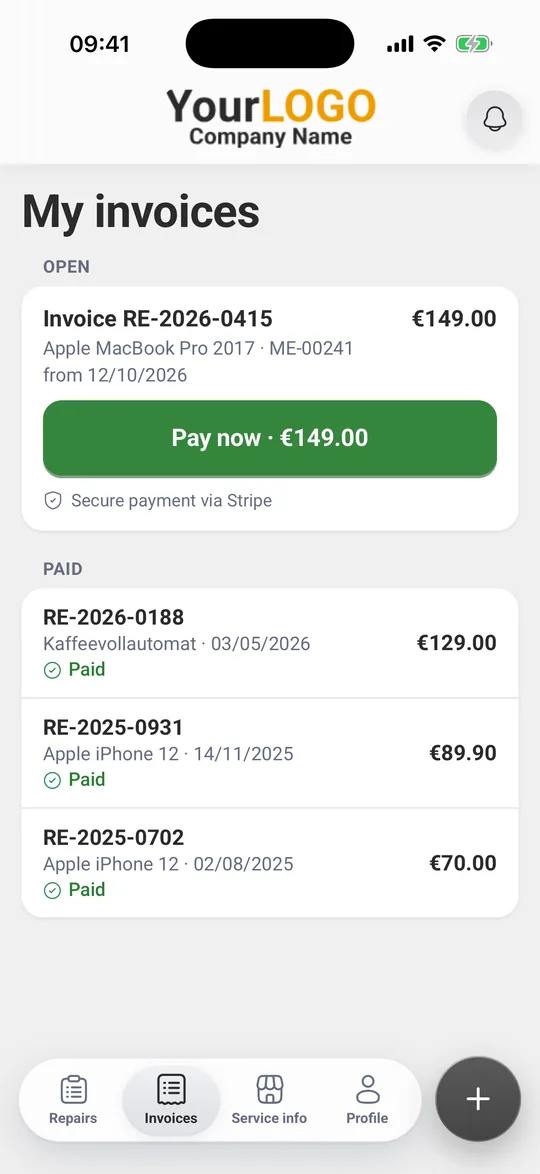
Under “Invoices” you find all invoices from your repair shop, split into open, paid and cancelled. You can download every invoice as a PDF. If your repair shop takes online payments, you pay an open invoice with “Pay now” right in the app, in a Stripe payment window. Otherwise you pay at your repair shop as usual.
Before you start
Code confirmed: Without the code, the “Invoices” tab says “So that only you can see your invoices, we send you a code.” Tap “Send code” and follow Add your repair to the app and confirm with a code.
View invoices
- Tap “Invoices” at the bottom. “My invoices” opens.
- Under “Open” you see each open invoice with number, device, job number, date and amount.
- Under “Paid” you see paid invoices with a tick.
- Under “Cancelled” you see cancelled invoices and their cancellation invoices, for example “Cancellation of INV-1042”.
If your repair shop hasn’t sent you an invoice yet, it says “No invoices yet”.
Download an invoice as PDF
- For an open invoice, tap “PDF”.
- For paid and cancelled invoices, tap the download icon on the right.
The app opens the PDF in your phone’s share menu. From there you save it or send it on.
Invoices your repair shop sends in the messages also have a “PDF” button there.
Pay online
You see the “Pay now” button if your repair shop takes online payments.
- Tap “Pay now” with the amount on the open invoice.
- A Stripe payment window opens in the app. Choose a payment method and confirm the payment.
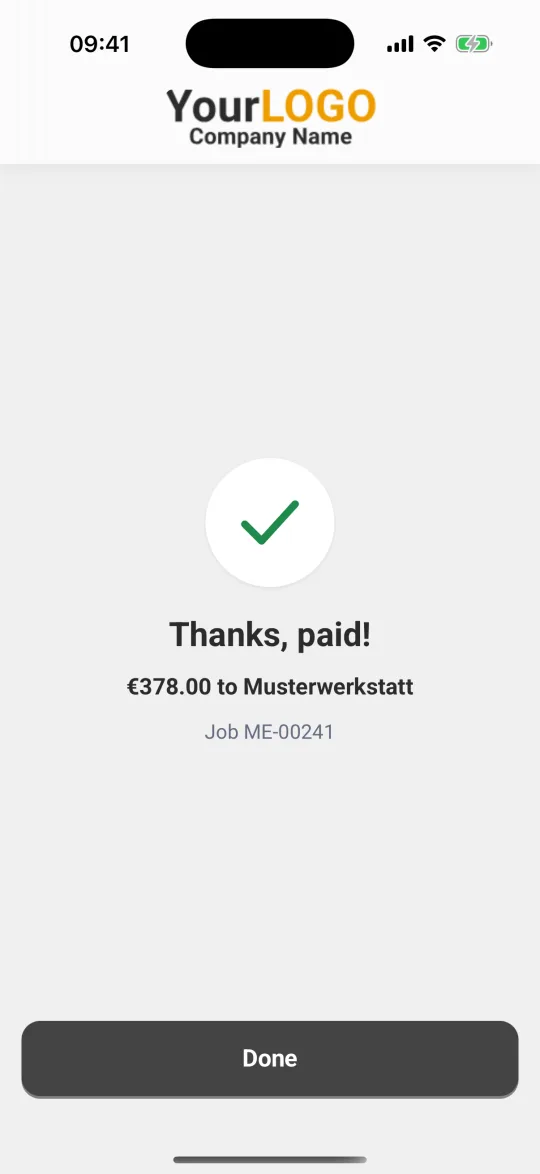
- The app then shows “Thanks, paid!” with the amount and the repair shop. Tap “Done”.
- The invoice moves to “Paid”.
Your repair shop decides which payment methods you can use.
Payment is being confirmed: Some payment methods, for example SEPA direct debit, take longer to confirm. The invoice then shows “Payment is being confirmed”. Your repair shop sees the payment as soon as Stripe confirms it. You don’t need to pay a second time.
If the payment doesn’t work
If you cancel in the payment window or the payment fails, the app shows “That did not work” and “You have not been charged.”
- “Pay again” starts a new attempt, also with a different payment method.
- “Call repair shop” gets you through to your repair shop.
- “Close” takes you back.
If there’s no pay button
If the invoice says “You pay directly at your repair shop.”, your repair shop doesn’t take payments in the app. You pay in person or as agreed with your repair shop.
What’s next
- Pay for a quotation: View, accept or decline a quotation
- Questions about an invoice: Message your repair shop and send photos
- Overview: Repair Status app: keep track of your repair
Frequently Asked Questions
Can I pay my invoice in the app?
If your repair shop takes online payments, tap “Pay now” on the open invoice and pay in a Stripe payment window. Otherwise it says “You pay directly at your repair shop.”
Which payment methods can I use?
Your repair shop decides that. You see the methods it offers in the payment window after “Pay now”.
My invoice says “Payment is being confirmed”. What does that mean?
Your payment is on its way. Some methods, such as SEPA direct debit, take longer. Once Stripe confirms the payment, the invoice moves to “Paid”. You don't need to pay a second time.
Where do I find my invoice as a PDF?
In the “Invoices” tab. For open invoices tap “PDF”, for paid and cancelled ones tap the download icon on the right.
Did this guide help you?