
Where do I find my DHL credentials for RepairCMS?
On this page · 5 sections
To connect RepairCMS with DHL you need two things from your DHL Business Customer Portal (GKP): a dedicated System User and your 14-digit billing numbers. This guide shows where to find both and how to create the System User securely.
Step 1: Create the System User
For security reasons, never use your normal DHL login for RepairCMS. Always create a dedicated System User.
- Log into your DHL Business Customer Portal.
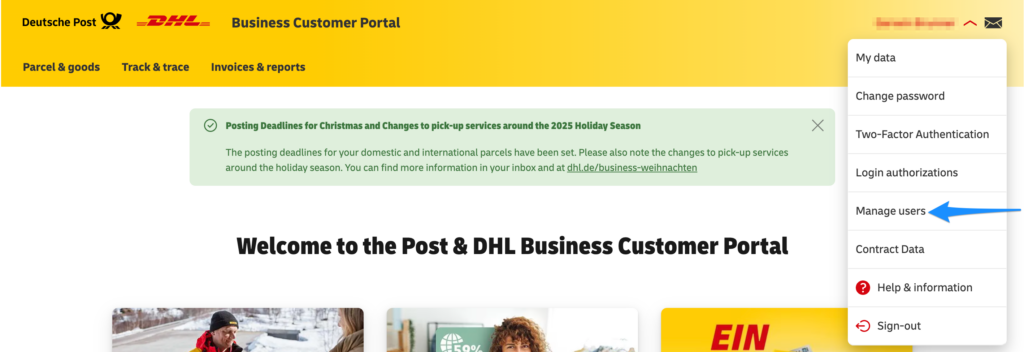
- Click Administration in the top menu and select Manage Users (or click your name in the top right corner, then Users).
- Click the Create new user button.
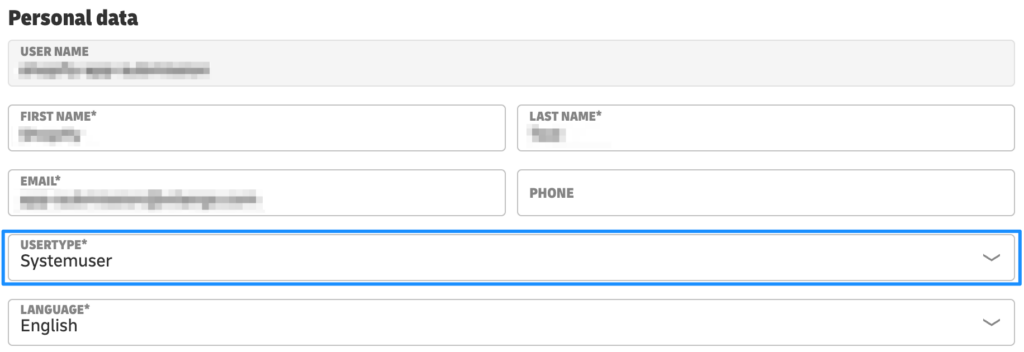
- In the form, under user type, select System User (Systembenutzer). This step is essential.
- Assign a name (e.g. repaircms_system) and a password. Save both values and enter them into RepairCMS.
Step 2: Find the 14-digit billing numbers
So DHL knows which contract to bill the labels to, you need your billing numbers. Each consists of your 10-digit customer number (EKP) plus 4 digits.
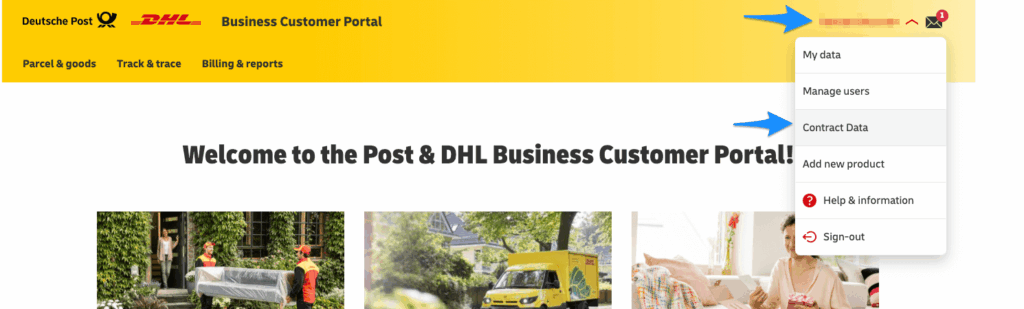
- In the DHL portal, click Contract Data in the top menu (or My Account, then Contract Data).
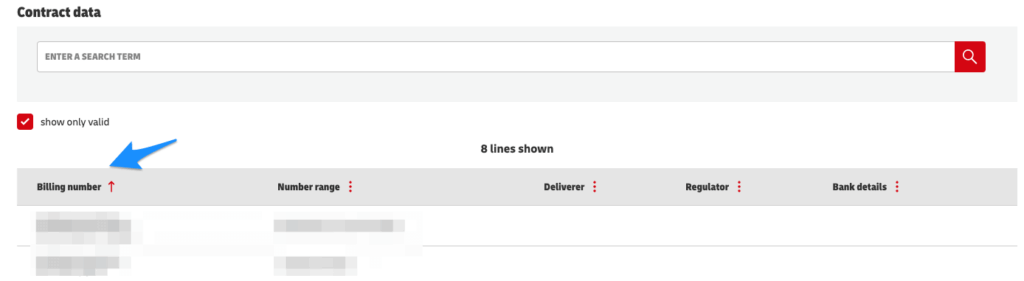
- Go to the Contract Items tab.
- You will see a list of all your active DHL products. For the standard billing number, look for DHL Paket (V01PAK) and copy the full 14-digit number.
Tip from practice
Keep your credentials handy: Store the System User name, its password and your billing numbers together. You enter all of them once in the DHL integration settings in RepairCMS.
What comes next
- Activate B2B: How to activate the B2B Repair Partner Portal
- Set up procurement: How to Activate the Procurement Hub
Frequently Asked Questions
What DHL credentials do I need for RepairCMS?
A dedicated System User (username and password) and your 14-digit billing numbers from the DHL Business Customer Portal.
Why do I need a separate System User?
For security reasons you should never use your normal login. A dedicated System User keeps the integration isolated.
Where do I find my billing numbers?
In the DHL portal under Contract Data, then Contract Items, e.g. DHL Paket (V01PAK). It is your 10-digit EKP plus 4 digits.
Where do I enter the DHL credentials?
You enter the System User and billing numbers directly into the DHL integration settings in RepairCMS.
Did this guide help you?