
Add your repair form to WordPress, Wix and other websites
On this page · 10 sections
You don’t need an extra plugin. In RepairCMS, you copy the code under “Share” and paste it into an HTML element on your website. In WordPress and Elementor, every embed type your form offers works, whether price search, full form or iframe. In Wix, use “iframe only”. In the Jimdo website builder, you put the link on a button instead.
The Ultimate Repair Form Builder is included from the Team plan at no extra cost. Your form is published.
Which code fits your website
Any of the three embed types works in WordPress and Elementor, while Wix needs “iframe only” and Jimdo a link on a button.
| Website | Where the code goes | Price search as widget | Full form | iframe only |
|---|---|---|---|---|
| WordPress block editor | “Custom HTML” block | yes | yes | yes |
| WordPress with Elementor | “HTML” widget | yes | yes | yes |
| Wix | “Embed code” element | no | yes | yes, recommended |
| Framer | “Embed” component, via AI | yes | yes | not checked |
| Lovable | via an AI instruction | yes | not checked | not checked |
| Jimdo website builder | no HTML element, use a link on a button instead | no | no | no |
Which types you see depends on the form type. The price search is only available for repair leads. RMA and warranty forms go in as a full form or an iframe. Kiosk and service agent forms have no embed code, because both are meant for a tablet on site. Don’t put the link of a service agent form on your website, because it needs a sign-in with a RepairCMS account.
Here’s how to get the code from RepairCMS.
- Open your form and click “Share” at the top.
- Under “Add to your website”, choose the type.
- Click “Copy code”.
For more, see Publish, share and add your form to your website.
This is what the “iframe only” code looks like. Don’t copy it from here, because your own code has your form’s address in place of the three dots.
<iframe src="https://my.repaircms.com/book/…?embed=true" width="100%" height="700" style="border:0;width:100%;height:700px;max-width:100%;background:transparent;" allowtransparency="true" allow="clipboard-write" loading="lazy" title="Repair form"></iframe>How much space the form needs depends on the type. The full form adjusts its height itself, while the iframe stays 700 pixels tall. With the price search, the form opens on top of the whole page as soon as your customer clicks “Continue”.
Do you need a WordPress repair shop plugin?
No, you don’t need an extra plugin for the repair form. The RepairCMS code runs in the HTML block that WordPress already has. You keep prices and services in RepairCMS only, and every booking from your website lands there as a service request. To see how online booking works for repair shops and service centers, visit Repair booking system.
WordPress block editor
In the block editor, you paste the code into a “Custom HTML” block.
- Open the page in WordPress and click the plus icon to add a block.
- Search for “Custom HTML” and select the block.
- Click “Edit code” on the block. Paste the code from RepairCMS in the “HTML” tab. On the right, you already see a preview of the form.
- Click “Update”, then save or publish the page.
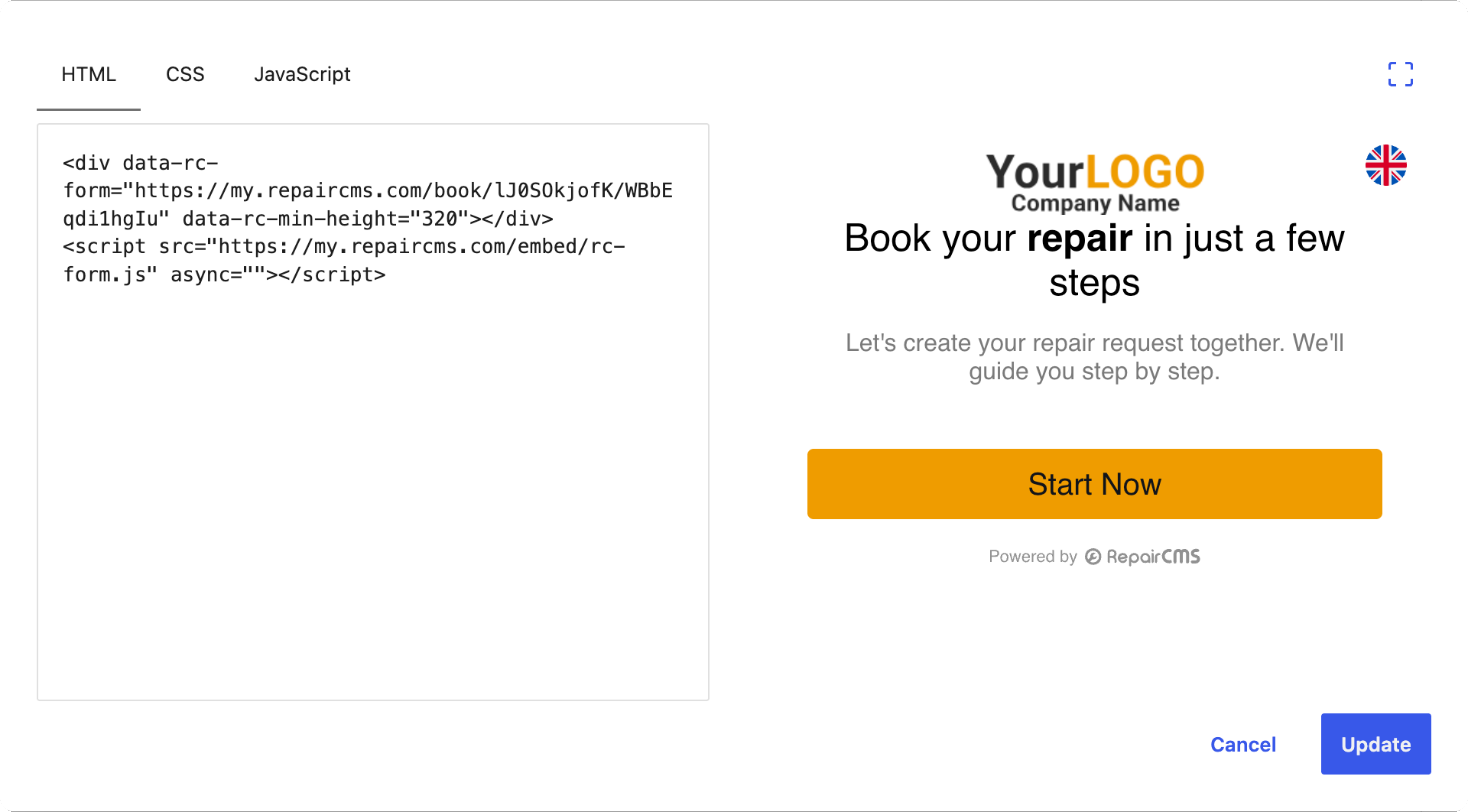
These are the steps in WordPress 7.1.
Paste the code as an Administrator or Editor. With the Author role, WordPress removes the script and the iframe when you save, and the spot stays empty. If it still stays empty as an Administrator, ask your web designer whether your WordPress blocks custom HTML.
WordPress with Elementor
In Elementor, you drag the “HTML” widget to the right spot and paste the code there.
- Open the page with Elementor.
- Search the widgets on the left for “HTML”.
- Drag the “HTML” widget to where the form should appear.
- Paste the code into the “HTML Code” field and publish or update the page.
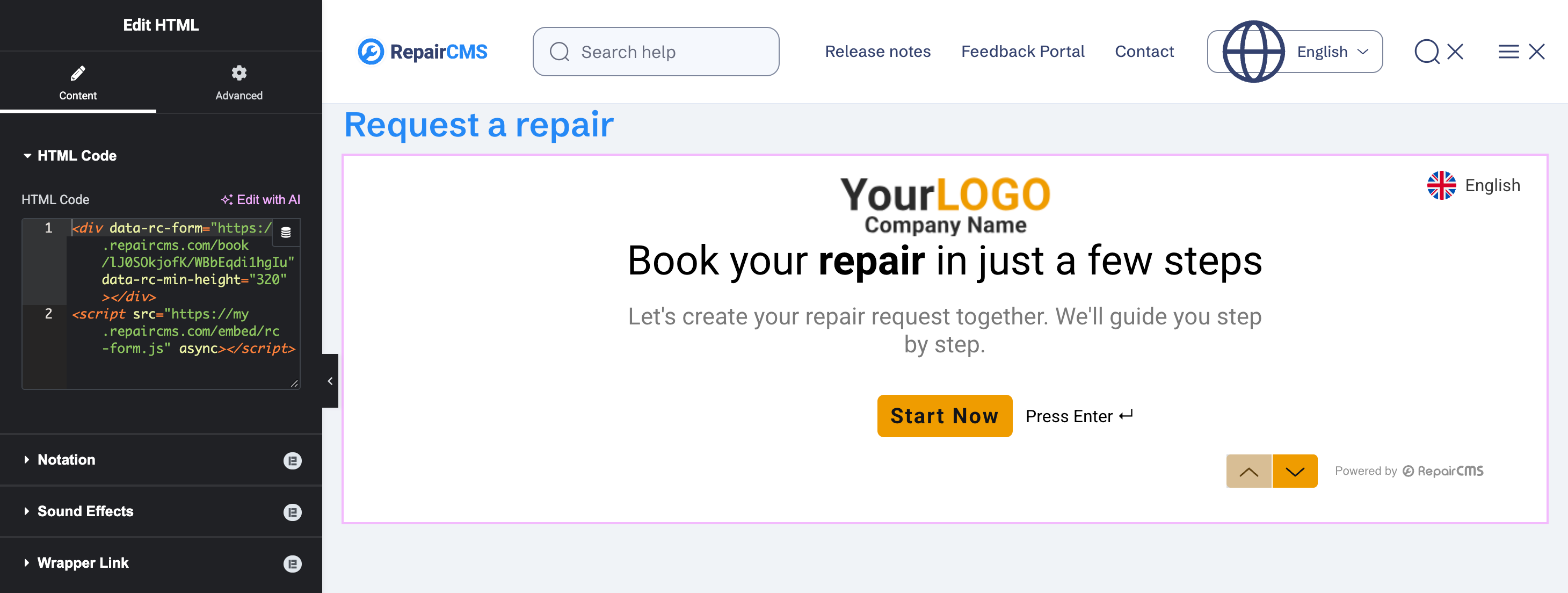
Elementor already shows the form in the editor, so you can see right away whether it’s in the right place.
Wix
In Wix, you use the “iframe only” code and make the element at least 700 pixels tall.
- In the Wix editor, click “+ Add” at the top left, then “Elements”.
- Choose the “Embed” category (the
</>icon), then “Embed code”. - Double-click the new element. The “Settings” open. Make sure “Code” is selected under “Choose what to embed”.
- Paste the code into the “Enter HTML embed code” field and click “Apply”.
- Resize the element so the form fits completely, at least 700 pixels tall.
- Check the form with “Preview” and publish your site.
These are the steps in the current Wix editor. In Wix Studio or an older editor, the names may differ. Then look for “Embed” or “HTML”.
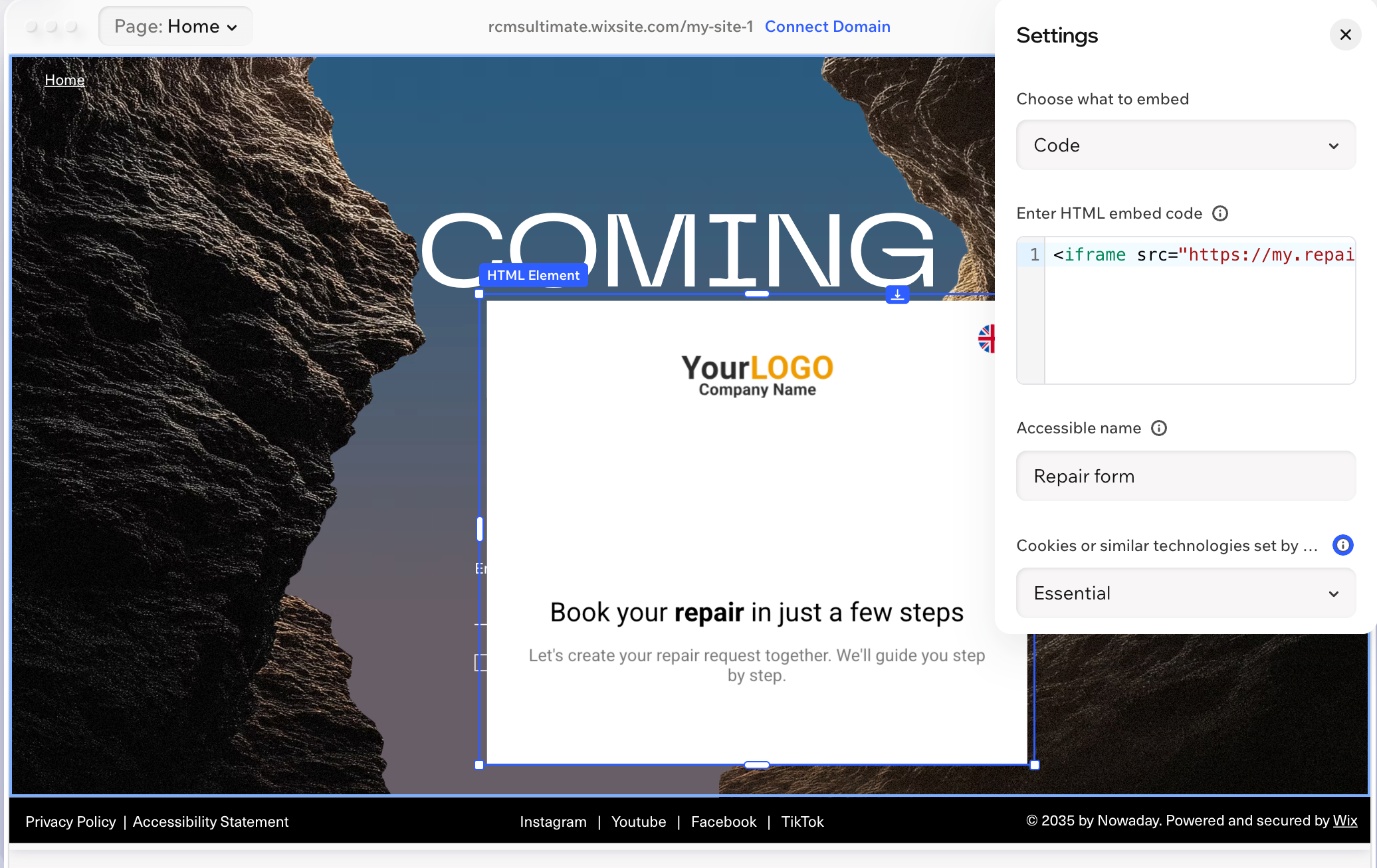
Don’t use the price search widget in Wix. Wix puts any code you paste into a frame of its own. The form then opens only inside that small frame instead of on top of the page, and your customers don’t see an input field in the first step.
The full form also runs in Wix. It doesn’t adjust its height there, though, so make the element big enough for it as well.
Jimdo
The Jimdo website builder doesn’t let you add your own code, so you link to the form from a button.
- In RepairCMS, click “Copy link” under “Share”.
- In Jimdo, click the button your customers should use to open the form. A text like “Request a repair” works well.
- Click the link icon and choose the option to add a URL.
- Paste the link and publish your site.
Clicking the button opens your form as a page of its own. The booking reaches RepairCMS the same way as from an embedded form, as a service request.
If you use the older Jimdo Creator, see “Other website builders”.
Built your website with AI?
Give your builder’s AI the code together with the instruction to paste it unchanged, all in a single message.
- In RepairCMS, copy the code of the type you want under “Share”.
- Copy the instruction below, fill in the first two brackets and add your code at the end.
- Paste everything into the AI chat in one piece and send it. In Framer, the Enter key sends the message right away. If you type the instruction line by line, the instruction and the code arrive separately and the AI gets stuck.
- Then check the page in the preview.
Paste the following HTML code unchanged on the page [page name], [for example below the heading Request a repair]. Don't rewrite it, don't shorten it and keep the script tag. If the page doesn't allow scripts, don't change the code. Tell me instead.

[paste your RepairCMS code here]| Builder | What happens |
|---|---|
| Framer | The AI puts the code into the “Embed” component. The price search and the full form work. If the element is too narrow, make it wider or ask the AI to set it to full width. |
| Lovable | The price search works. Lovable adds the script in a different technical way, but the address stays the same. That’s fine. |
If the price search only opens in a small frame, give the AI the “iframe only” code. If the form is missing completely, the AI may have changed the code. Then check that the my.repaircms.com address from your code is still there.
Other website builders
Look in your site builder for an element called HTML, Code or Embed.
If there is one, paste the code there and check the form in the preview. If the price search only opens in a small frame, use “iframe only”. If you can’t find such an element, link to the form from a button, as in Jimdo.
Form not showing?
First check in RepairCMS that your form is published, and otherwise find your case in the table below.
| What you see | What you do |
|---|---|
| Nothing shows up | Check in RepairCMS that the form is published. If “Share” says “Not published yet.”, publish it first. |
| In WordPress the spot stays empty, even though the form is published | Paste the code again as an Administrator or Editor. If that doesn’t help, ask your web designer whether your WordPress blocks custom HTML. |
| The form is cut off at the bottom | In Wix, make the element bigger. For the “iframe only” code, change both height values in the code, height="700" and height:700px, for example to 900. |
| The price search only opens in a small frame | Your site builder puts any code you paste into a frame of its own, like Wix. Use “iframe only”. |
| The form shows in the preview, but not on the live page | Give your web designer the code and ask whether a plugin on your website holds back or blocks scripts. |
If your website uses a Content Security Policy, it needs my.repaircms.com for scripts, frames and fonts and api-p.repaircms.com for requests. Best pass this on to your web designer.
Frequently Asked Questions
Do I need a WordPress plugin for repair bookings?
No, you don't need an extra plugin. Paste the code from “Share” in RepairCMS into a “Custom HTML” block in WordPress, or into the “HTML” widget in Elementor.
Do I have to paste the code again after every change?
No. You paste the code once. Whatever you publish in RepairCMS after that shows up on your website automatically.
Which code do I use for Wix?
Use the “iframe only” code from “Share” in RepairCMS and paste it into the “Embed code” element. Make the element at least 700 pixels tall. In Wix, the price search widget stays stuck in a small frame.
Can I add the repair form to Jimdo?
Yes, as a link on a button. The Jimdo website builder has no element for your own code, so put the link from “Share” in RepairCMS on a button. Clicking it opens your form as a page of its own.
Does the embedded form work on phones?
In the WordPress block editor, yes. The form adapts to the width of your page and nothing sticks out to the side. In Wix and other site builders, check the mobile view before you publish.
How do I add the repair form to a website built with AI?
Give the AI the code from “Share” in RepairCMS in a single message, with the instruction to paste it unchanged as HTML and not rewrite it. In Framer and Lovable, this worked with the price search.
Did this guide help you?