
Message your repair shop and send photos
On this page · 7 sections
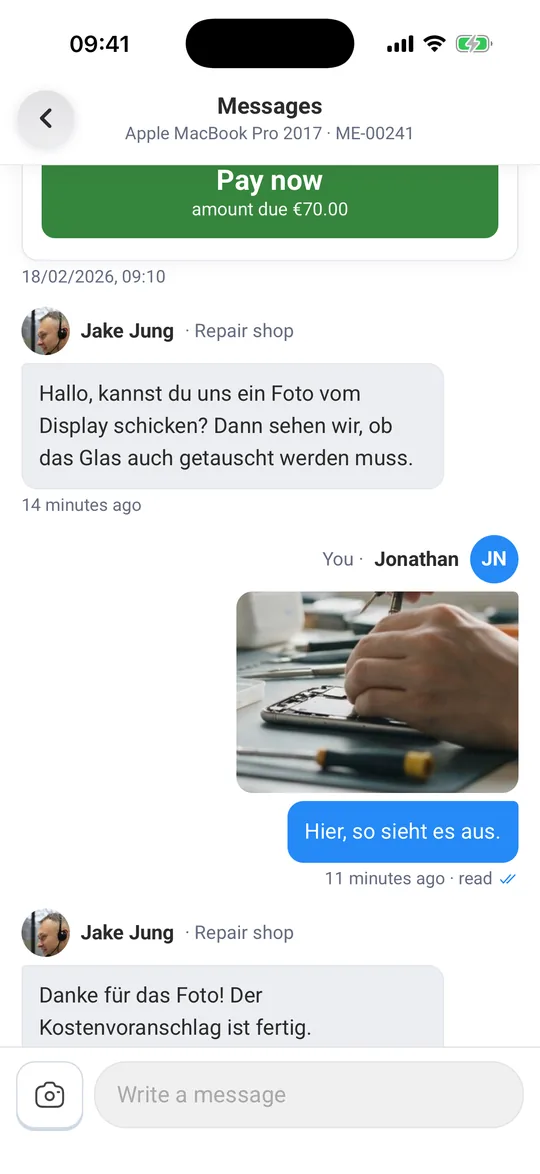
In the Repair Status app you write to your repair shop right on the repair. Open the repair, tap “Messages” and start typing. You can take photos with the camera or choose them from your pictures. The app shows “read” once your repair shop has seen the message. When they’re writing back, you see “typing…”.
Before you start
Code confirmed: Messages open once you have confirmed the code for this repair shop. How that works is covered in Add your repair to the app and confirm with a code.
Write a message
- Tap “Repairs” at the bottom, then your repair.
- Tap the “Messages” row. It shows the latest message. If there’s something new, it says, for example, “1 new”.
- Tap the “Write a message” field at the bottom and type your message.
- Tap the send button that appears in the field as you type.
Your message now shows in the thread, with “You” and your name above it.
New messages in the list: If your repair shop has written to you, the repair under “My repairs” says, for example, “1 new message from your repair shop”. Tapping it opens the messages directly.
Send a photo
- In the messages, tap the camera icon to the left of the text field.
- Take a photo or choose one from your pictures.
- The app sends the photo to your repair shop right away.
For more photos, repeat the steps.
What happens to your message
| Shown below your message | Meaning |
|---|---|
| “Sending…” | The app is sending the message. |
| “sent” with a grey tick | The message has reached your repair shop. |
| “read” with blue ticks | Your repair shop has read the message. |
| “Not sent · Send again” | The message didn’t go through. Check your connection and tap “Send again”. |
When someone at your repair shop is writing, you see their name with “typing…”.
What your repair shop sends you in the messages
- Text and photos: tap a photo to open it.
- Files: tap the file name to download it.
- Quotations: as a card you accept or decline right there. More in View, accept or decline a quotation.
- Invoices: as a card with amount, state and “PDF”.
- Review request: “How was your repair?” with stars.
Language of messages: Switching the app to another language changes the buttons and notifications. Messages from your repair shop stay as they were written.
What’s next
- Decide on a quotation: View, accept or decline a quotation
- Get notified: Notifications, language, several repair shops and deleting data
- Overview: Repair Status app: keep track of your repair
Frequently Asked Questions
Can I send photos to my repair shop?
Yes. In the messages, tap the camera icon to the left of the text field, take a photo or choose one. The app sends it right away.
How do I know my message has been read?
Below your message it says “read” with blue ticks. If it says “sent” with a grey tick, the message has arrived but hasn't been read yet.
My message wasn't sent. What now?
Below the message it then says “Not sent”. Check your internet connection and tap “Send again”.
Why can't I write a message yet?
Messages open once you have confirmed the code for your repair shop. Tap your repair, then “Send code”.
Did this guide help you?