
RepairCMS Go: what’s included and what isn’t
On this page · 10 sections
RepairCMS Go is the free plan of the RepairCMS app. You take in up to 15 jobs a month, print job sheets, service reports and device labels, and your customer follows the repair through repair tracking. If you need more, the paid plans add invoices, quotes, photos on the job and extra users. The app shows next to each of these features which plan includes it.
What RepairCMS Go is
Go is a plan, not a separate app. You use the same RepairCMS app and the same RepairCMS account as on the paid plans. If you change plans later, everything you created stays exactly where it is.
Go runs in the app on your phone or tablet only. Installation is covered in Install the app and create your account.
What Go includes
| Feature | In Go |
|---|---|
| Price | free |
| Users | 1 |
| Jobs | 15 a month |
| Book jobs | yes |
| Job sheet (A4) | yes |
| Create and print service reports | yes |
| Device label | yes |
| Receipt (80 mm) | yes |
| Repair tracking for your customer | yes, with the RepairCMS logo |
| Signature at intake and handover | yes, on the screen |
| History | last 90 days |
Printouts on Go: Every printout from Go carries a RepairCMS line and a QR code at the bottom.
History: On Go you see the jobs from the last 90 days. Nothing is deleted. After an upgrade, older jobs are visible again.
Keeping an eye on your 15 jobs
- Tap the plus at the bottom, then “Book a job”. Below the two booking options the app shows how many “free jobs this month” you have left.
- After each booked job the app shows “Counter: … of 15 jobs this month”.
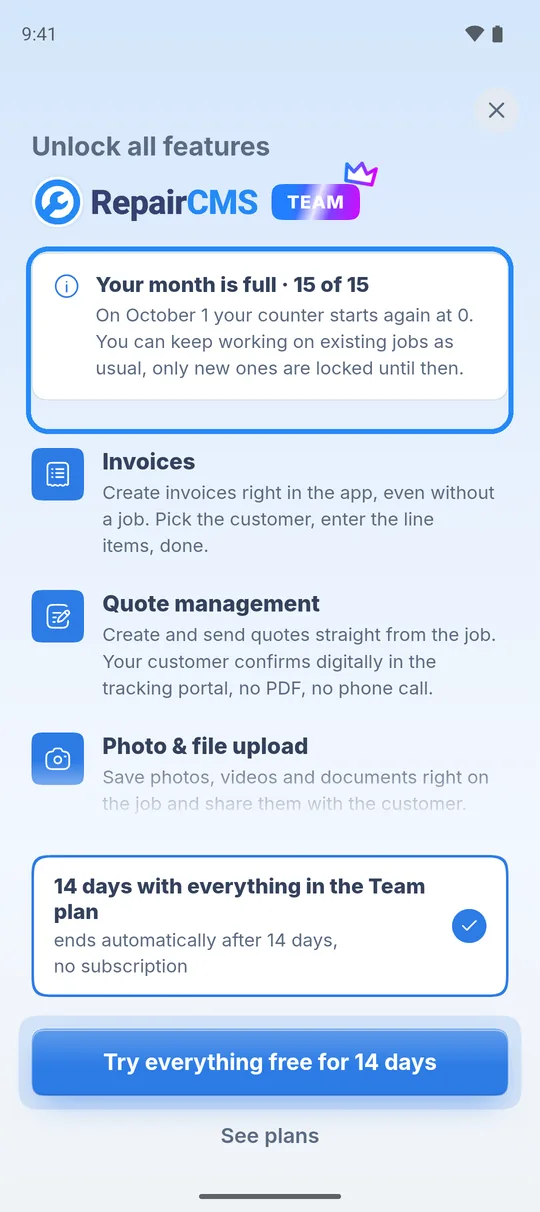
- When you try to book the 16th job, the page “Unlock all features” opens. At the top you see the notice card “Your month is full · 15 of 15”. You keep working on existing jobs as usual. You take in new jobs again once the counter starts over.
- The counter starts again at 0, usually on the 1st of the following month. The exact date is on the notice card.
- Below it, “14 days with everything in the Team plan” is selected. Tap “Try everything free for 14 days” or “See plans”. If you have already used the trial, the button says “Upgrade now”. The cross at the top closes the page.
Every booked job counts, including the test job from the setup.
If you need more: what the paid plans add
Features from the paid plans stay visible in the app. Next to each one you see the plan that includes it.
| Feature | Available |
|---|---|
| Unlimited jobs and full history | from Starter |
| Invoices with e-invoicing and a QR code for bank transfer | from Starter |
| Ultimate FastPAY (payment by link) | from Starter |
| Data export as CSV and Excel | from Starter |
| Working on a computer (web desktop) | from Starter |
| Quotes your customer approves online | from Business |
| Customer messaging on the job | from Business |
| Condition photos and files on the job | from Business |
| Second user, inviting colleagues | from Business |
| Assigning jobs and internal messages | from Team |
| Items and stock management | from Team |
| Your own branding in the tracking portal | from Team |
Your data when you delete your account: Data export is available from Starter. If you delete your account, you download all your data first, on Go as well.
What happens when you tap a feature from a paid plan
- Tap the feature, for example “Photos of the condition” with the note “from Business”.
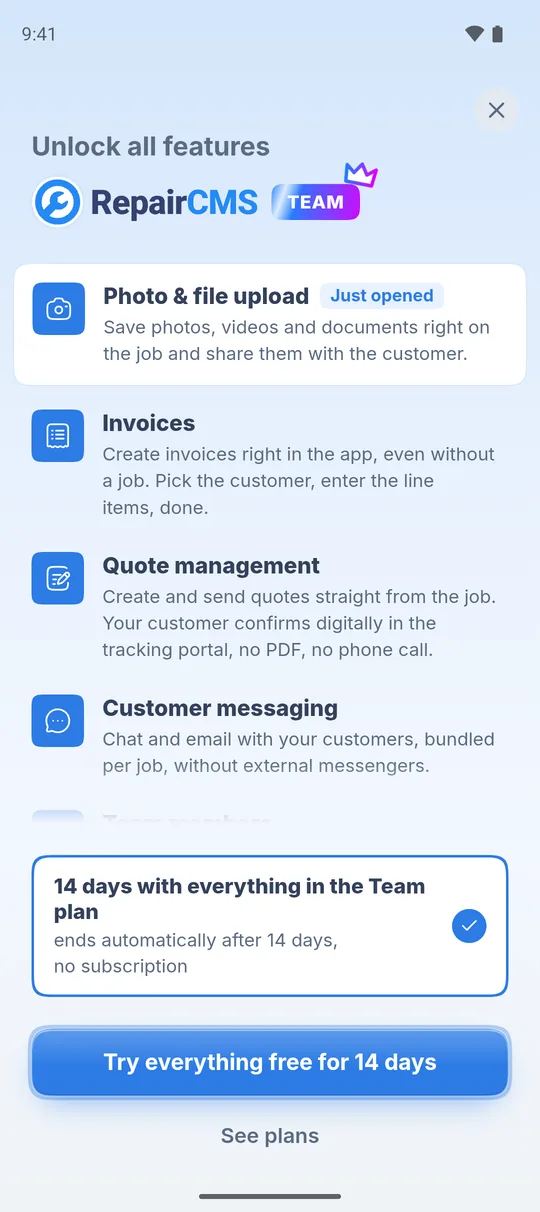
- The page “Unlock all features” opens. At the top you see the feature you tapped, marked “Just opened”. Below it you see everything that comes with it. If you open the page from “More”, this marker isn’t shown.
- If you haven’t used the trial yet, tap “Try everything free for 14 days”. Otherwise it says “Upgrade now” or “Continue on the web”.
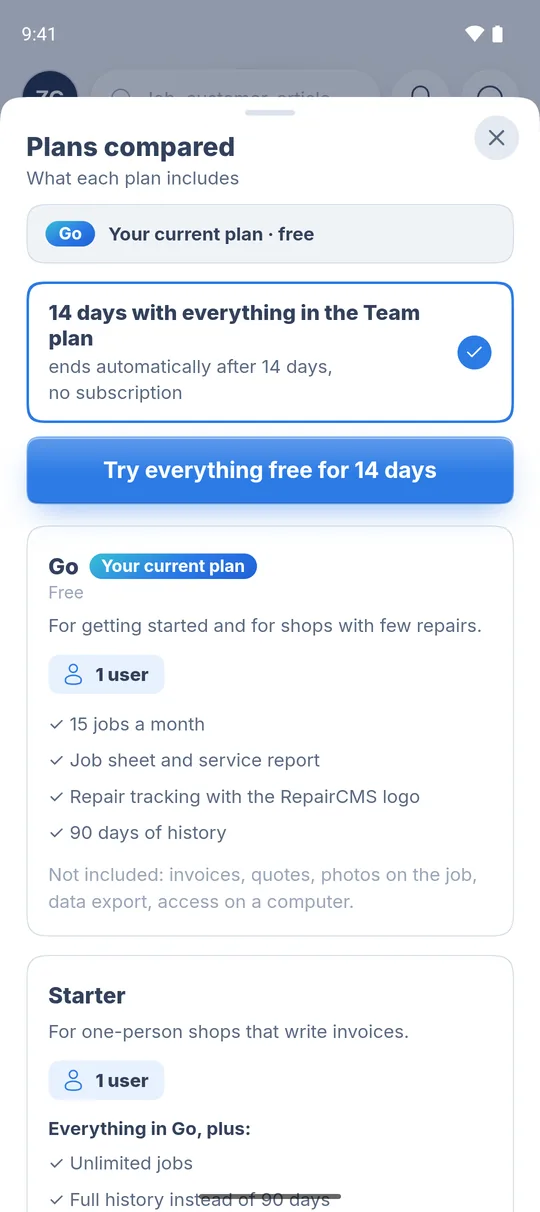
- “See plans” opens the comparison of all plans. The cross at the top takes you back.
Try 14 days without giving up Go
Next to Go you can test the full Team plan once for 14 days. No payment details needed.
- Tap “More” at the bottom.
- Tap “Try free for 14 days”.
- Check your email address. Tick “RepairCMS may send me emails. Can be unsubscribed at any time.”
- Tap “Start the trial”.
After 14 days the trial ends by itself and you’re back on Go. Everything you created during the trial stays saved.
Tip: Start the trial on a busy day. That way you see invoices, quotes and photos on real jobs.
Upgrading and working on a computer
There are no purchases in the app. You book a paid plan in your RepairCMS account on the web, with the same email you use in the app. The plan is then active in the app straight away.
- In the app, the plan comparison is under “More” and “Unlock all features”.
- On Go you work in the app only. If you sign in on a computer, you’re offered the upgrade to a paid plan there.
- An upgrade is a plan change. Jobs, customers and settings stay in place.
Help on Go
Help for Go is in this knowledge base under “Mobile App”. Personal support is available from Starter.
What’s next
- App not installed yet: Install the app and create your account
- Set up your business and plan: Set up your business and choose a plan
- Get going: Book your first repair order
Frequently Asked Questions
Is RepairCMS Go really free?
Yes. Go is free and needs no payment details. You get one user and 15 jobs a month.
What happens with the 16th job in a month?
The page "Unlock all features" opens with the notice "Your month is full". You keep working on existing jobs. You book new ones again once the counter starts over, usually on the 1st of the following month. The exact date is on the notice card. You can also try the Team plan for 14 days or move to a paid plan.
Are my old jobs deleted after 90 days?
No. On Go you see the last 90 days. Older jobs stay saved and are visible again after an upgrade.
Can I use Go on a computer?
No, Go runs in the app only. Working on a computer is available from Starter. If you sign in on a computer with Go, you're offered the upgrade there.
Did this guide help you?