
Cancel your subscription or undo it
On this page · 7 sections
You cancel your RepairCMS subscription in the web app on the “Plans and Billing” page with “Cancel subscription”. After three short steps, you finish the cancellation in the Stripe customer portal. Your plan stays active until the date RepairCMS shows you in the cancellation, with full access. “Reactivate subscription” undoes the cancellation.
Monthly and annual billing
- With monthly billing, your plan can be cancelled monthly.
- With annual billing, it can’t be cancelled monthly. RepairCMS shows you in the cancellation up to which date your plan stays active.
Either way, your plan keeps running until the date shown.
Step by step: cancel your subscription
- Open “My RepairCMS” at the bottom left of the sidebar, then “Subscription”. The “Plans and Billing” page opens.
- Click “Cancel subscription”.
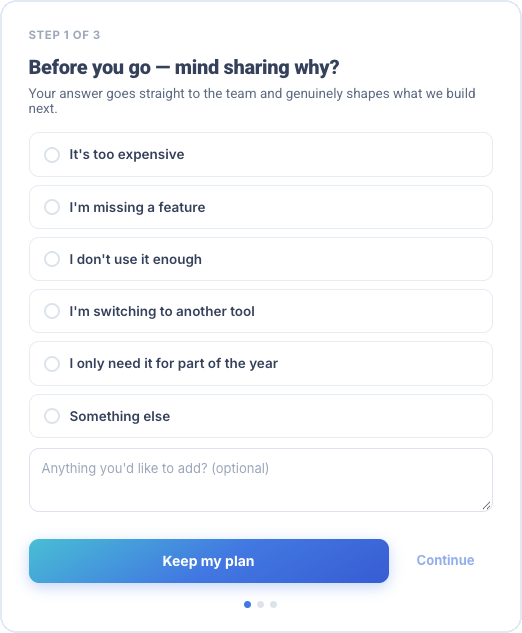
- Step 1 of 3: RepairCMS asks why you’re leaving. Pick a reason, for example “It’s too expensive”, “I’m missing a feature” or “I only need it for part of the year”. If you like, add something in the text field. “Continue” only works once you’ve picked a reason.
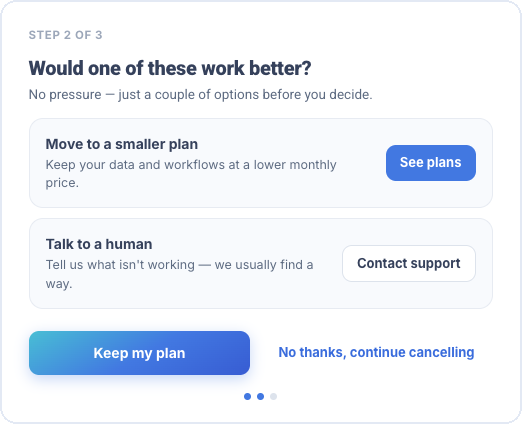
- Step 2 of 3, “Would one of these work better?”: RepairCMS offers two alternatives here. Under “Move to a smaller plan” you click “See plans”, under “Talk to a human” you click “Contact support”. If you still want to cancel, click “No thanks, continue cancelling”.
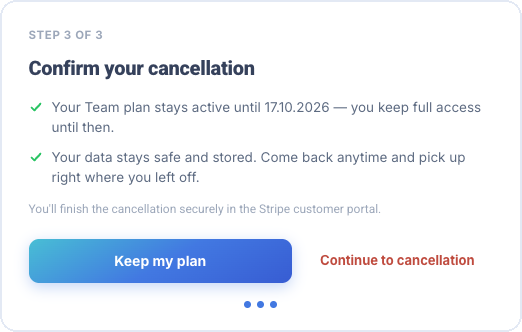
- Step 3 of 3, “Confirm your cancellation”: RepairCMS shows you the date up to which your plan stays active. Click “Continue to cancellation”.
- The Stripe customer portal opens. You finish the cancellation there.
As the account owner, you can also reach the Stripe customer portal directly with “Billing” in the profile menu at the top right.
Afterwards “Plans and Billing” shows “Cancellation scheduled.” with the date your plan stays active until.
If you change your mind along the way, click “Keep my plan” at any step.
What applies until the end
- You keep full access to your plan until the date shown.
- Cancelling itself doesn’t delete your data. In the cancellation, RepairCMS shows you: “Your data stays safe and stored.”
- While the cancellation is pending, you can’t book modules. RepairCMS asks you to undo the cancellation first.
Undo the cancellation
On “Plans and Billing”, click “Reactivate subscription”. RepairCMS confirms that the cancellation is undone and your subscription renews as usual.
Cancel single modules
- On “Plans and Billing”, under “Booked modules”, click “Cancel” next to the module.
- RepairCMS shows you the date up to which the module stays active. After that it’s removed from your subscription and the feature is switched off.
- Confirm with “Cancel add-on”. “Keep add-on” stops the cancellation.
The module then shows “Ends on” with the date. “Undo” takes the module cancellation back, and RepairCMS shows “Add-on cancellation undone”. Don’t buy a cancelled module again, undo the cancellation instead.
What’s next
- Everything about plans, users, modules and invoices is in Manage your plan and billing.
- You’ll find more account settings under Your Account.
Frequently Asked Questions
How long can I use RepairCMS after cancelling?
Until the date RepairCMS shows you in the cancellation. Until then you have full access to your plan.
Can I undo my cancellation?
Yes. On “Plans and Billing”, click “Reactivate subscription”. Your subscription then renews as usual.
Can I cancel just one module and keep my plan?
Yes. Under “Booked modules”, click “Cancel” next to the module. It stays active until the date shown.
Is my data deleted when I cancel?
Cancelling itself doesn't delete it. In the cancellation, RepairCMS shows you: “Your data stays safe and stored.”
Did this guide help you?