
Choose which statuses a user can set
On this page · 7 sections
You decide for each user which statuses they can set on a job. In the web app, you block single statuses or all of them at once. In the RepairCMS app, you block single statuses for your team members as the owner or an admin.
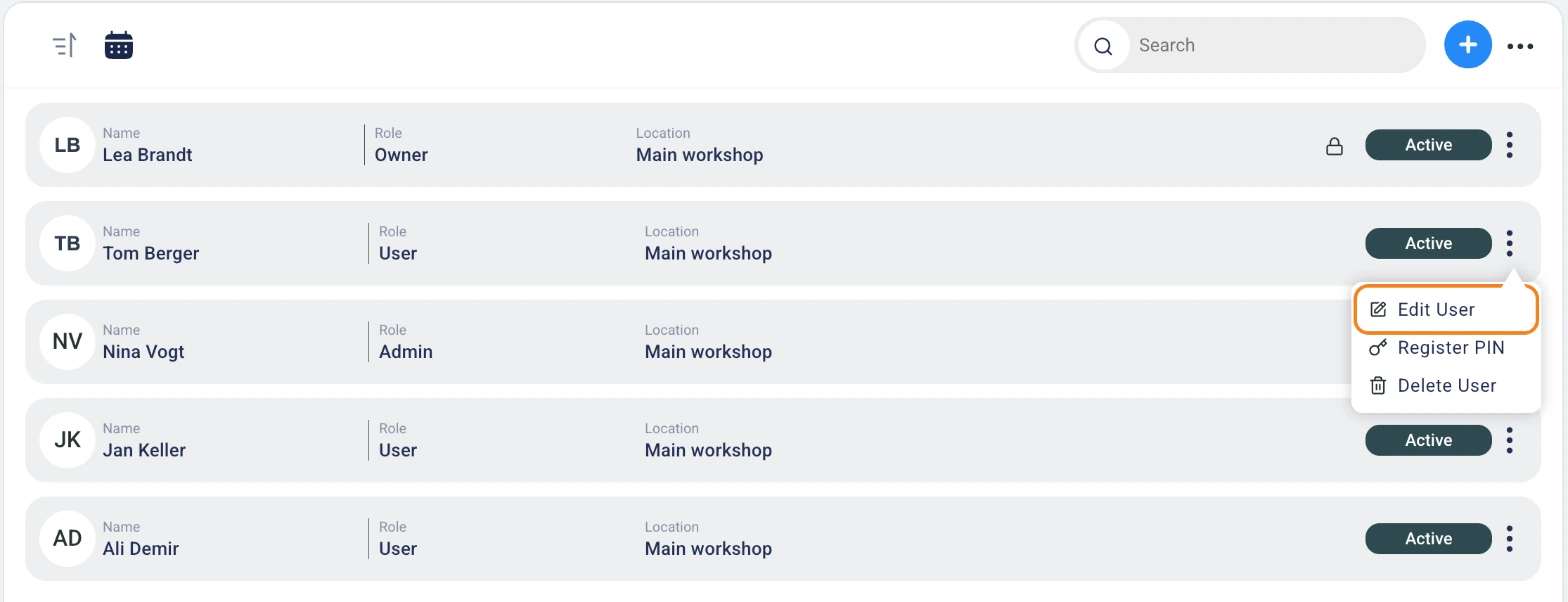
In the example in this article, Tom repairs the devices and Lea checks them afterwards. That’s why Tom shouldn’t set the “Ready To Return” status.
The switches in the web app and the RepairCMS app mean opposite things. When “Enable status setting” is on in the web app, the user may set statuses, and the list below it blocks single ones. When it’s off, all statuses are blocked. When “Restrict status setting” is on in the RepairCMS app, a block is active for this user. So for a user with no block, the switch is on in the web app and off in the RepairCMS app.
Requirement
Additional users are available in the RepairCMS Business, Team and Enterprise plans.
Block certain statuses in the web app
New users have the switch on and an empty list. They can set every status until you block something.
- Open “My RepairCMS” and click “Team Members”.
- Click the three-dot menu next to Tom and choose “Edit User”.
- In the window, find the “Enable status setting” section under “Access To Jobs”. Leave the switch at ON.
- Click the field below it and type the name at “Search status”. The statuses of your business appear to choose from.
- Click “Ready To Return”. The status now sits in the field as an entry with an X.
- Click “Save”.
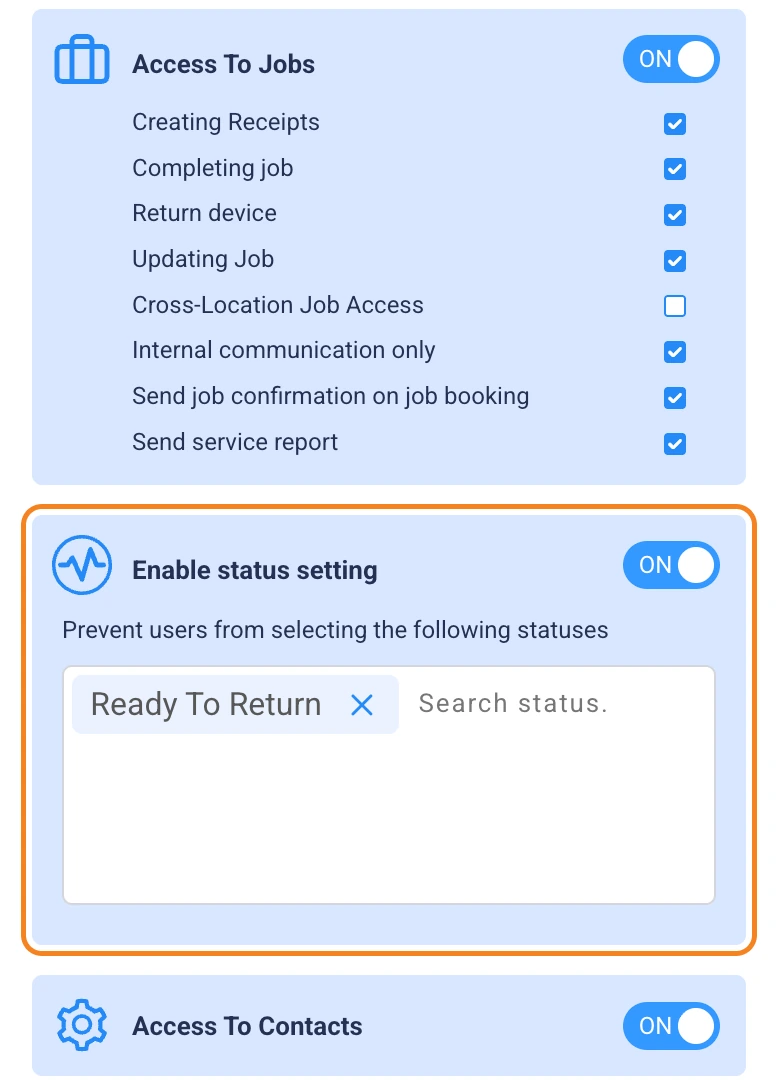
The blocked status is then missing from Tom’s selection altogether. If you want to allow it again, click the X on the entry and save.
Block all statuses for a user
If a user shouldn’t change any status, turn the setting off for them.
- Open “Edit User” for the user.
- Set the “Enable status setting” switch to OFF. The field below it is then locked.
- Click “Save”.
On a job in the web app, the user then has no button for setting a status.
Block certain statuses in the RepairCMS app
As the owner or an admin, you can also set the block for your team members in the RepairCMS app. There you block single statuses. Blocking all statuses at once only works in the web app.
- In the RepairCMS app, open “More”, then “Profile & account”, and tap “Team members & permissions”.
- Tap the team member, Tom in the example. This opens the screen for managing the member.
- Turn on the “Restrict status setting” card. The “Search status” field and the statuses to tap appear below it.
- Tap “Ready for return”, the name of this status in the app. The app blocks the status and saves this right away.
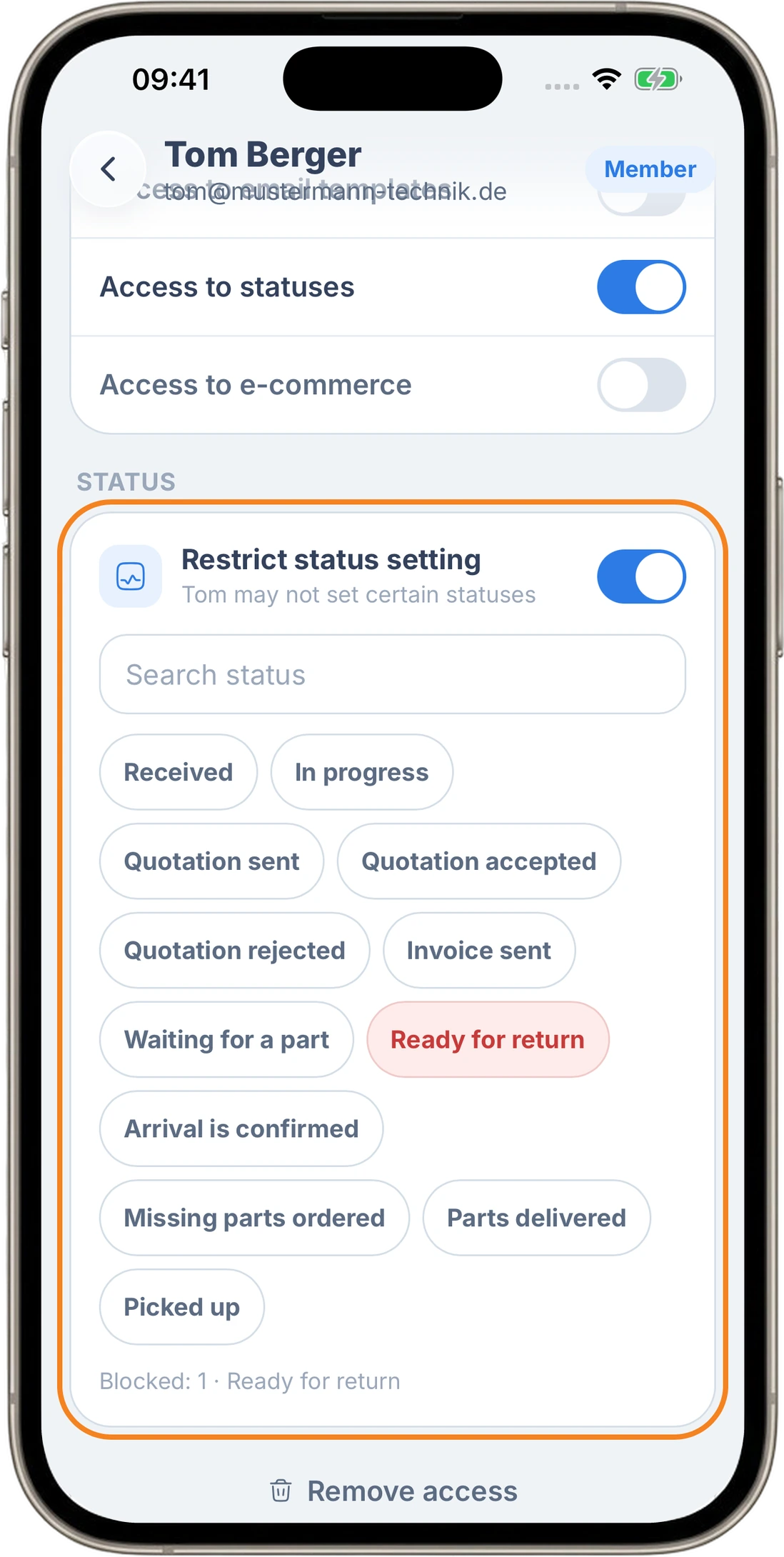
The line below the statuses shows how many are blocked and which ones. With no block, it says “No status blocked, Tom may set all of them”.
On a job in the RepairCMS app, Tom still sees the status, but it’s blocked.
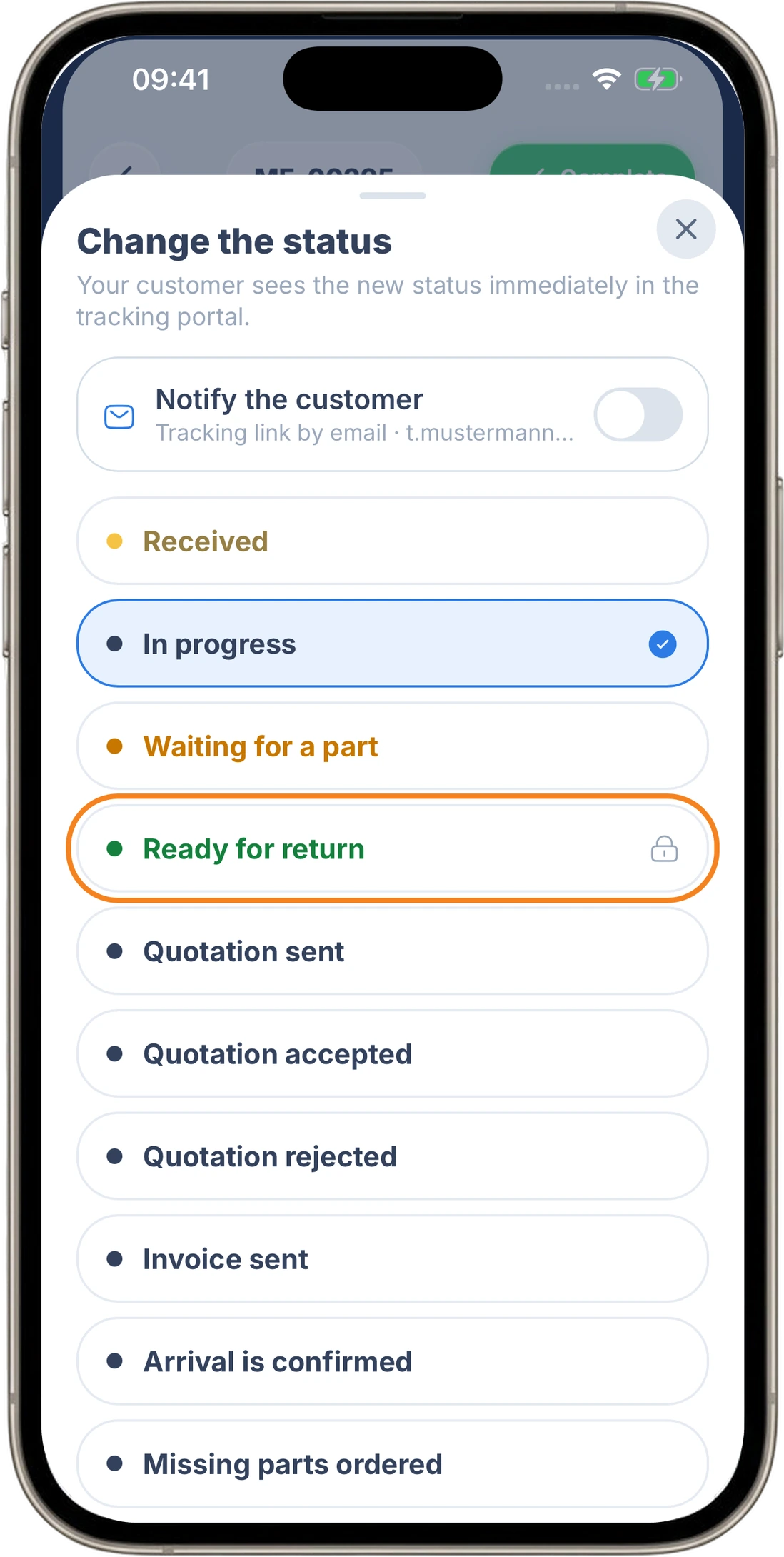
Tap the status again to allow it. If you turn the card off, you lift all blocks at once. This also applies when all statuses were blocked in the web app. The RepairCMS app shows that block, and once you turn the card off, the team member can set statuses again.
Who changes the block and who it applies to
The web app and the RepairCMS app use the same setting. What you block in one is blocked in the other.
Owners can’t be restricted, they always have all permissions. The RepairCMS app says so with the note “Owner permissions cannot be restricted”.
An admin changes the blocks of their team members in the RepairCMS app. For their own block, the app shows “Only the owner may change this”. An admin may view the owner’s row, but can’t change it.
What comes next
If you want to change what else a user can access, adjust their user permissions.
Frequently Asked Questions
Where do I choose which statuses a user can set?
In the web app, open “My RepairCMS”, then “Team Members”, and choose “Edit User” for the user. There you find the “Enable status setting” section. As the owner or an admin, you can also do this in the RepairCMS app, under “Team members & permissions” on the team member, with the “Restrict status setting” card.
Why is the switch on in the web app and off in the RepairCMS app?
Both mean the user can set every status. The web app switch is on because they may set statuses, and their list is empty. The RepairCMS app switch is off because no block is active.
Can I block all statuses for a user at once?
Yes, you do that in the web app. In “Edit User”, set the “Enable status setting” switch to OFF and save. The user then can't change any status. In the RepairCMS app, you block single statuses.
Why is a status missing from a user's selection?
The status is probably on their blocked list. In the web app, blocked statuses are missing altogether, and in the RepairCMS app they stay visible but blocked. If you want to allow the status again, click the X on the entry in “Edit User” in the web app and save.
Why can't a user set any status on a job?
The “Enable status setting” switch is probably set to OFF for them. Set it back to ON in “Edit User” and save. As the owner or an admin, you can also lift this block in the RepairCMS app by turning off the “Restrict status setting” card.
Does a block from the RepairCMS app also apply in the web app?
Yes, both use the same setting. What you block in the RepairCMS app appears in the web app in the field below “Enable status setting” for that user, and the same works the other way round.
Can an admin lift their own block?
An admin changes the blocks of their team members in the RepairCMS app. For their own block, the app shows “Only the owner may change this”.
Can I restrict the owner too?
Owners always have all permissions, so no status can be blocked for them. The RepairCMS app says so with the note “Owner permissions cannot be restricted”.
Did this guide help you?