
Repair Status app: what your customers see
On this page · 7 sections
With the Repair Status by RepairCMS app, your customers follow their repair on their phone. They see status and history, message you, decide on quotations and download invoices. The app shows your logo and your name, and with “Call” your customer reaches you directly. Your customers don’t need an account, only the link in your email or the QR code on the job receipt.
What your customers see
It’s one app for all repair shops. Inside, your shop is front and centre: your logo at the top, your contact details in the “Service info” tab. RepairCMS only appears at the bottom as “Powered by RepairCMS”.
| Area in the app | What your customer sees | Where it comes from |
|---|---|---|
| Repairs | Device, job number, status and history | your job, status in your wording |
| Repair (after the code) | Files & photos, job type, symptoms, device with IMEI | your job |
| Messages | Chat with you, quotations, invoices, review requests | your customer messaging on the job |
| Invoices | open, paid and cancelled invoices with PDF | your invoices to this customer |
| Service info | Address with “Route”, “Call”, email, website, opening hours, privacy policy, terms, legal notice | your settings |
When a job is set to “Ready for pickup”, the app shows your customer the screen “Your device is ready” once, with your address, your opening hours, “Route” and “Call”.
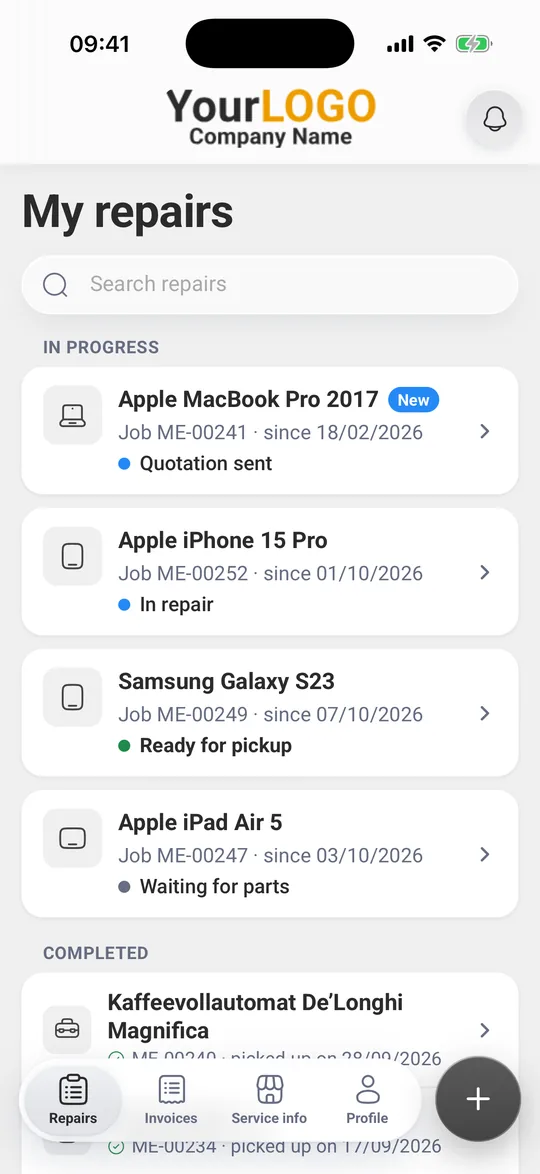
Your own status names: The app shows your own status labels. Whatever status you set on the job, your customer reads it that way in the app.
How your customers get into the app
- Your customer installs the app. On the phone it’s called “Repair Status”.
- They open the tracking link from your email, scan the QR code on the job receipt or add the link with “Paste link”. The links start with tracking.repaircms.com.
- Without any further step they see the job number, status and history.
- For details, photos, messages and invoices they request a 6 digit code. The app sends it to the email address or mobile number you have on file for this customer.
- One code covers all of this customer’s jobs at your shop. After that they stay signed in as long as they use the app.
Keep contact details up to date: Without an email address or mobile number on the customer, no code can be sent. The app then shows “No email and no mobile number on file” and offers “Call repair shop”. Once you add the details, your customer gets their code.
What you need
Your customers see status and history with Repair Tracking, which is included in all paid plans. If you need more, these building blocks bring the other features into the app:
| What your customer does in the app | What you need |
|---|---|
| See status and history | Repair Tracking, in all paid plans |
| Message you and send photos | Customer messaging, from Business |
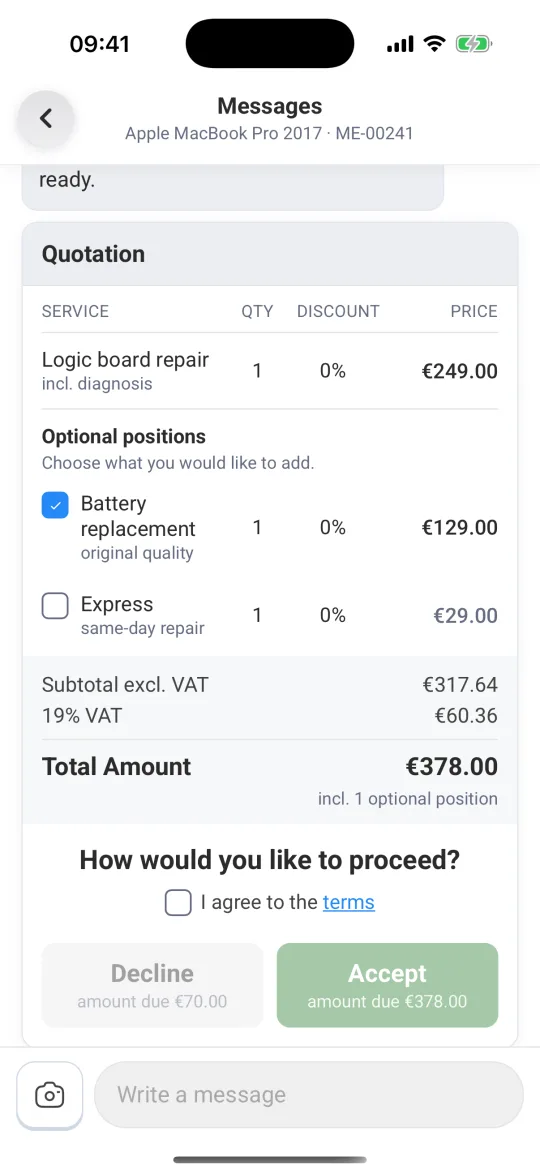
| Accept or decline a quotation | Quote management, from Business |
| Pay an invoice online | Ultimate FastPAY, in all paid plans, switched on by you |
| Pay a quotation online | Ultimate FastPAY and quote management from Business, plus online payment switched on in that quotation |
Online payment in the app
Your customers see the “Pay now” button as soon as Ultimate FastPAY is active for you and Stripe has verified your account. The payment runs through Stripe in a payment window inside the app. If Ultimate FastPAY is off, the app shows “You pay directly at your repair shop.” on invoices and quotations.
- Payment methods: You decide in your Stripe account which payment methods your customers see.
- Fees: Each online payment carries the Stripe fee plus €0.25. There is no base fee.
- Slower methods: For methods such as SEPA direct debit, the app shows “Payment is being confirmed” until Stripe confirms the payment. The invoice then moves to “Paid” in the app.
- Decline fee: If you set a fee for declined quotations, your customer sees the amount below “Decline” and then “Diagnostic fee due”.
What your customers decide themselves
- Notifications: Your customer allows them in the app. They get them, for example, for “Your device is ready”, a new message and a quotation.
- Signing out and deleting: If your customer signs out of your shop or taps “Delete data from this phone”, the data only leaves their phone. Everything stays with you.
- Language: The app comes in German, English, Danish and Swedish. Your messages stay as you wrote them.
Point your customers to the app
Help for your customers is in the “Repair Status app” category. You can pass on the start article directly: Repair Status app: keep track of your repair.
Frequently Asked Questions
Does my customer need to create an account for the app?
No. Your customer opens the link from your email or scans the QR code on the job receipt. For details, messages and invoices they confirm a code once, which the app sends to the email address or mobile number you have on file.
What does my customer see without the code?
The job number, status and history. Details, photos, messages and invoices open after the code.
Can my customer pay in the app?
Yes, as soon as Ultimate FastPAY is active for you and Stripe has verified your account. They then pay invoices with “Pay now” in the app. For quotations you also need quote management from Business and online payment switched on in the quotation.
What happens on my side if my customer deletes their data in the app?
Everything stays with you. Only the data on your customer's phone is deleted. If they open your link again later, their job is back and they confirm with a new code.
Did this guide help you?