
Set up the POS app on your iPad
On this page · 7 sections
You sign in to the RepairCMS POS app with your RepairCMS account, pick the location and give the iPad a name. You connect helloCash once on a computer in RepairCMS with the API token from helloCash, and the iPad then moves on by itself. Finally you connect the receipt and label printers or skip them, and the owner sets the first PIN.
You need: access to the register in your RepairCMS account, a helloCash account with API access for each location, and a location in Germany or Austria.
What do you need before you start?
- Your RepairCMS account with access to the register. The owner or an admin grants it in RepairCMS.
- A location in RepairCMS. Every register belongs to exactly one location.
- The helloCash account of that location with API access.
- A computer for the one-time connection with helloCash.
- Receipt and label printers, if you want to set them up right away. Both can wait.
How do you sign in on the iPad and pick the right register?
- Open the app and tap “Sign in”. Use the email address and password of your RepairCMS account.
- On “Which register is this device?” pick the location where the iPad stands. A tablet is one register at one location.
- On “What should this device be called?” give the iPad a name, for example “iPad intake”, and tap “Pair this device”.
- On “Which country is this register in?” pick Germany (TSE · KassenSichV) or Austria (RKSV).
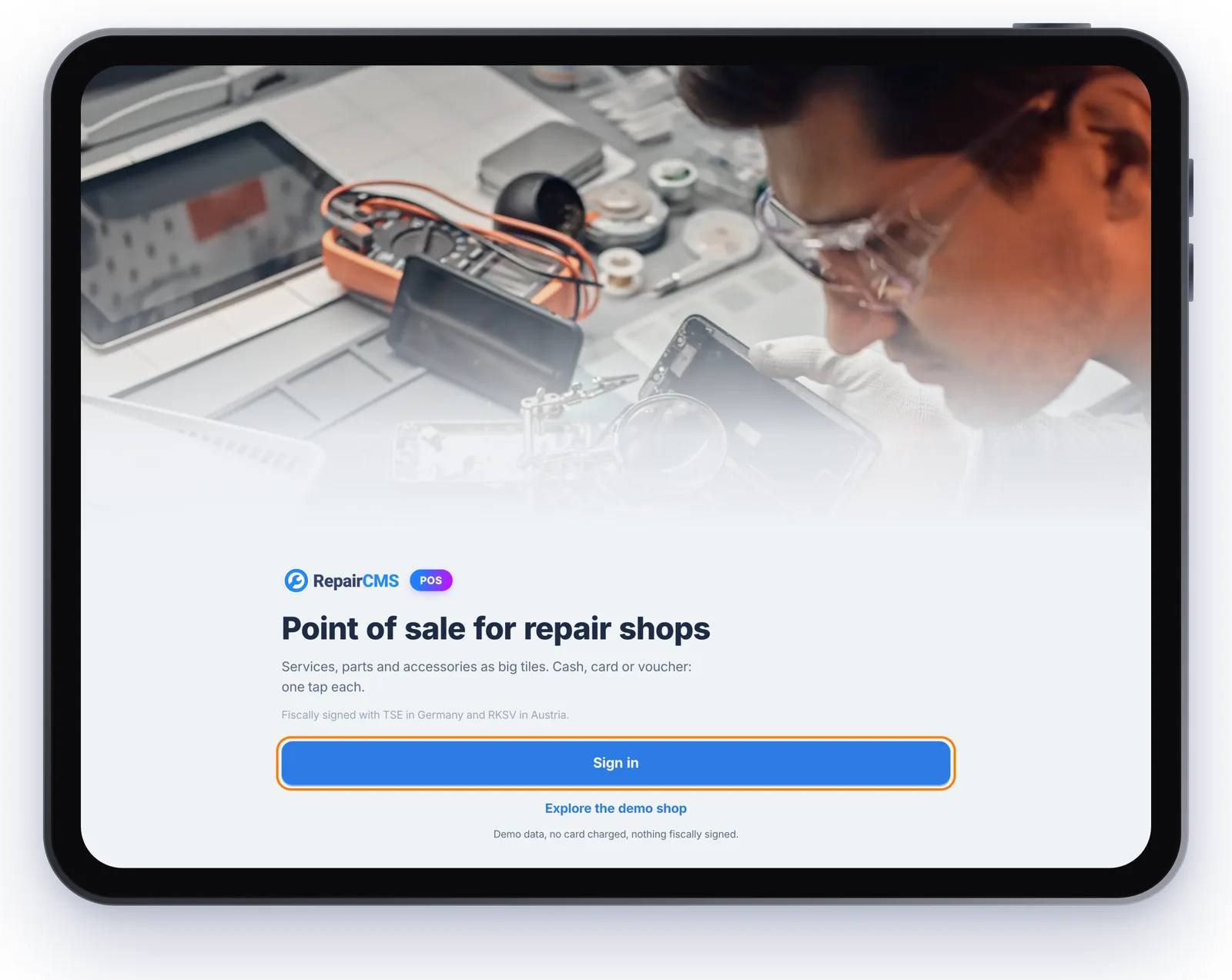
If your account uses two-factor sign-in, sign in once in the web app on this iPad, then return to the app. If you forgot your password, reset it in RepairCMS on a computer at my.repaircms.com.
If the register says “You don’t have access to the register yet”, ask the owner or an admin to give you register access in RepairCMS. If it says “No location is assigned to your account yet”, add a location in RepairCMS or have yourself assigned to one.
Where do you find the helloCash API token?
After the country step the iPad shows “Connect HelloCash first” with two items: a HelloCash account with API access and the integration switched on in RepairCMS. You do both on a computer:
- Open helloCash and go to Cash register › Settings › General › helloCash API. Tap “Generate token” and copy the token.
- Open RepairCMS on a computer at my.repaircms.com. Go to Apps › HelloCash POS and tap Activate.
- Tap Connect next to your location and paste the API token.
- Leave the iPad open. It says “This iPad is waiting for the connection. Once the integration is active, it moves on by itself.”
Once per location: You can pair several iPads as registers at one location. Each iPad gets its own name when you pair it. helloCash, test mode and go-live apply to the whole location and are set up once, not per iPad.
If you get stuck, tap “Ask for help” on the iPad and send us an email. If the register says “HelloCash region doesn’t match your location”, reconnect helloCash on the computer and pick your location’s country before you go live.
Once connected, the register starts in test mode. What that means and how you go live is covered in Test your register and go live.
Reconnect later: If helloCash ever rejects the stored token, the register tells you that the HelloCash connection was interrupted. Reconnect and paste a new token. “Where do I find this?” shows the path in helloCash again.
Can you connect printers now or later?
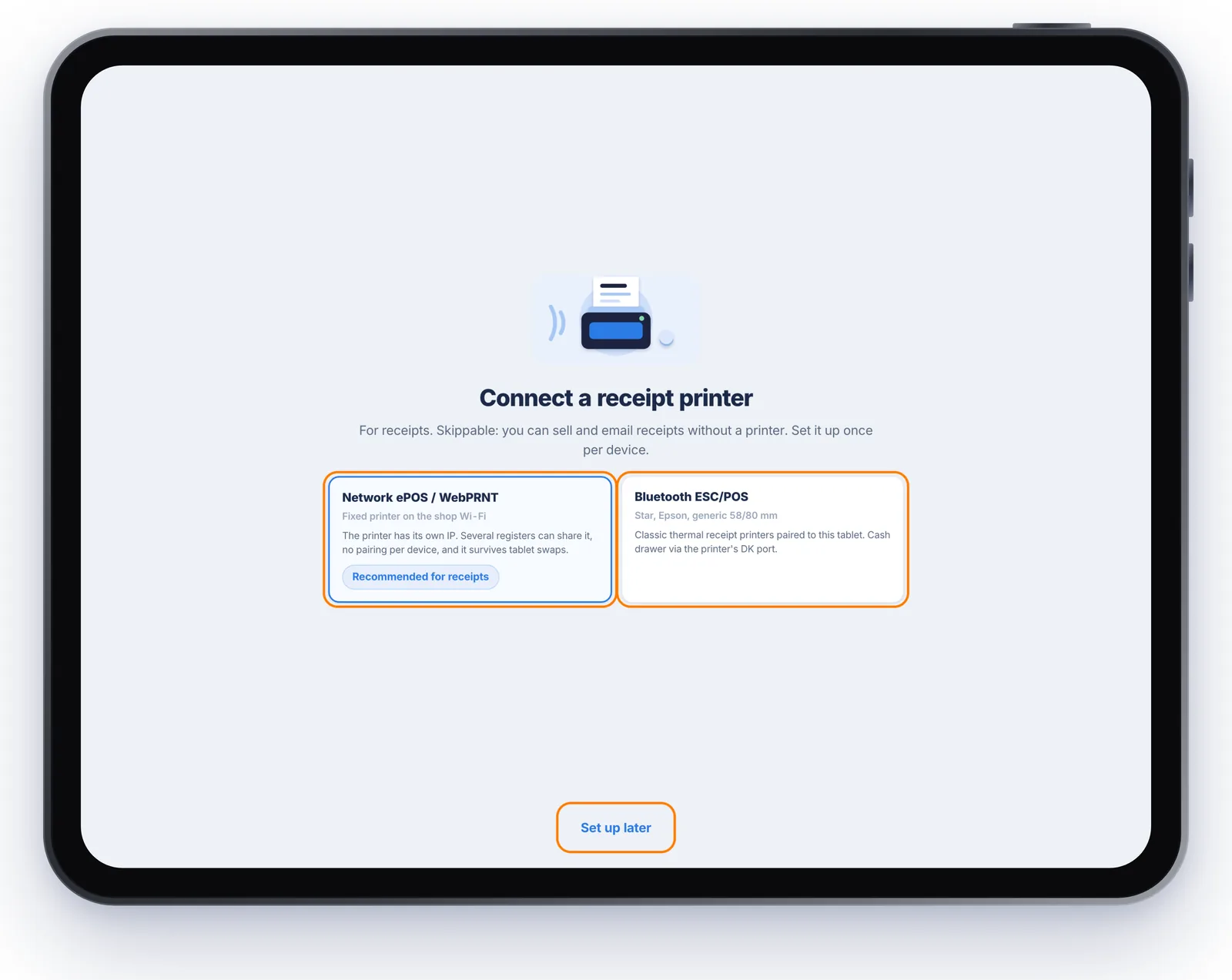
Both work. Setup takes you through “Connect a receipt printer” and then “Connect a label printer”. Skip either step with “Set up later”. Without a receipt printer you email the receipt.
At the end the register shows “Register ready” with the state of both printers. Tap “Open the register” to continue. The register asks for camera and local network access the first time it needs them. You can add printers later in the device menu under “Register settings” › “Hardware & printing”, explained step by step in Connect a receipt printer and cash drawer and Connect a label printer.
Who sets the first PIN?
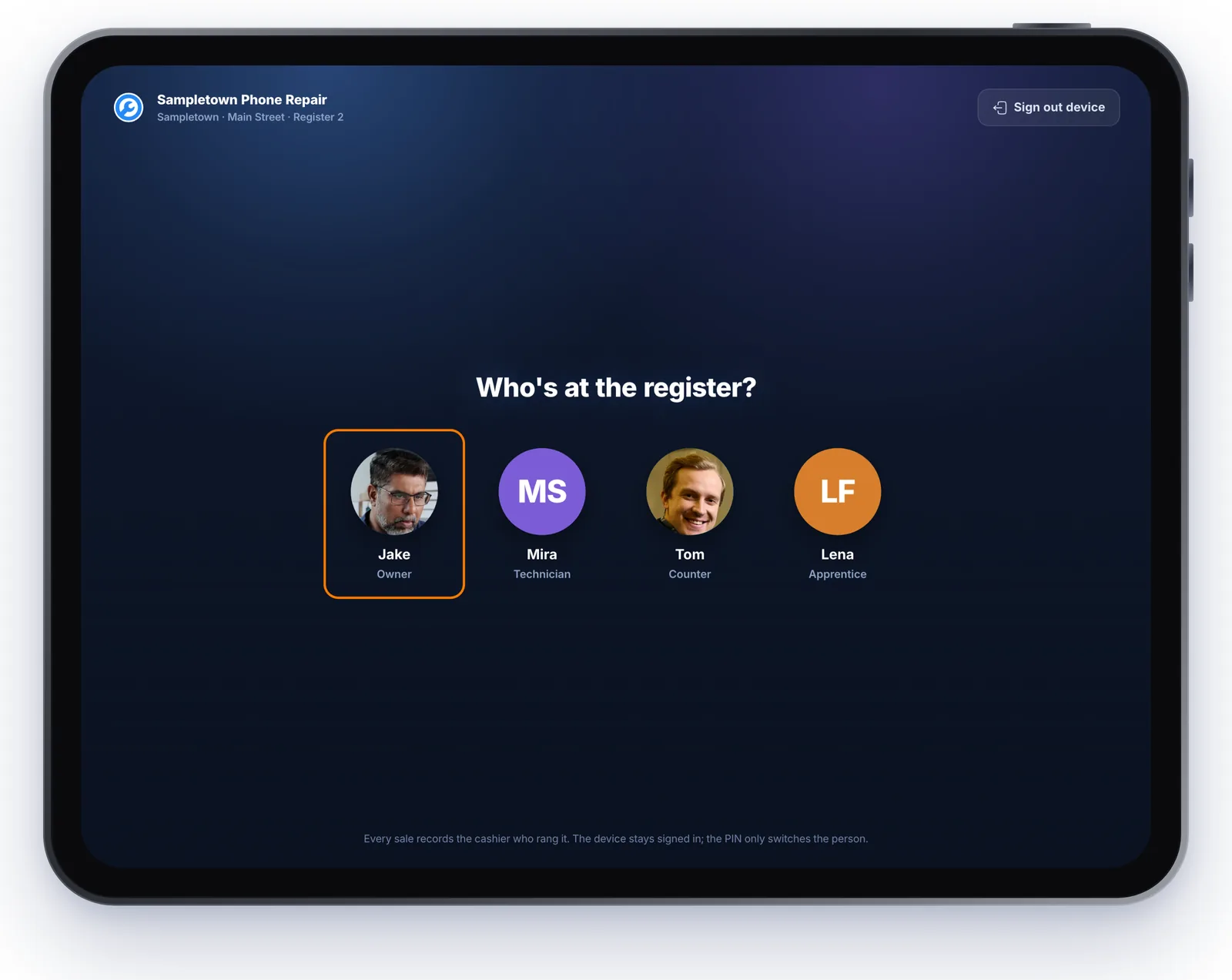
After “Open the register” the app asks “Who’s at the register?”. The owner sets the first PIN:
- The owner taps their name, picks four digits under “Create your register PIN” and repeats them.
- For a team member, tap their name. The register shows “No PIN yet”.
- Tap “Owner is here”. The owner enters their own PIN, then the team member picks a PIN and repeats it.
Four digits are allowed, but no run like 1234 and no four identical digits. Everything about PINs, switching users and forgotten PINs is in Switch users and reset a PIN.
What’s next
- Test mode and go-live: Test your register and go live
- Receipt printer: Connect a receipt printer and cash drawer
- Team: Switch users and reset a PIN
Frequently asked questions
Where do I find the helloCash API token?
In helloCash under Cash register › Settings › General › helloCash API. Tap “Generate token” there. Paste the token on a computer in RepairCMS under Apps › HelloCash POS next to your location.
Do I set up helloCash on every iPad?
You connect helloCash once per location on a computer. Every further iPad at this location uses that connection: you pick the location when signing in and give the iPad a name.
Can I use several iPads as registers at one location?
Yes, you can pair several iPads as registers at one location. Each iPad gets its own name when you pair it. helloCash, test mode and go-live apply to the whole location and are set up once, not per iPad.
Which register do I choose when I first sign in?
Under “Which register is this device?” pick the location where the iPad stands. Then give the iPad a name your team recognises, for example “iPad intake”.
Can I connect printers later?
Yes. Skip any printer step with “Set up later”. Later you add printers in the device menu under “Register settings” › “Hardware & printing”. Until then you email receipts.
Do I sign in on the iPad with my helloCash login?
On the iPad you sign in with your RepairCMS account. You only need helloCash once on a computer to create the API token. You enter the token in RepairCMS, not on the iPad.
Did this guide help you?