
What the RepairCMS iPad POS does and what you need
On this page · 7 sections
The RepairCMS POS app turns your iPad into the cash register of your repair shop. You sell items and services, take in repair jobs and charge them, take cash or card, refund receipts and close the day with a Z report. You need access to the register in your RepairCMS account, a helloCash account with API access for each location, and a location in Germany or Austria.
You need: access to the register in your RepairCMS account, a helloCash account with API access for each location, and a location in Germany or Austria.
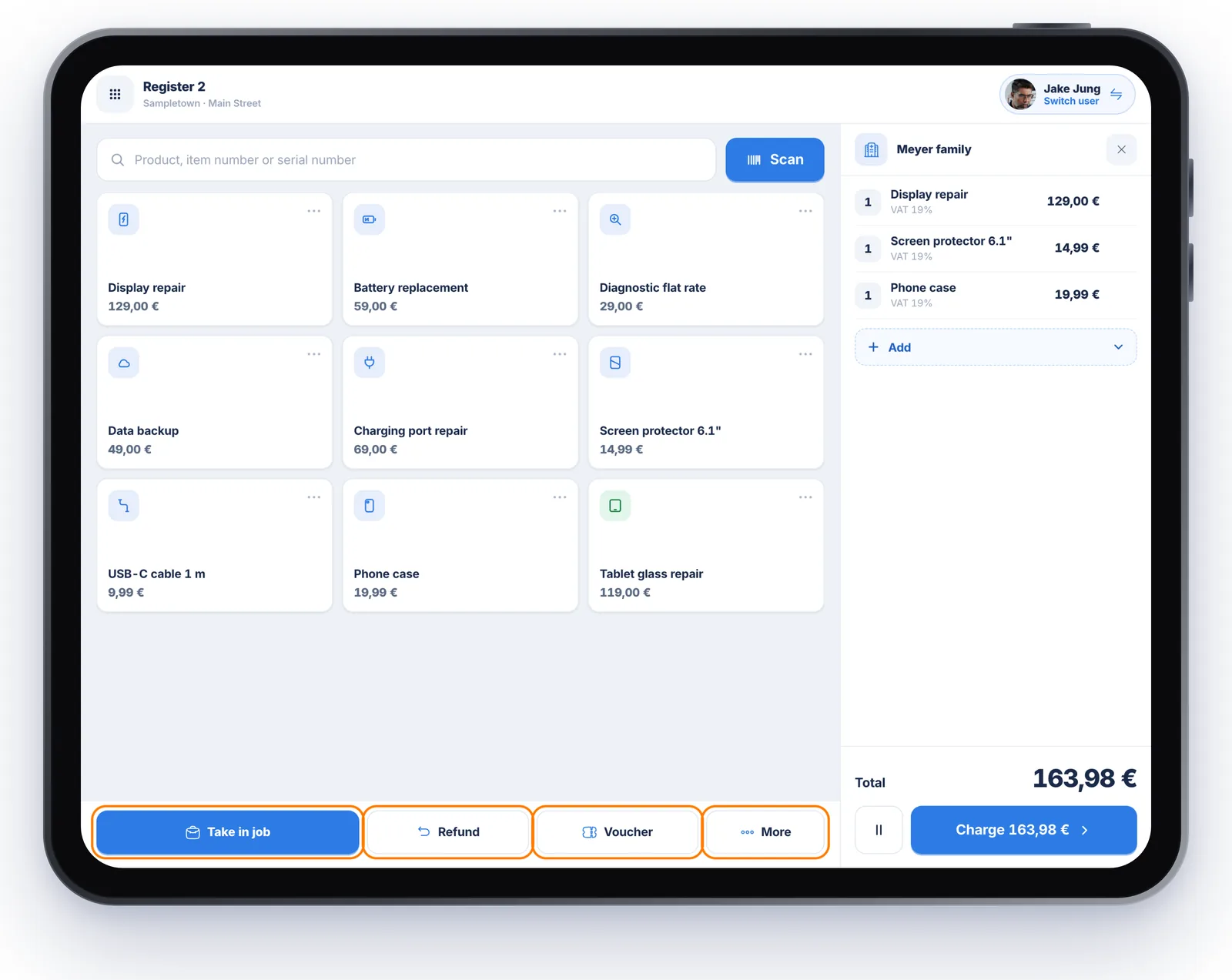
What do you do with the POS app on your iPad?
A customer picks up her repaired coffee machine and buys descaler on top. You scan the job code, the repair lines land in the cart with her name, and you tap the descaler tile. She confirms the pickup with her signature on the iPad and pays for both in one go.
| What you do | Where you find it |
|---|---|
| Sell items and services | Tiles, search and scanner on the sales screen |
| Take in a repair job, with a deposit | “Take in job” in the bottom bar |
| Charge a repair job | Scan the job code or search the job number |
| Take cash, card, voucher or a split payment | “Charge” |
| Refund a receipt | “Refund” in the bottom bar |
| Sell and redeem vouchers | “Voucher” in the bottom bar |
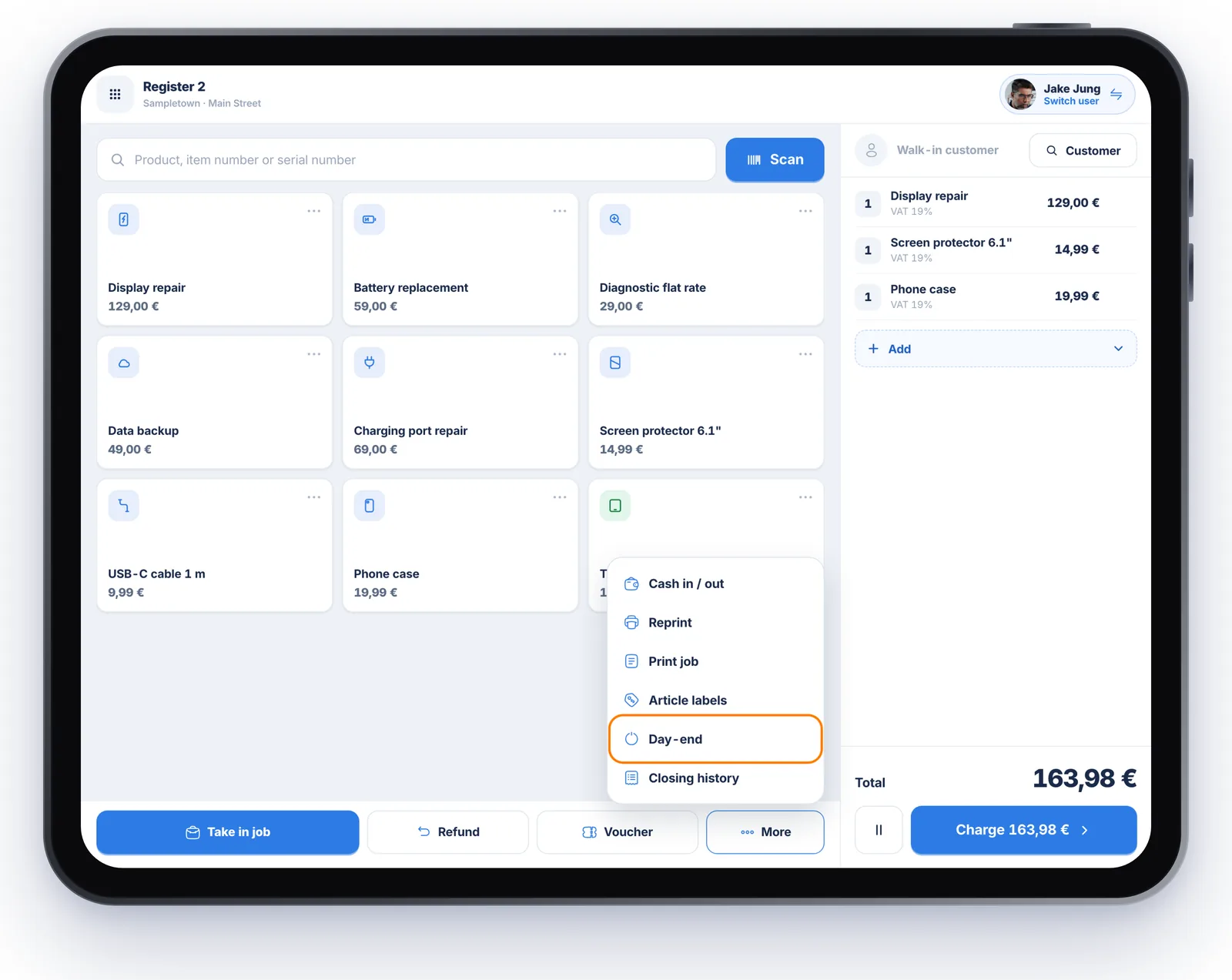
| Add float, take cash out | “More” › “Cash in / out” |
| Reprint or email a receipt | “More” › “Reprint” |
| Print a job sheet, receipt or device label | “More” › “Print job” |
| Print item labels | “More” › “Article labels” |
| Count the drawer and close the day | “More” › “Day-end” |
| See past closings | “More” › “Closing history” |
| Set up printers, card path, team and PIN | Menu button top left › “Register settings” |
How a sale runs step by step is covered in Make a sale and take cash.
What hardware do you need besides the iPad?
The POS app runs on iPad with iPadOS 15.5 or later, in portrait and landscape. It is not available for iPhone. The iPad is enough to sell, and you add the rest when you need it:
- Receipt printer: a thermal printer for 80 or 58 mm paper, over Wi-Fi or Bluetooth. Without a printer you email the receipt.
- Label printer: Brother, Zebra or Xprinter, as a device of its own next to the receipt printer.
- Cash drawer: connected to the receipt printer, it opens on sales with cash.
- Card terminal: SumUp Solo, PayPal Reader or Zettle Reader 2 (registers in Germany only), or your own terminal without a connection to the register.
- Barcode scanner: the iPad camera or a scanner that works as a keyboard over Bluetooth or USB.
How to connect them is covered in Connect a receipt printer and cash drawer, Connect a label printer and Use a barcode scanner with the POS. The card paths are explained in Card payments with SumUp, PayPal or your own terminal.
Why does a helloCash account belong to it?
In Germany and Austria every receipt from an electronic register has to be fiscally signed. The RepairCMS POS app does this through helloCash. That is why you connect a helloCash account with API access for each location.
You connect the account once on a computer in RepairCMS, not on every iPad. For testing the account is enough, signing is only needed for real receipts. Until the account is connected the register does not charge yet, but you can already explore the demo shop. How the connection works is covered in Set up the POS app on your iPad.
In which countries does the register sign receipts?
The register signs with a TSE under the KassenSichV in Germany and under the RKSV in Austria. During setup you pick your location’s country under “Which country is this register in?”. If your shop is in another country, the register shows “Not available yet”, and “Send request” lets us know.
How can you look at the register without an account?
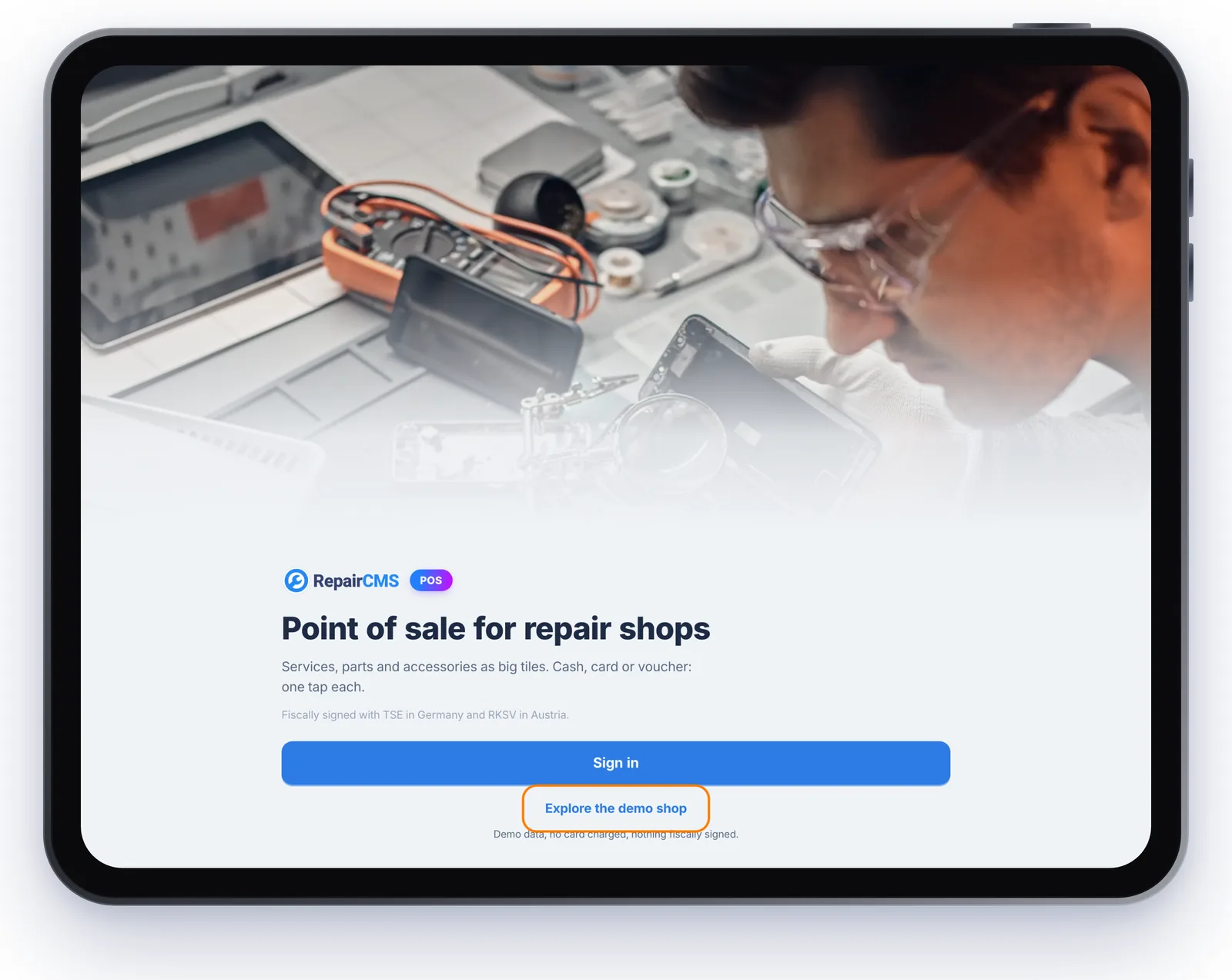
- Open the app and tap “Explore the demo shop”.
- Pick your trade. The demo offers phone, computer, bike, watch, coffee machine, TV, sewing machine and drone repair, among others, and then shows matching services, items and customers.
- Tap a person and enter the demo PIN 1234.
The bar at the top then reads “Demo shop · fake data. Nothing is charged and nothing is fiscally signed”. A few areas such as switching location say they only work with your real register, and the closing history shows “Not available in the demo”. To get back to the start, open the device menu and tap “Leave demo”.
What’s next
- Set up: Set up the POS app on your iPad
- Try it out, then go live: Test your register and go live
- First sale: Make a sale and take cash
Frequently asked questions
Can I use my iPad as a POS?
Yes, the RepairCMS POS app turns your iPad into a cash register. You sign in with your RepairCMS account, connect the location to helloCash, and then sell, charge and close the day right on the iPad. It runs on iPad with iPadOS 15.5 or later, in portrait and landscape.
Do I need a TSE?
In Germany the register signs every receipt with a TSE, in Austria under the RKSV. Both run through your helloCash account.
Do I have to register the POS with the tax office?
In Germany you must report your electronic register to the tax office within one month of purchase (§ 146a (4) AO). The form is in ELSTER.
What hardware do I need besides the iPad?
The iPad is enough to sell. Add a receipt printer for 80 or 58 mm paper, a Brother, Zebra or Xprinter label printer, a cash drawer on the receipt printer, a card terminal and a barcode scanner that works as a keyboard over Bluetooth or USB, as you need them.
Do I need a receipt printer?
A receipt printer prints the receipt right after payment, over Wi-Fi or Bluetooth. Without a printer you email the receipt to the customer. For that, attach a customer with an email address to the sale.
Can I keep my existing card terminal?
Yes, with the card path “Own external terminal”. You key in the amount on your terminal, charge there and confirm the payment in the register. The receipt is signed as a card payment. Matching it against your terminal's own report is up to you.
What is printed on the receipt?
The receipt shows your company header, the lines with VAT, the payment, the receipt number, who rang the sale and the QR code of the signature. A discount is printed with its reason. Receipts from test mode carry the TESTBELEG mark.
Did this guide help you?