
Card payments with SumUp Solo, PayPal Reader or your own terminal
On this page · 7 sections
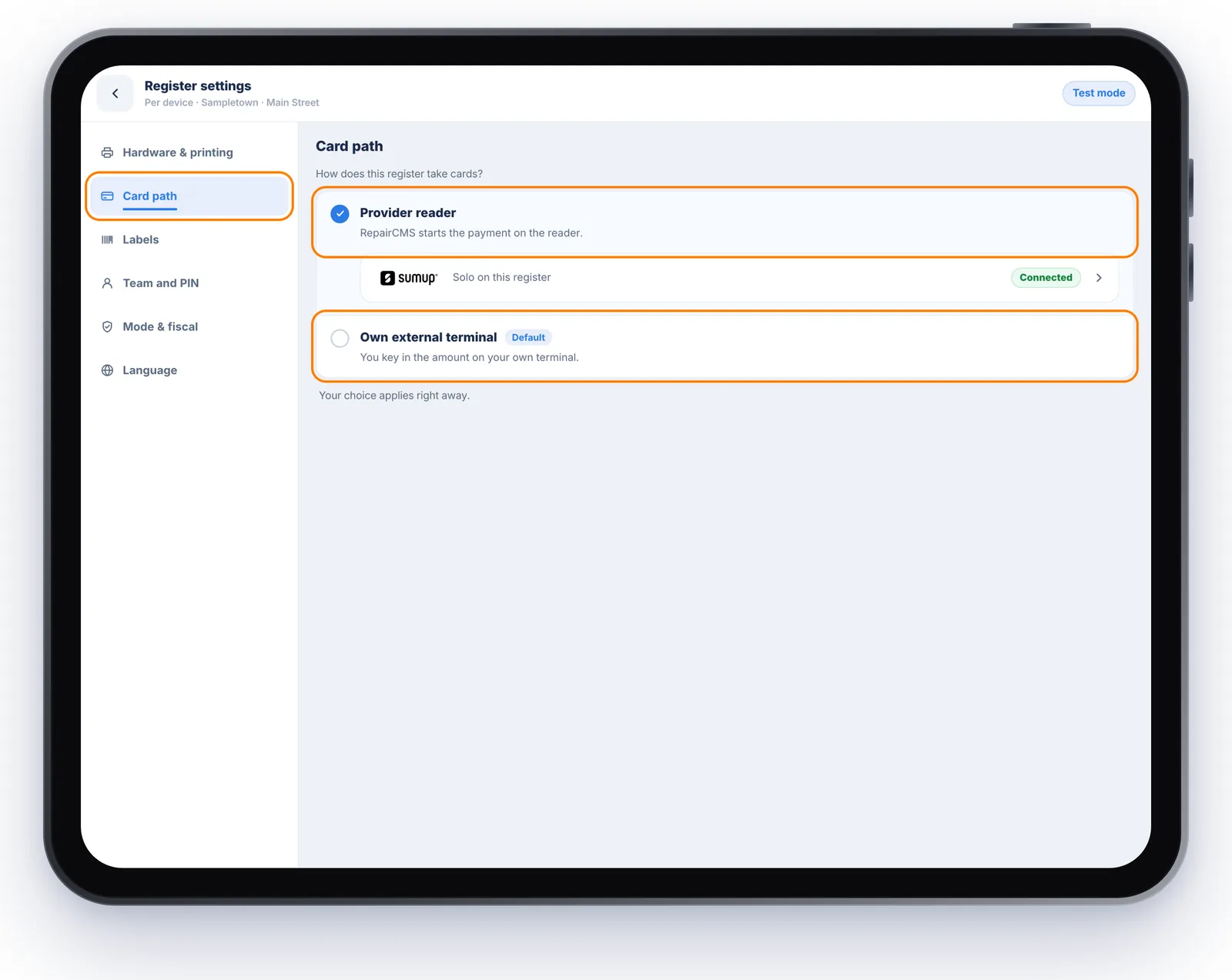
How the RepairCMS POS app takes cards is set per register under “Card path”. With the SumUp Solo or the PayPal Reader the register starts the payment on the device. With your own terminal you key in the amount there and confirm the payment in the register. Whichever path you use, the receipt is signed as a card payment, with a TSE or under the RKSV.
You need: access to the register in your RepairCMS account, a helloCash account with API access for each location, and a location in Germany or Austria.
Which card paths does the register offer?
Open the device menu with the menu button top left, tap “Register settings” and then “Card path”. The register asks for the owner’s PIN. Under “How does this register take cards?” pick a path. Your choice applies right away.
| Card path | Devices | How a payment runs | Refund on cancellation |
|---|---|---|---|
| “Provider reader” with SumUp | SumUp Solo, SumUp account from Germany or Austria | The register sends the amount to the Solo | automatically to the card |
| “PayPal Point of Sale” | PayPal Reader or Zettle Reader 2, registers in Germany only | The register starts the payment on the reader | automatically if the same iPad took it |
| “Own external terminal” (default) | any card terminal, no connection to the register | You key in the amount on the terminal and confirm in the register | on the terminal itself |
Whichever path you use, the receipt is fiscally signed. SumUp and PayPal only handle the card payment.
How do you pair the SumUp Solo?
First you connect your SumUp account, then you pair the Solo.
Connect your SumUp account
- Pick “Provider reader” and tap “Set up SumUp”.
- Under “Connect your SumUp account” paste your secret key into the field “SumUp API key”. It starts with `sup_sk_`. “Paste” takes it from the clipboard.
- Tap “Connect SumUp”.
You create the key in your SumUp account: in the SumUp dashboard open Settings › API keys, create a new key and copy the secret key. “Where do I find the key?” shows these steps in the register too.
Pair the Solo reader
- Tap “Pair Solo reader”.
- On the Solo, log out of the SumUp account (Settings › About › Logout).
- Swipe down on the Solo, open Connections and connect it to Wi-Fi.
- On the Solo, select API › Connect. The Solo shows a pairing code.
- Enter the code in the register under “Pairing code”, give it a name under “Reader name” and tap “Pair Solo reader”.
The code expires after a short while. If it lapses, restart pairing on the Solo. The Solo then shows up in the list with “This register”, and “Test” checks it.
Under “Checkout behaviour” you choose whether the customer picks a tip on the Solo (“Ask for a tip on the reader”), whether the receipt number goes along as a reference, whether the SumUp card slip prints as well, and whether the payment cancels after 60 seconds without a card. Then tap “Save”.
How do you connect the PayPal Reader or Zettle Reader 2?
Registers in Germany can use “PayPal Point of Sale”. It works with the PayPal Reader and the Zettle Reader 2.
- Have your PayPal account with PayPal Point of Sale ready.
- Pick “PayPal Point of Sale” and tap “Set up PayPal”.
- Tap “Log in with PayPal” and allow access. The login applies to this iPad.
- Pair the reader under “Manage readers”. That window comes from PayPal.
With “Ask for a tip on the reader” the customer chooses the tip on the reader.
Can you keep your card terminal without connecting it?
Yes, with the card path “Own external terminal”, which is the default. At a bike workshop with a terminal from its bank, a card payment runs like this:
- Tap “Charge” and pick “Card”.
- Key the amount into your terminal and let the customer pay there.
- Once the terminal shows the payment as approved, tap “Charge” in the register. Below it, it says “Card charged on the terminal”.
- Confirm “Payment received on your own terminal?” with “Yes, payment received”.
The register then creates the same fiscally signed receipt as for any card payment. It does not see the card transaction itself. Matching it against your terminal’s report at the end of the day is up to you. In the day-end closing these payments show as “Card (external)” under non-cash, not in the drawer, see Close the day with a cash count and Z report.
What happens if the terminal does not answer?
| Message | What to do |
|---|---|
| “Card declined” | Nothing was booked. Try again or tap “Pay cash”. |
| “No answer from the terminal” | Wait. Before the next step the register asks SumUp whether it was already paid. Do not charge again before the answer is in. |
| “Not paid” on the PayPal Reader | PayPal has no result yet. Check again in a moment instead of charging again. |
If a card was charged but the receipt was not created yet, the register brings that sale up first the next time you charge. You finish it before anyone charges again.
What’s next
- Refund a card payment: Refund a receipt and handle returns
- Mixed cash and card: Make a sale and take cash
- Card total in the evening: Close the day with a cash count and Z report
Frequently asked questions
Which POS systems work with the SumUp Solo?
The RepairCMS POS app works with the SumUp Solo. You connect your SumUp account with the API key and pair the Solo with its pairing code. The register then sends every card amount straight to the Solo.
Can I keep my card terminal without connecting it?
Yes, with the card path “Own external terminal”. You charge on the terminal and confirm the payment in the register, and the receipt is signed as a card payment. Matching it against the terminal report is up to you.
My card reader won't connect. What now?
Check on the Solo that it is logged out of the SumUp account and connected to Wi-Fi, then restart pairing with API › Connect. The pairing code expires after a short while. For the PayPal Reader, pair again under “Manage readers”.
Does a SumUp account from Austria work?
Yes. The register connects SumUp accounts from Germany and from Austria, both in euros.
Does PayPal Point of Sale work in Austria?
In Austria you take cards with the SumUp Solo or your own terminal. The register offers PayPal Point of Sale for registers in Germany.
How do I refund a card payment?
Cancel the receipt in the register. With SumUp the register refunds the card automatically, with PayPal too if the same iPad took the payment. With your own terminal you refund on the terminal. The steps are in [Refund a receipt and handle returns](LINK:A7).
Did this guide help you?